
Microsoft SQL Server Automation: Agent vs Other Tools

Nov 16, 202617 min read
Running backups, index maintenance, data loads and alerts on a schedule or trigger, without someone clicking through them, is what Microsoft SQL Server automation means.
For most of that work, SQL Server Agent plus T-SQL or PowerShell is enough, even if a few jobs eventually reach into other systems through a workflow tool like Activepieces.
As of 16 November 2026, an outside tool only pays for itself when the job has to reach other applications.
SQL Server automation basics
The fastest path for each common task
When the work is database-internal, such as backups, integrity checks, index rebuilds and statistics updates, it belongs in an Agent job running T-SQL. Nothing else is needed, and nothing leaves the server.

File moves, patching checks and anything that touches the operating system fit a PowerShell script, because it can reach the file system and Windows services where T-SQL can't.
Posting a failed-job notice to a chat channel, creating a ticket or syncing rows to a CRM is a different job. Those cross into other apps, which is the one case where Activepieces is worth the extra moving part, with 750 integrations to reach them.
SQL Server Agent, PowerShell and external workflows compared
Start with the Express and Azure SQL columns, because they decide which routes are even available to you.
The table below sets the three routes side by side on what each is best at, where it runs, and whether it works on Express and Azure SQL.
| Route | Best use | Where it runs | Express support | Azure SQL support | Setup effort |
|---|---|---|---|---|---|
| SQL Server Agent | Scheduled in-database jobs: backups, maintenance, alerts | Inside the SQL Server instance | No, Agent is not included | Not in Azure SQL Database; Managed Instance includes it | Low |
| PowerShell/T-SQL scripts | OS-level tasks and scripted admin across servers | Any host that can reach the server, scheduled by the OS | Yes, via Windows Task Scheduler | Yes, over a network connection | Medium |
| External workflow tool (Activepieces) | Chaining database steps to other apps, across 750 integrations | Its own host or cloud service | Yes, through a database connection | Yes, through a database connection | Medium to high |
On Express, Agent is gone and you must schedule scripts externally, so the scripting route becomes your default rather than your fallback.
Which editions and Azure services support which route
Before you plan the jobs, look at the edition limits, which shape how much automation a single server can carry. Per Microsoft's edition datasheet as hosted by Sharper Software, Standard is capped at 24 CPU cores, Web at 16 and Express at 4.
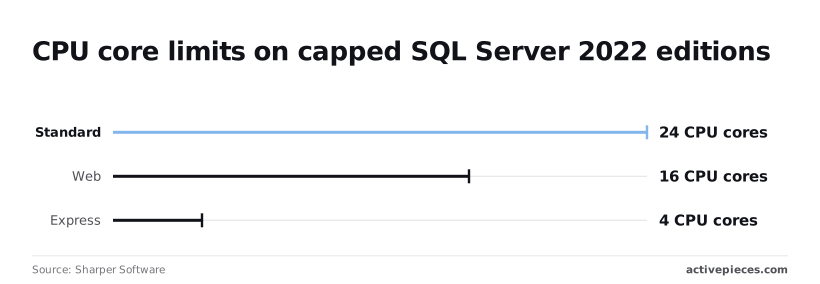
Those caps mean a heavy maintenance window on Express competes with your workload for four cores, so schedule index rebuilds off-peak and keep jobs light.
On Standard's 24 cores, per Sharpersoftware, there's room to run maintenance beside production traffic, though large rebuilds still deserve a quiet hour.
At 16 cores, Web edition, per Hotfixtools, sits between them and still includes Agent, so it needs no workaround.
Azure SQL Database has no Agent at all, which pushes scheduling to elastic jobs, Azure Automation or an outside runner. The chart that follows plots these three core caps together, which means you can see them all without switching charts.
The fastest way to settle a shortlist is to try one. Activepieces is free to try, no credit card.
Stage 1: Create a SQL Server Agent job that runs on a schedule
You build a SQL Server Agent job in SSMS under SQL Server Agent, Jobs, New Job, and it is a named set of steps plus a schedule.
This stage ends with a job that writes one row to a log table, which you confirm in Job History.
Open SSMS and confirm the Agent service is running
Connect to the instance and look at the SQL Server Agent node in Object Explorer. If it carries a stopped icon, right-click it and choose Start.
Then set the service's startup type to Automatic in SQL Server Configuration Manager, because a job on a manual-start service simply doesn't fire after the next reboot, and nothing tells you.

If the node is missing, you're on the wrong edition for this approach, because Express edition has no Agent at all.
Add a T-SQL step that writes one row
Create the target first, in a database you own rather than master:
CREATE TABLE dbo.JobLog (
 LogId int IDENTITY(1,1) PRIMARY KEY,
 RanAt datetime2 NOT NULL DEFAULT SYSDATETIME(),
 JobName sysname NOT NULL
);
Right-click Jobs, choose New Job, and name it. On the Steps page, add a step of type Transact-SQL script and paste INSERT dbo.JobLog (JobName) VALUES (N'Stage1Test');.
Check the Database field before you save. It defaults to master, and the insert will fail there with a plain "invalid object name" error that sends you hunting in the wrong place.
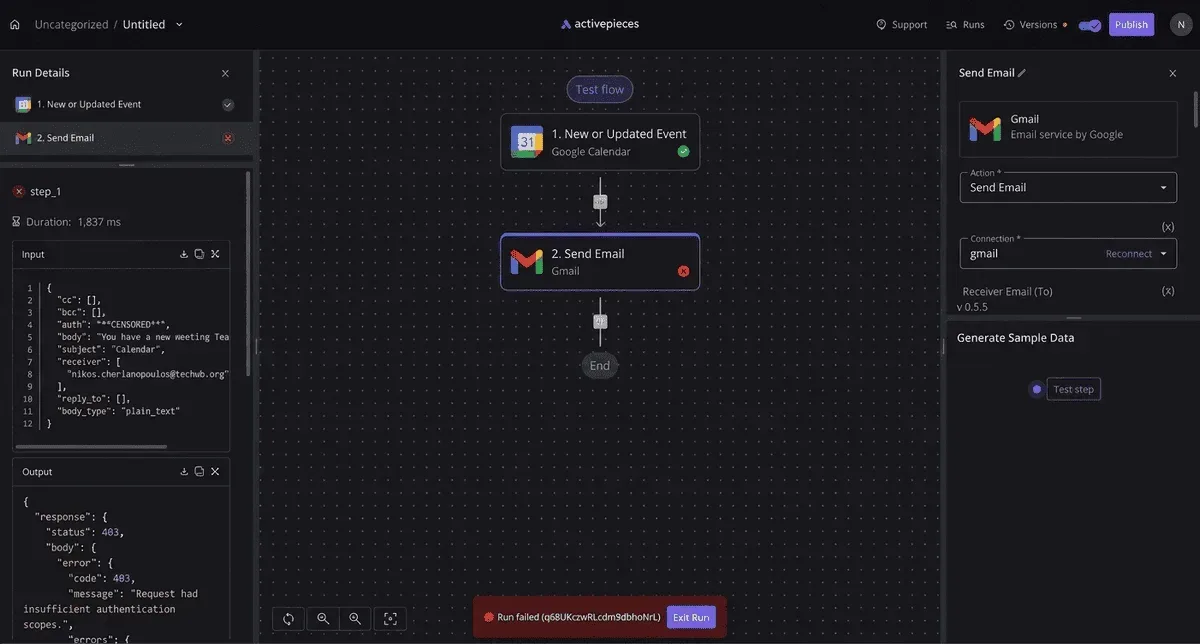
Add a schedule and run it once manually
On the Schedules page, create a recurring schedule, daily at a time you can watch. Save the job, then right-click it and choose Start Job at Step to run it now instead of waiting.
Open View Job History from the same menu. A green tick on the job row means the job ran. Expand it and click the step-level row, which holds the actual message from the step. Then run SELECT * FROM dbo.JobLog; and confirm a row exists.
Check both, because Agent thinking it succeeded is not the same as the work happening. The history tells you the first, and the table tells you the second.
Set up SQL Server Agent failure email notifications
Under SQL Server Agent, Operators, create a new operator with an email address. Notifications by email depend on Database Mail being configured, and on Agent being pointed at a mail profile in its Alert System properties.
Without those, the operator saves happily and never sends anything.
Back in the job, open the Notifications page and tick Email, pick the operator, and set the condition to "When the job fails".
To prove it works, temporarily change the table name in the step to something that doesn't exist, run the job, and wait for the message. Then put the correct name back.
Stage 2: Script the same job with T-SQL and PowerShell
You can rebuild the job you just renamed in the Agent GUI from four msdb procedures and one PowerShell call. Once it's a script, a second server gets the identical job instead of a hand-clicked approximation of it.
The order matters, because each call depends on the one before it.
Create the job with msdb stored procedures
Because Agent stores everything in the msdb database, the GUI is only a front end for its procedures. Call them in this order:
sp_add_jobcreates the empty job and gives it a name. Nothing runs yet.sp_add_jobstepattaches the T-SQL command, the database it runs in, and what to do on success or failure. Skip the failure action and a broken step can end the job silently.sp_add_jobscheduleattaches the schedule by job name. A job with no schedule only runs when someone starts it.sp_add_jobservertargets the job at a server. Forget this one and the job exists in msdb but never fires, which is the most common reason a scripted job "does nothing."- Run the whole script on the new server with
Invoke-Sqlcmd.
Save the script as a .sql file with one job per file.
If you want it safe to rerun, check msdb.dbo.sysjobs for the name first and drop the old job before recreating it.
Otherwise a second run either fails on a duplicate name or leaves two jobs doing the same work, so you can't safely run it twice.
Run SQL Server scripts with PowerShell Invoke-Sqlcmd
To run the script, use Invoke-Sqlcmd, which ships in the SqlServer PowerShell module. Point it at the target instance with -ServerInstance, hand it the script with -InputFile, and the four procedures execute there.
Loop it over a list of server names and you have a rollout.
Check the connection encryption and certificate settings in the module's current documentation before you run it against production. Those defaults have changed between module versions, and a script that worked last year can fail on a connection error today.
Run it under a login that can write to msdb. A job created by the wrong owner will exist, but it may not have the permissions its steps need.
Automate SQL Server on Linux with sqlcmd
Where PowerShell isn't installed, the sqlcmd command-line utility does the same work.
Pass the server with -S, the login with -U, and the same .sql file with -i. That's the route for a Linux host or a container build, where the script can run as a startup step.
In a container, Agent is not necessarily on, and it has to be running on that instance for the job to fire. Confirm that before blaming the script.
Now the job lives in a file you can version and rerun. The next question is what Agent can't reach, and that's where an external tool starts to matter.
Reading a table only gets you so far. Build the same workflow in Activepieces and compare it yourself.
Stage 3: Send SQL Server results to other apps with Activepieces
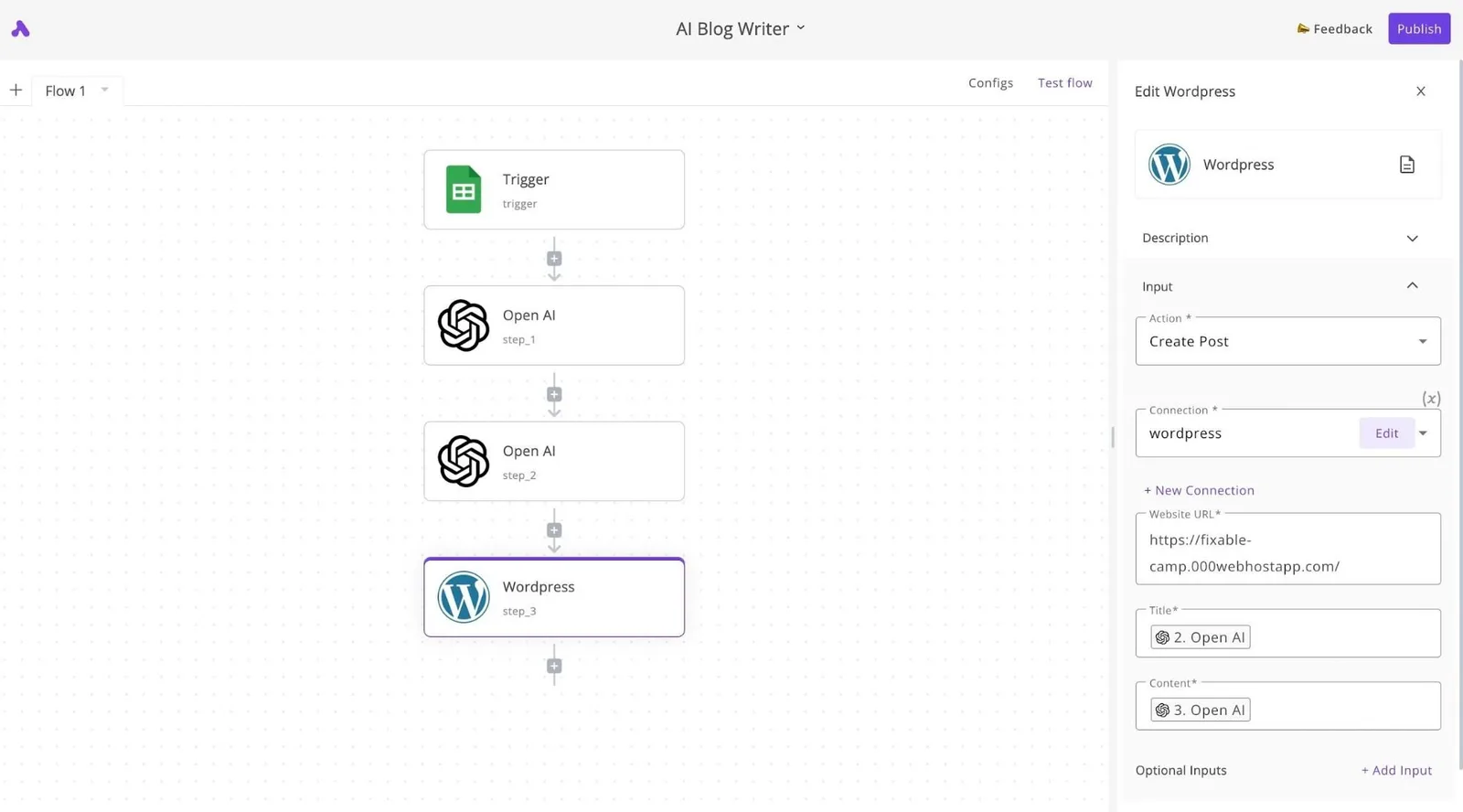
Use Activepieces when a query result has to land somewhere SQL Server can't reach on its own, such as a Slack channel or an inbox. The flow is a schedule trigger, a Microsoft SQL Server query action, then a message step.
MoneyGram, Moneypenny, Alan and FundingSocieties run Activepieces in production.
Index rebuilds, backups and integrity checks stay in Agent, because nothing in them leaves the database.
If the app you need to reach has no connector, Activepieces lets you generate one with AI and add it privately to your own instance, so no vendor release stands in the way.
The 750 integrations in the catalogue are counted from the packages/pieces/community directory of the open source monorepo on GitHub (25,549 stars), and roughly 60% of them were contributed by the community, meaning most of the integrations available here are built by volunteer developers.
The core is MIT-licensed, while the enterprise directories in packages/ee/ carry a separate commercial licence.
Create a read-only SQL login for the workflow
Give the workflow its own login rather than borrowing a DBA account. Create the login, map it to a user in the one database the query reads, and add that user to the db_datareader role.
If the workflow is ever misconfigured, the worst it can do is read what you already allowed.
You will trip on two prerequisites. The instance must accept SQL authentication (mixed mode), since a Windows-only instance rejects a username and password.
And Activepieces must have a network path to the instance, which means TCP/IP enabled and a firewall rule for the host where Activepieces runs.
A cloud-hosted workflow can't see a server that only answers inside your LAN, though the MIT-licensed core can be self-hosted on a machine inside it.
Add the schedule trigger and the SQL query action
Start with the Schedule trigger and set the interval. Then add the Microsoft SQL Server integration and choose its query action.
The connection asks for the server address, database, and the login and password you just created.
Match those fields against what your Activepieces version shows, since integrations change between releases; the integrations' source lives in the packages/pieces/community directory of the monorepo, where you can read it.
Nothing in the builder tells you yet that the connection works. It shows a Schedule trigger labeled "Every Hour" selected, a settings panel with a "Run on weekends" toggle, and a Generate Sample Data result that passed. That passing test proves the trigger fires.
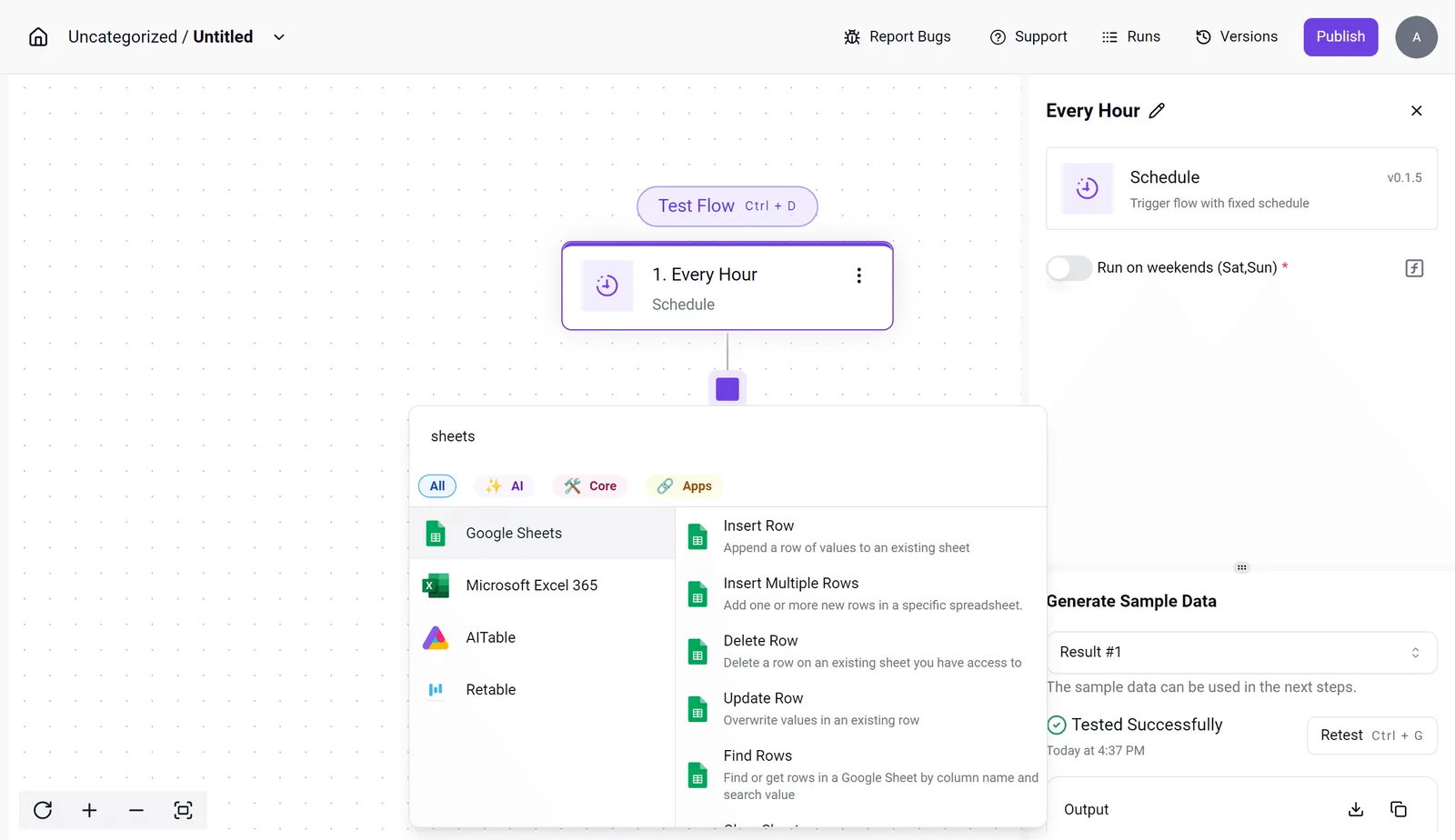
Picking the next step opens an integration selector, and it's worth ignoring the spreadsheet integrations that crowd the first results. You want the SQL Server integration, then a Slack or email integration.
Paste in a query that returns a small, already-aggregated result, such as failed job names from the last day. Run the step's test and check the sample output: the column names there are what you'll reference downstream.
Post the result to Slack or email
Add the Slack integration's send-message action, pick the channel, and build the text from the query step's output fields. Map the specific columns you need rather than dumping the whole row set. An unfiltered result pasted into a channel gets muted within a week.
For email, the same mapping applies to the subject and body. Use whichever your team actually reads.
Finish by running the full flow once by hand. One query result, posted to one channel, is the whole point. If that works, publish the flow and let the schedule take over.
SQL Server automation errors and fixes
When automation fails, the cause is most often permissions, a stopped Agent, a blocked network path, or settings that silently discard history.
A schedule only helps if the thing running it is alive and allowed to act, and the table maps each symptom to its cause.
| Symptom | Cause | Fix | Microsoft doc |
|---|---|---|---|
| Job step fails with a permission error | Step account or proxy lacks rights | Create a credential and proxy, grant the subsystem, add the login | Create a SQL Server Agent proxy |
| Jobs never fire | Agent service stopped or set to manual | Start it, set startup to automatic | Start, stop, or pause SQL Server Agent |
| No Agent node at all | Express edition ships without Agent | Use Task Scheduler with sqlcmd or PowerShell | Editions and features of SQL Server |
| Error 18456 | Bad password, disabled login, or inaccessible default database | Read the state code in the error log | MSSQLSERVER_18456 |
| Old job runs missing | History row caps overwrite them | Raise the history limits | Job history log settings |
| Alert emails never arrive | Database Mail off or no Agent mail profile | Enable it, set the profile, send a test | Database Mail |
| Cannot connect remotely | TCP/IP disabled or port 1433 blocked | Enable TCP/IP, restart, open the port | Configure the server to listen on a TCP port |
| Timeout expired | Slow query or short client timeout | Tune the query, then raise the timeout | Troubleshoot query timeouts |
| No Agent in Azure SQL Database | Agent isn't offered there | Use Elastic Jobs or an external scheduler | Azure SQL Database job automation |
Read it left to right: the symptom tells you which layer to check first, so you're not guessing.
Job fails or never starts
If nothing runs, check the Agent service before anything else. If a step fails, check the account it runs under. Proxy errors usually mean the credential exists but was never granted to the subsystem the step uses.
On Express edition, which has no Agent, and on Azure SQL Database, which has none either, the scheduler has to live elsewhere. Azure SQL Managed Instance is the exception that does include it.
SQL Server login and connection errors
When you see error 18456, a generic "login failed", read the state number in the server error log. It carries the real reason, so read it instead of resetting passwords at random.
If remote connections time out, confirm TCP/IP is enabled and port 1433 is open end to end. A timeout in a flow often means a slow query, not a network fault.
SQL Server Agent history and alert gaps
Go looking for a failure from last month and it may already be gone, because default history caps overwrite old runs. Raise the limits or export history on a schedule. Email alerts need Database Mail and an Agent mail profile; without both, failures stay silent.
A timeout in a flow often means a slow query, not a network fault.
Check the version too. Per the Microsoft lifecycle page, extended support ends in 2026 for SQL Server 2016, so that instance is at or past the end of security fixes.
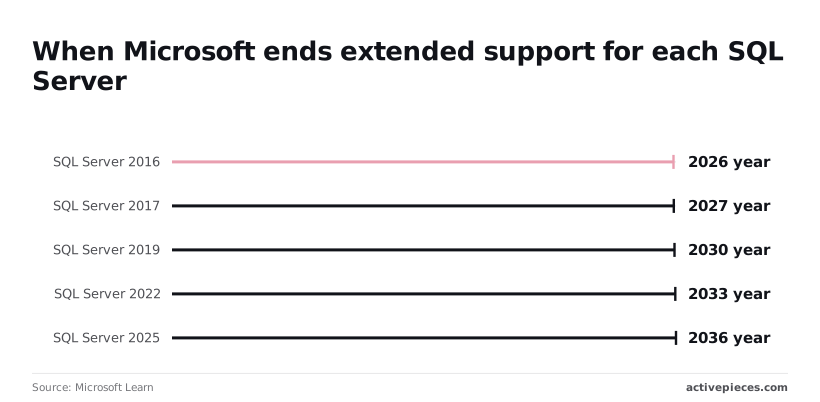
For 2017, extended support ends in 2027, so plan the upgrade now. For 2019 it ends in 2030, for 2022 in 2033, and for 2025 in 2036, so those give you years of patched automation.
Frequently asked questions
Can I automate SQL Server Express without SQL Server Agent?
Yes. Express doesn't run Agent jobs, so you schedule the same T-SQL from outside the engine. Put the script in a .sql file or a PowerShell script using Invoke-Sqlcmd or sqlcmd, and trigger it with Windows Task Scheduler.
You lose Agent's job history and alerting, so have the script write its own log and exit with a failure code Task Scheduler can see.
How do I automate backups in SQL Server?
Write a BACKUP DATABASE statement, or a maintenance plan, and run it as a scheduled Agent job. That covers full, differential and log backups on whatever cadence your recovery targets need.
Add a restore check to the schedule, such as RESTORE VERIFYONLY at minimum. A backup you've never restored is a file you hope is a backup. On Express, use the Task Scheduler route above.
Does Azure SQL Database support SQL Server Agent jobs?
No. Azure SQL Database has no SQL Server Agent. The Microsoft-hosted alternatives are Elastic Jobs, Azure Automation runbooks, and scheduled pipelines in other Azure services.
On Azure SQL Managed Instance, though, an Agent is included, with some restrictions on job step types and settings.
Check the Managed Instance T-SQL differences page before you migrate a job-heavy estate. Elastic Jobs are built for Azure SQL Database targets, so don't plan on them as the Managed Instance answer.
Is Task Scheduler with PowerShell a good substitute for Agent?
It's a fair substitute where Agent doesn't exist, and a poor one where it does. Task Scheduler runs the script, but it has no step-level retry, no operator notification and no job history stored in msdb.

It also lives on a Windows host, not in the server, so a rebuilt instance doesn't bring its schedules back.
Mind the credentials too: use a dedicated account with only the permissions the script needs. If Agent is available, use it, and call PowerShell from a job step when you need the scripting.
What should I automate first on Monday?
Automate the backup-and-restore-check cycle first, then failure notification on every job. Backups protect the data, and notification means you find out when automation breaks before a user does.
After that come index and statistics maintenance and integrity checks. Before any of it, check the version on each instance. A 2016 instance is already past end of support, so patched automation there means upgrading first.
Related reading
References
Still comparing
The fastest way to settle it is to build something.
Open source under MIT, so you can self-host the same thing later.
Start free Talk to sales