Picsart MCP: What It Is and How It Works (2026)

Nov 15, 202615 min read
Picsart MCP is a Model Context Protocol server that exposes Picsart's image tools, such as background removal, upscaling and image generation, to an AI chat. The chat can call those tools itself instead of you opening Picsart.

Each call it makes is a real edit that uses real credits.
How Picsart MCP works with AI chat
What MCP means in one paragraph
Model Context Protocol is an open standard for letting a chat model call outside tools through a server that sits between the two. The server lists what the tools are and what inputs they take, and the chat sends requests in that format.
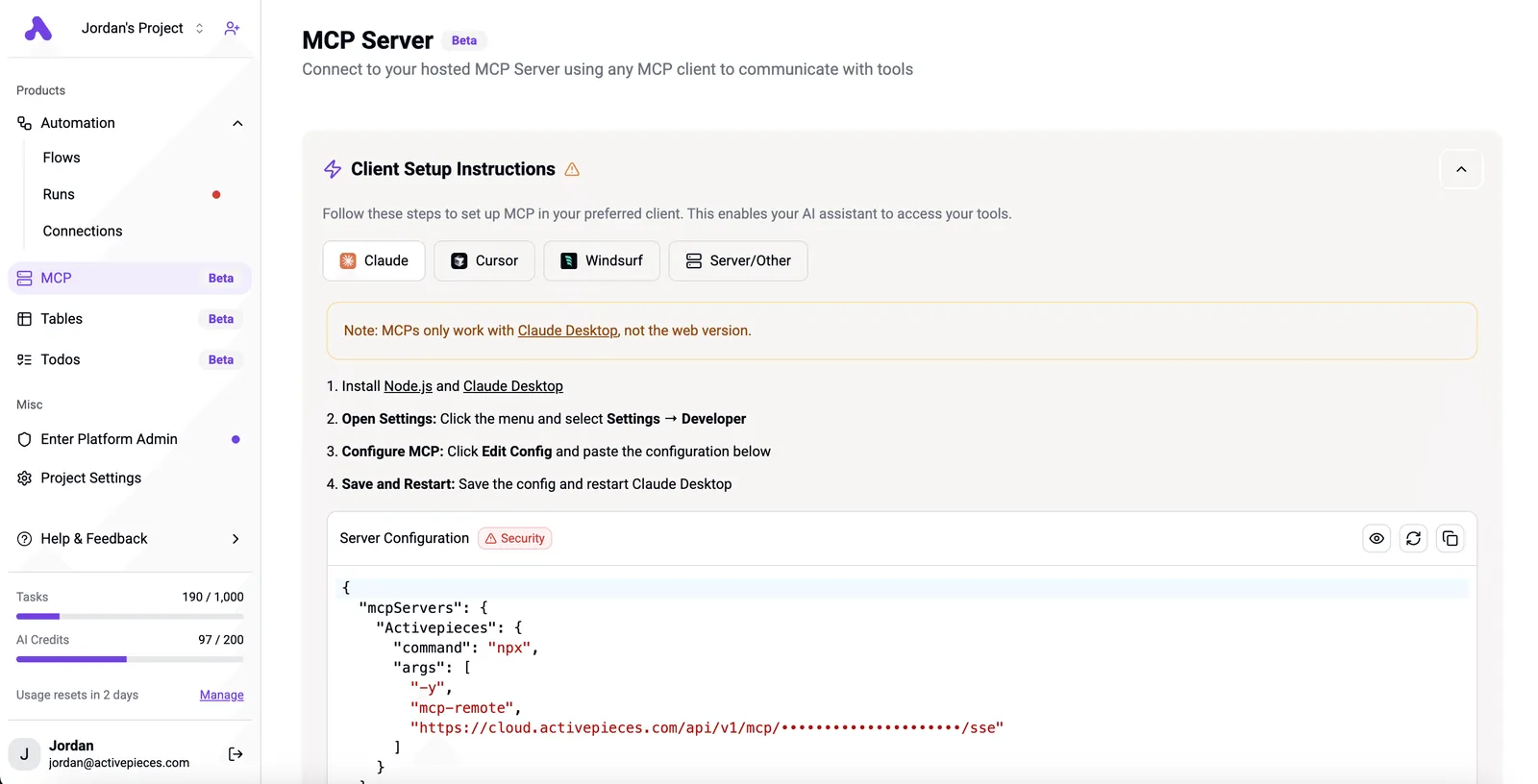
MCP isn't specific to Picsart; Activepieces runs its own per-project MCP server, so the 750 integrations in its open source monorepo can be called from a chat the same way.
When the chat sends a request, the Picsart server translates it into a call to Picsart's tools and returns the finished image.
The flow runs left to right: the chat window sends a request to the MCP server, the server passes it to the Picsart tool, and the resulting image travels back along the same path.

Whether a request is sensible is not something the server decides. It carries out what the chat asks for, which is why the settings you choose before the first run matter more than the connection.
The scenario this article follows
Follow one illustrative case through the rest of this article: a batch of product photos queued through a chat for background removal, then upscaling. The connection worked on the first try, and that was the problem. The chat kept submitting edits without pausing.
At 4:52 pm the batch broke, with the credit balance drained and some files processed under the wrong instructions. Nobody was watching at that moment, so there was no point at which a person could have stopped it.
Nothing in that failure was a bug in MCP or in Picsart. It was the absence of limits, and the sections that follow cover which ones to set and where.
Nobody was watching at that moment, so there was no point at which a person could have stopped it.
Everything below works on Activepieces' free plan. Start without code or a credit card.
How Picsart MCP Connects to Your AI Chat
Budget about thirty minutes for the connection: add the Picsart server in your chat client's connector settings, authenticate, and confirm the tool list. Once connected, the chat can spend credits, so the controls in the later sections apply from the first call.
You need a chat client that accepts remote MCP servers and a Picsart account. Nothing else is required, but do the steps in this order so you see exactly what the chat gains access to:
- At 9:00, open the client's connector or MCP settings and choose to add a new server.
- At 9:10, paste the Picsart MCP server address from Picsart's documentation.
- At 9:15, add the API key or sign in (see below).
- At 9:25, read the tool list the chat now shows.
- At 9:30, stop. Run nothing until limits are set.

Picsart MCP authentication and API key setup
If the client offers a field for a key, use it; if it offers a prompt, sign in. Either way, the credential decides whose credits the chat spends.
Use a dedicated key rather than a personal one, so you can revoke it without breaking anything else. Where the docs are silent on key scoping, assume the key can do everything the account can.
What the chat can now call
By 9:25 the tool list is already large.
According to the Picsart MCP CLI docs, it holds 88 video models, 72 image models, 31 audio models and 69 text and JSON models.

88 of the models are video, the largest group, and video generation is usually the costliest kind of call. A vague "make a few variations" request is therefore the likeliest way to burn credits.
With 72 image models, the chat has many ways to do the same job, so pin the model you want rather than letting it choose.
Picsart MCP CLI docs identifies the 31 audio models as the smallest group, but they are still reachable from the same prompt.
You may not notice the 69 text and JSON models running at all: they mostly handle structured output and are the likeliest to be called in the background.
Those groups plus the text and JSON models total 260 models, and the next section covers where to cap them.
What an uncapped Picsart MCP batch costs you
When an uncapped batch goes wrong at 4:52 pm, it costs you in three units. They're images you must redo, credits already spent on the bad ones, and the hours spent working out which is which.
What the batch was supposed to do
Nothing about the task was unusual. It was to send a folder of product photos through the chat, have it call Picsart's background removal and resize tools on each one, and collect the results before close of business.

Nobody set a ceiling on calls, and nobody required a preview of the first result. The chat was told to do the whole folder, so it would.
What happened during the Picsart MCP batch
Because the first few outputs looked acceptable, nobody checked further. The chat kept calling tools at its own pace and never paused to ask whether the output still matched the brief.
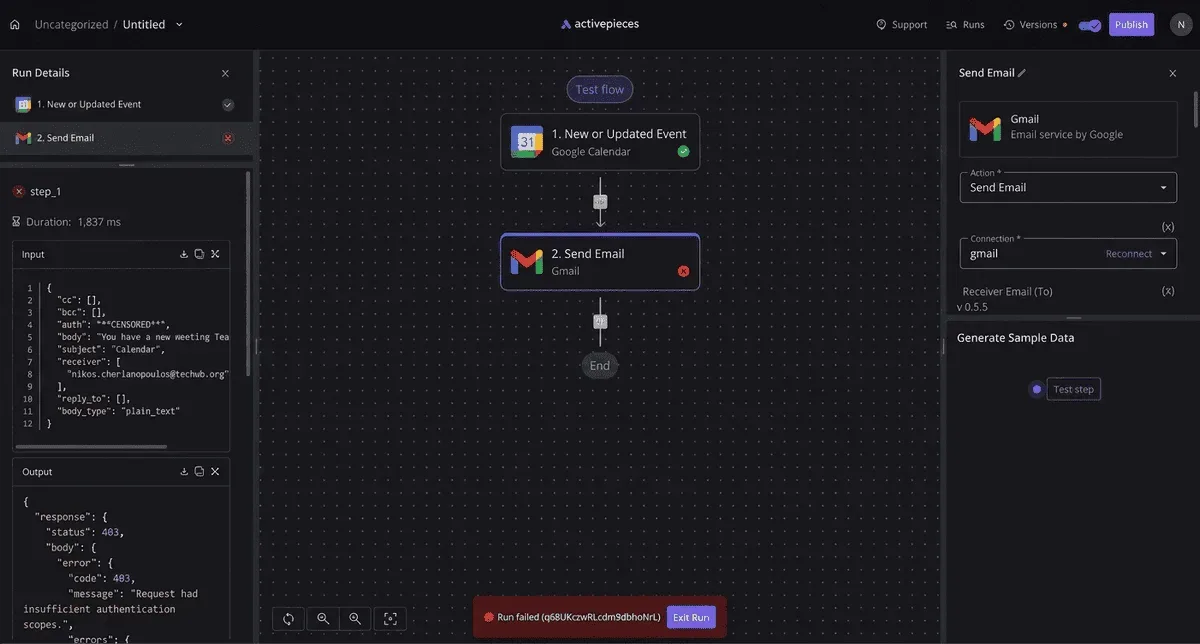
Some images came back with the subject clipped, and others never came back at all.
Every call, good or bad, drew credits. Nothing in the connection distinguishes a wasted call from a useful one, so the meter ran the same either way.
The bill in images, credits and hours
Read the table for how the loss breaks down. The quantities are illustrative because your batch size will differ, but the structure holds for any run.
| Row | Quantity (illustrative) | Unit | Cost at the Picsart price per image |
|---|---|---|---|
| Images requested | The full folder | images | Price per image × the whole folder |
| Images wrong or missing | The share that failed | images | Price per image × the failures, already spent |
| Credits or calls spent | One per attempt, plus each retry | credits | Price per image × every attempt, not only the good ones |
| Hours redoing | Time to audit, then rerun | hours | Staff rate × hours, plus a second round of credits |
Take from this that the failed images are paid for twice: once when they fail and again when you rerun them. The hours are a separate line that no Picsart invoice will show you.
The next step is deciding which limits would have stopped the run before the first bad image.
Easier to see it running than to read about it: set it up free, no card.
Why the Picsart batch job failed
By the time it broke, five controls were missing, and they bit in this order: a vague prompt, no single-image test, unread credit and rate limits, an over-broad key, and no review before publishing. Each cause below was avoidable with one setting or one habit:
- A prompt that named no model, size or output rule
- No single-image test before the batch
- Documented credit and rate limits nobody read
- An API key with more access than the job needed
- No human review before anything was published
The first two are about how the chat was used, the last three about what it was allowed to do.
Treating the chat as a batch tool
"Clean up these product shots" was all the chat had, and it read that as permission to pick its own model and settings for every image. Without a single-image test, nobody saw the output until hundreds existed.
Model choice alone moves the bill. The chart below sets the per-image price of each model the chat could have picked, so read it as the spread between a careful default and an unguarded one.
Check the figures against the Picsart models page and Picsart's pricing; the table adds the cost of 500 images alongside:
| Model | Price per image | 500 images |
|---|---|---|
| Recraft Flash | $0.007 | $3.50 |
| Seedream 5.5 | $0.02 | $10 |
| Fast Flux 3 | $0.0226 | $11.30 |
| Recraft V4.1 | $0.035 | $17.50 |
| Grok Imagine 2.0 | $0.044 | $22 |
| Styles Vector | $0.088 | $44 |

About 12.6 times the cheapest model is what Styles Vector costs for the same 500 images. A chat left to choose can land on the expensive end without telling you.
Limits and key scope
Nobody read the documented limits, and the run exceeded both the credit limit and the rate limit. The credit limit means a mistaken batch keeps spending until the balance is gone. The rate limit means retries pile up and fail in bulk.
Set a spend ceiling and a batch size before the first call, not after the first invoice.
More access than image edits required: that is what the key had, so the chat could do things nobody had asked for. Scope the key to the tools the job uses.
An admin view shows what a key did afterward; it doesn't stop the call. Only a review step stops bad output reaching publication.
Rules Added After the Picsart MCP Incident
To make that review step enforceable instead of optional, six controls apply in order across the run, and each one blocks a specific failure.
One image before ten. Run a single image through the full edit and inspect it. A bad instruction repeated across a batch costs the whole batch.
Set a hard credit cap. Use a spending limit on the Picsart account, not a sentence in the prompt. The chat will keep calling tools until something external stops it, and a prompt isn't external.
Scope the key and keep it out of shared chats. Issue a key with the narrowest access available, and never paste it into a thread others can read.
An admin view shows what a key did afterward, but it won't always tell you who used it.
For test passes, point the chat at a cheaper model such as Claude Haiku 5.5. The model only decides which tool to call, so the cheaper one usually costs less per attempt without changing the edit.
Unless you name the tools in the prompt, the model picks them itself, and an unrequested upscale or generation call spends credits you never budgeted. Say which Picsart tools the chat may use, for example background removal only.
Review, logging and where MCP fits
Before anything is published, a human checks it: someone opens every output and approves it. The chat reports success when a call returns, not when the image is correct.
When the balance drops unexpectedly, the log is the only way to find which run caused it, so keep a run log. Record the prompt, the tools called, the image count and the credits used.
For one-off edits and tests, where a person is watching and the volume is small, Picsart MCP is a good fit.
It suits repeat jobs poorly: a recurring batch needs fixed steps and predictable cost, and a chat that interprets its instructions fresh each time can't guarantee either.
How Activepieces Handles Repeat Image Jobs
Activepieces moves the fixed steps out of the chat: you define them once in a flow, and a repeat batch runs the same way every time, across 750 integrations and with unlimited flows on every plan, including free.
I haven't confirmed it ships a Picsart connector, so nothing below assumes one.
When a chat is the wrong tool
When a chat decides its steps at run time, the same instruction can produce a different sequence of edits, and a different bill, on Tuesday than it did on Monday. For a job nobody is watching, that's the wrong property.

Whether a flow can reach Picsart depends on whether a Picsart integration exists among those 750 integrations, which are listed in the packages/integrations/community directory of the open source repo.
If none is there, the flow would have to reach Picsart some other way, and you should confirm that path before building around it.
What a scheduled Picsart image workflow adds
You choose three settings in advance, and they replace interpretation in a flow. The trigger decides when the job starts: a clock time, or a file landing in a folder.
The approval step pauses the run until a person signs off. The spending limit caps how many items one run may process.
An SDK hands an agent code to run, but it gives that agent no tenant, no role and no audit log, and the 4:52 pm batch is what that gap looks like in practice.
The chat was treated as a script, when it should have been treated as a user with a defined role.
Activepieces puts an agent under the same access model as your staff, so RBAC, SSO and SCIM govern which apps it may connect to, not only what a person may open.
Each tool call it makes is its own entry in the run detail, with its own input and output, so you can find the call that went wrong.
A cap on item count is still something you build into the flow yourself, so don't assume a billing-level control exists.
If you want to know what ran and when, the run history tells you; that is what admin visibility buys you. It doesn't stop a bad batch by itself. The approval step does that.
| Job | Chat with Picsart MCP | Workflow with trigger, approval step and spending limit | Which fits |
|---|---|---|---|
| One-off edit | You watch each result and stop when satisfied | Setup effort outweighs a single edit | Chat |
| Test | Fast to rephrase and compare outputs | Too rigid while you are still deciding the steps | Chat |
| Scheduled job | Nothing starts it, and steps can drift between runs | Clock trigger, fixed steps, capped run | Workflow |
| File-arrives job | Someone has to notice the file and ask | Trigger fires on arrival, approval gates the spend | Workflow |
Where you are present, chat is cheaper to run; where you are absent, the flow is, so the split is by supervision. That leaves the order of work, which is to prove the edit in chat, then freeze it into a flow.
Frequently asked questions
Scope of these answers
Answers are current as of 15 November 2026 and follow Picsart's own pages. Where billing or sign-in details matter, confirm them there before a batch run.
Cost and compatibility
Is Picsart MCP free to use? Not in the sense that matters: the connection's a way in, and the edits it triggers are metered like any other Picsart usage.
Treat every tool call as spend against your plan or credits. Picsart's pricing page is the authority on what each operation costs.
Which AI chats work with Picsart MCP? Any chat client that can connect to an MCP server is a candidate. The deciding factor is whether your client lets you add one and lets you approve tool calls individually.
If it can't ask before acting, it's the wrong client for your first batch.
Keys and bulk edits
Do I need a Picsart API key to use it? That depends on the sign-in method Picsart's setup instructions specify for your client.
If a key is involved, it's a spending credential, not a convenience token. Store it like a payment card, give each chat or project its own, and revoke it when the test ends.
Can Picsart MCP edit images in bulk? Yes. The chat will issue as many edit calls as you allow, which is the risk as much as the feature.
Run a handful of images first with manual approval on, check the credit drop against what you expected, and only then widen the batch.
Safety
Is it safe to give an AI chat access to my Picsart account? It's safe to the extent that you limit it. Account-level usage figures show you what was spent, not why the chat decided to spend it. Prevention has to come before the run:
- Approve tool calls manually at first.
- Use a dedicated key or login where Picsart allows one.
- Keep a credit ceiling you can afford to lose.
- Check usage after the first batch, not after the tenth.
Anything beyond that is trust in the chat's judgment, and you shouldn't extend that for spending decisions.