Rippling Workflow: How to Build One (2026 Guide)

Nov 16, 202616 min read
A Rippling workflow is a saved automation inside your Rippling account.
Rippling Workflow Basics and the Fastest Path
It's made of a trigger, optional conditions, and actions and approvals that run against employee records without anyone re-entering data, much like the tools such as Activepieces that people use to chain steps together elsewhere.
This article was checked on 16 Nov 2026 against Rippling's documentation, its pricing page and its changelog, so treat anything newer than that as unverified.
What a Rippling workflow is
The trigger is an event in Rippling data, such as a new hire record or a changed field. Conditions filter which records proceed. Actions and approvals then do the work.
Because the trigger reads Rippling's own records, a workflow fails quietly when the data is missing or the condition is wrong, not because the engine is broken.
An admin who can see the run history can tell you what happened, but not why a field was empty.
Read these four items off your own account and Rippling's pages before you build anything. Skipping them is how a builder ends up designing a flow the account can't run.
- The current product name of the workflow tool, as written in Rippling's documentation and changelog, since vendors rename features.
- The plan that includes it, taken from the pricing page and confirmed against your order form.
- The admin permission that allows creating and editing workflows, found in your role settings, not assumed from a "super admin" title.
- The check date, 16 Nov 2026, so you know which version of the docs you are working from.
Whether you can build at all depends on those four items. What follows is the shortest route to a working flow.
The fastest route to a first workflow
Start native. Pick one trigger Rippling documents, add one action, and add an approval only if a human decision is genuinely needed. Test it on a single record before widening the condition.

Leave Rippling only when the task does, for example when it must call an outside system through an automation tool. Until then, a failure is almost always a permission, a data condition or a documented limit, and those are fixed inside Rippling.
This takes minutes, not a project: automate it in Activepieces free.
Numbered Steps to Build a Rippling Workflow
Build it in four moves inside Workflow Studio: pick the trigger, narrow it with conditions, attach actions and approvers, then test before you publish. The example is a new hire, because it exercises every part.

Choose the Rippling workflow trigger event
Open Workflow Studio, create a new workflow, and pick the event that starts it. For the example, that's a new hire being added.
You know this step worked when the trigger card shows your chosen event, with that employee's fields available to every later step. If a field you need is missing, stop here, because later steps can only use what the trigger supplies.

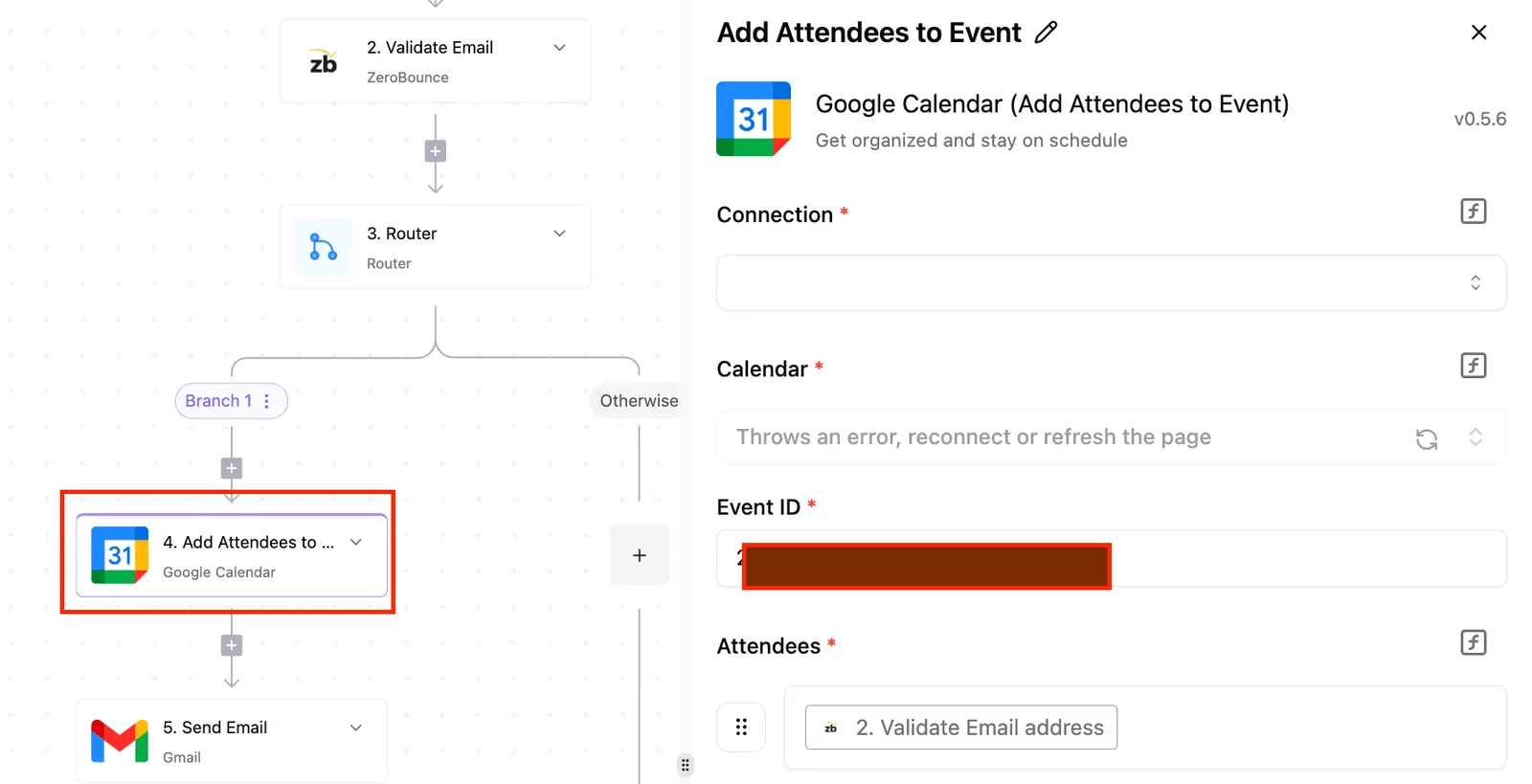
Although the canvas below comes from a different builder, the layout is the one to expect. It puts the trigger first, the settings panel open beside it, and a prompt to load sample data before you build on it.
Its warning about a delay on the source side is a reminder to read every trigger's notes.
Add conditions and filters to a Rippling workflow
Add a condition after the trigger so the workflow fires only for the hires you mean it to, for example one department or one employment type.
Most "it never ran" reports trace to a condition that is too strict or a field that is blank on the record.
You are done with this step when the condition names a field that actually holds a value for your test employee.
Step 3: Add actions and approvers
Add the actions in order: send the welcome message, create the task for IT, request the equipment. Where a person must sign off, add an approval step and name the approver.
Check that the approver has the permissions to see what they are approving, since an approval routed to someone without access stalls silently. Success is every step showing a defined owner and no empty required fields.

When you reach step 4, testing and publishing, run the workflow against a test record first and read the run history step by step.
Success is each step completing, or waiting at the approval you expect. Publish only after that, and watch the first real run.
Every Rippling Workflow Setting and Option Explained
Once the first run is clean, keep this reference beside the builder: seven settings cover nearly everything a native workflow does, and each is a place it can fail.
Read the table for what each setting controls and where I couldn't confirm a limit, and treat every "not documented" as something to test in your own account, not assume.
| Setting | What it does | Allowed values or limit | Docs page |
|---|---|---|---|
| Trigger type | Starts the workflow on an event or a date | Not documented here | Rippling Help Center, workflow articles |
| Condition fields | Filters which records proceed | Not documented here | Rippling Help Center, workflow articles |
| Action types | Performs the work after the trigger | Not documented here | Rippling Help Center, workflow articles |
| Approval chains | Pauses the run until named approvers respond | Not documented here | Rippling Help Center, workflow articles |
| Audience | Limits the workflow to a group of employees | Not documented here | Rippling Help Center, workflow articles |
| Timing | Sets when the trigger or action fires | Not documented here | Rippling Help Center, workflow articles |
| Step limits | Caps how large a workflow can get | Not documented | Not documented |
If the vendor doesn't state a ceiling, find it by testing before you build around it. That gap in the last row is the point.
Most "it never ran" reports trace back to the event not matching what you expected. The trigger decides what starts a run, and timing decides when it fires, so confirm the exact event on a test employee first.
When a field is blank, the condition fails silently, because conditions read data fields. Audience then narrows the run to a group. Check that the person you test with is actually inside it.
Because actions act with the permissions of the workflow's owner, an action can fail where the builder can't.
When the named approver has left or lacks access, approvals stall. Name a fallback approver, and check admin visibility to see which step stopped, not only that something did.
Because actions act with the permissions of the workflow's owner, an action can fail where the builder can't.
Rippling Workflow Limits and Errors With Fixes
When a Rippling workflow fails, it is most often a permission, an empty field or a data condition, and each can be fixed in the workflow's own settings.
Having a fallback approver and admin visibility lets you find which of these it was. The table maps each symptom to its cause, so you can start with the likeliest one.
| Symptom | Likely cause | Fix | Docs status |
|---|---|---|---|
| Workflow not firing | Trigger conditions do not match the record's data | Compare the record's fields against each condition | Documented |
| Empty approver field | Approver is a role or manager field with no value | Set a named fallback approver | Docs silent on skip behavior |
| Builder permission denied | Your admin role lacks workflow builder access | Ask a super admin to grant it | Documented |
| Existing employees not covered | Trigger fires on new events only | Run a separate one-time action for current staff | Partly documented |
| Missing connected app | App was never authorized, or the authorizing admin left | Reconnect under an active admin | Documented |
Where the table says silent or partial, you test it yourself, in a trial run with a throwaway record.
When a workflow never fires, check the trigger conditions against the actual record first. A filter on a field that is blank for that employee never matches, and nothing errors.
When approvals stall or skip, an approver field that resolves to nothing is the usual cause. Admin visibility shows the stalled step, but it won't tell you why the field was empty, so check the profile data.
If the builder says "Permission denied", that is a role problem, not a defect. Your admin role needs workflow access, and some actions may depend on your plan, so confirm with your account contact.
When an action fails partway, a missing connected app is the common cause. Reconnect it under an admin who will stay, then rerun the failed step rather than the whole workflow, so earlier actions don't repeat.
You can follow the rest of this with the builder open. Start free, no card.
Rippling versus other HR automation methods
Until a task needs a system Rippling can't reach, native Rippling is enough, and the connection and field failures just described would follow you into any outside tool. The table shows what each route does best, what it costs, and where it breaks.
| Route | Best at | Cost per vendor page | Where it breaks |
|---|---|---|---|
| Native Rippling | Triggers, approvals and actions on employee data | Whatever your Rippling plan already costs | Permissions, missing data, documented limits |
| Zapier or Workato | Joining Rippling to systems outside it | Zapier: Free $0, Pro $19.99, Team $69 per month | Task caps, a second set of credentials |
| Manual checklist | One-off or rare tasks | No software cost, only staff time | Missed steps, no audit trail |
| Activepieces | Open source (MIT core) automation with 750 integrations and unlimited flows on every plan | Free $0, Plus $20, Team $200 per month | When monthly credits run out, flows stay on but runs wait until the credits refresh |

Pick the row that matches where the task starts and ends, then check its break point before you build.
If every step touches data already in Rippling, build it there. Approvals, onboarding steps and offboarding steps need no second login to expire.
It pays off in hours: SHRM reports automation saves directors 9 hours a week, managers 7 and individual contributors 4. Savings rise with seniority, so the approval chain is the first place to automate natively.

When you need an outside automation tool
Use one when a step lands in a system Rippling can't write to. Zapier allows 100 tasks a month on Free at $0. That covers a trial run, not a hiring season, because each action in a workflow counts as a task.
At $19.99, Pro allows 750 tasks, enough for a small company's routine onboarding. Team allows 2,000 at $69, so budget by tasks per month, not by headcount. Workato is quoted separately by the vendor.
Keep the manual checklist for tasks that happen a few times a year, where building anything costs more than doing it.
Activepieces for Work That Leaves Rippling
Add Activepieces, an automation tool with an MIT-licensed core, only when a Rippling event has to trigger work in an app Rippling can't reach. The task should also repeat often enough that a manual checklist keeps getting missed.
What it can and can't do with Rippling
Check access first, because most failed builds here are permission failures.
Confirm that your Rippling plan and admin role allow API or webhook access, and whether Activepieces currently lists a Rippling integration; the packages/pieces/community folder in its MIT-licensed GitHub monorepo is where that list is counted.
If it doesn't, a webhook trigger fed by Rippling is the fallback.
Don't build until one of those paths is confirmed, or you'll debug a flow that never receives an event.
The catalogue behind that question is countable: the packages/pieces/community directory of the MIT-licensed Activepieces monorepo on GitHub holds 750 integrations, a figure counted from that folder rather than quoted from a marketing page, and roughly 60% of them were contributed by the community, so most of your available integrations come from community maintainers rather than Rippling staff.
If the connector you need isn't among them, you can generate one with AI and add it privately to your own instance, with no vendor release to wait for. MoneyGram, Moneypenny, Alan and FundingSocieties run Activepieces in production.
Activepieces reacts to events and calls other apps across those 750 integrations, so the integration layer won't be a bottleneck. It doesn't replace Rippling's approvals, and it doesn't see Rippling data the connecting account can't see.
The flow is only as informed as that account's permissions.
If a field is hidden from the integration, the flow gets an empty value, and an empty value isn't an error. Add a condition that halts the flow when required fields are blank.

The Free plan, at $0 with 1,000 credits a month and unlimited flows, is enough to test that guard against a throwaway record, meaning you validate the concept before any paid usage.
Take a termination, the clearest case. The diagram shows Rippling holding the event and passing it to an Activepieces flow, which fans out to three outside apps, with a bracket marking the steps that never leave Rippling.
A run is 1 credit however many steps it has, so the fan-out and the completion note cost the same as a flow with one step.
Order the work like this:
- Rippling records the termination and runs its own steps: approvals, final pay and the apps it already deprovisions. These stay native.
- The event reaches the Activepieces flow, which first checks that the employee ID, end date and manager fields are present.
- The flow closes the employee's account in a ticketing system, removes them from a team chat workspace and rotates a shared credential in a password vault.
- The flow posts a completion note to the IT queue, so a failure shows up as a missing note rather than silence.
Everything before step 2 is Rippling's job. Everything after it is the part Rippling can't do.
Monday Morning Checklist for Your First Rippling Workflow
What sits inside Rippling takes four steps: select a trigger, add conditions to filter records, attach actions and approvals, then test before publishing.
Those steps are: confirm your plan and permissions, pick one low-risk workflow, test with a test employee, check approver fields, publish, and watch the first real run.
A workflow is a trigger, one or more actions, and optionally an approval, all built in Rippling's own workflow builder. The trigger is an event such as a new hire or a changed field.
Actions are what Rippling does in response, and an approval pauses the run until a named person signs off. Whatever you build, you're assembling those three parts from the vendor's documented list.
You need a plan that includes the workflow feature and an admin role allowed to create and publish workflows. Neither is a given. A workflow that can't see a field, or an approver who lacks access to the data the request displays, fails quietly.
Check the plan and your role against Rippling's current documentation, not memory, because limits change.
Choose something that fails cheaply, such as an internal notification, not payroll or access changes. The order below keeps a bad guess from reaching a real employee.
- Confirm your plan includes workflows and your admin role can build and publish them.
- Pick one low-risk workflow with a single trigger: and a small number of actions.
- Build it and run it against a test employee, never a live record.
- Open every approval step and confirm each approver field resolves to a real person, not an empty manager or department field.
- Publish only after the test run completes end to end.
- Watch the first real run, and read its log before trusting the next one.
Expect step four to cause most stalled runs, because an approver field that is blank on one employee record stops the whole chain.
Bookmark the Rippling help pages for triggers, actions and approvals, and recheck them before each new build; what they say about limits is what the next section's failures trace back to.
Frequently asked questions
Is Rippling workflow automation included in every plan? Not necessarily: availability depends on the plan and the products your company has bought, so confirm it before you design anything.
Check the help page on workflow access, then ask your Rippling account contact. A missing Workflow Studio entry in the admin menu usually means a licensing or permission gap, not a broken tool.
Can a Rippling workflow trigger something in another app? Yes, within what Rippling's documented actions and connected apps support. If the target app has a native action or integration, use it.
If it doesn't, that's the point where an outside tool earns its place. Read the actions help page for the exact list rather than assuming coverage.
Can I edit a published workflow without breaking runs in progress?
Treat any edit to a live workflow as a change that needs a test first. Rippling's help pages describe how edits and versions behave, so read that page before touching a workflow that has approvals waiting.
Build and test changes on a copy with a test employee, then apply them when few runs are in flight. An edit that changes a data condition can stall a run halfway through an approval chain.
Who can see or change workflows in Rippling? Access follows admin permission profiles, and being able to see a workflow isn't the same as being able to edit it. Check which profile each builder holds.
Most "my workflow didn't fire" tickets trace to someone who could view the workflow but lacked the data access it needed.
Does Rippling keep a log of what a workflow did? Rippling shows run history for workflows, so start there when a run misbehaves.
The history tells you what executed and where it stopped. It won't tell you why a field was empty, so check the employee record and the trigger conditions next.
Related reading
Build it
Set this up in minutes.
No code required. Connect your accounts, and Activepieces runs it from there.
Start free Talk to sales