Zendesk Jira Integration: How to Set It Up (2026)

Oct 16, 202616 min read
According to Ustechautomations, the fastest working setup is the official Zendesk Support for Jira app, about 15 minutes to install and link, which means you can complete the entire setup during a single work session.
It does the core job of tying tickets to issues, and its documented limits decide whether you stop there, or whether you later reach for a workflow tool such as Activepieces to cover whatever the app can't.
What the native integration does
The integration is a pair. You install an app in Zendesk and a companion app from the Atlassian Marketplace in Jira.
Once you link them, an agent can create a Jira issue from a ticket or attach an existing one, and the ticket sidebar shows the issue's status. Engineers see the ticket reference on the Jira side, and nobody pastes links by hand.

That removes the daily work of asking engineering for updates.
This takes minutes, not a project: automate it in Activepieces free.
What the Zendesk Jira integration doesn't do
Because it runs from the agent's sidebar, an agent still has to click. Nothing creates issues from ticket conditions on its own, and routing across several Jira projects is yours to handle.
If you need that, Activepieces builds the ticket-to-issue flow in the same product that already handles agents, integrations, shared data and approvals, under one set of controls: custom RBAC, SSO, SCIM, audit logs, environments and git sync, on cloud or self-hosted, and MoneyGram, Moneypenny, Alan and FundingSocieties run it in production.
Assemble the same span from a paid connector bolted onto the native app and you have a second vendor, a second contract and a second place to look when an issue fails to appear. The table compares the three realistic routes.
Read the last column first, because it shows where each one stops.
| Route | Setup time | Cost | What it does not do |
|---|---|---|---|
| Zendesk Support for Jira app | Under 10 min | No separate app fee beyond your Zendesk and Jira plans | Trigger issues automatically from ticket conditions |
| Manual copying | 8-15 min per escalation | Agent time only | Keep status current once the ticket is pasted |
| Getint (third-party) | 5 min | Priced separately by Getint | Remove the second vendor and contract to manage |
Multiply manual copying by every escalation and it stops looking free. The native app and a connector differ mainly in who pulls the trigger.
Multiply manual copying by every escalation and it stops looking free.
Zendesk Jira integration prerequisites and plan requirements
You need an administrator on both sides:
- A Zendesk admin installs the Zendesk app
- A Jira admin installs the Atlassian Marketplace app
- Per Ustechautomations, if those are two different people, the 15 minutes becomes however long the slower one takes to reply
Then there is plan cost. Ten agents on Suite Team come to 550 $ monthly, since WP Tonic puts it at 55 $ per agent per month, according to WP Tonic.

WP Tonic's Suite Growth is 89 $, which puts the same ten agents at 890 $. Suite Professional is 115 $, per WP Tonic, or 1,150 $ for ten.
That source dates from 2024, so confirm current prices before budgeting. Whichever tier you hold, check that your plan permits Marketplace apps before you book an admin's time.
Install and connect the integration in five steps
Once your plan allows Marketplace apps, the install is five steps done in order, and each one leaves something you can check before moving on. Skip the check and you find the break three steps later, in a ticket sidebar that shows nothing.
Take the sequence below as the order that keeps each failure traceable to one step. It runs from the Jira install to a synced comment.
Step 1: Install the Jira side
Sign in to Jira as a site administrator, open the Atlassian Marketplace from the Apps menu, and search for Zendesk Support for Jira. Select it, choose Get app, and accept the prompts.

A non-admin account won't see the install option, so find the right login before you book anyone's time.
Check: the app appears under Manage apps. Take a screenshot of that list showing the app enabled.
Step 2: Add the Zendesk side in Admin Center
In Zendesk, open Admin Center and go to Apps and integrations, then Integrations. Find the Jira entry and choose to add it. You need admin rights in Zendesk too. This step creates the Zendesk half of the connection but doesn't yet point it anywhere.
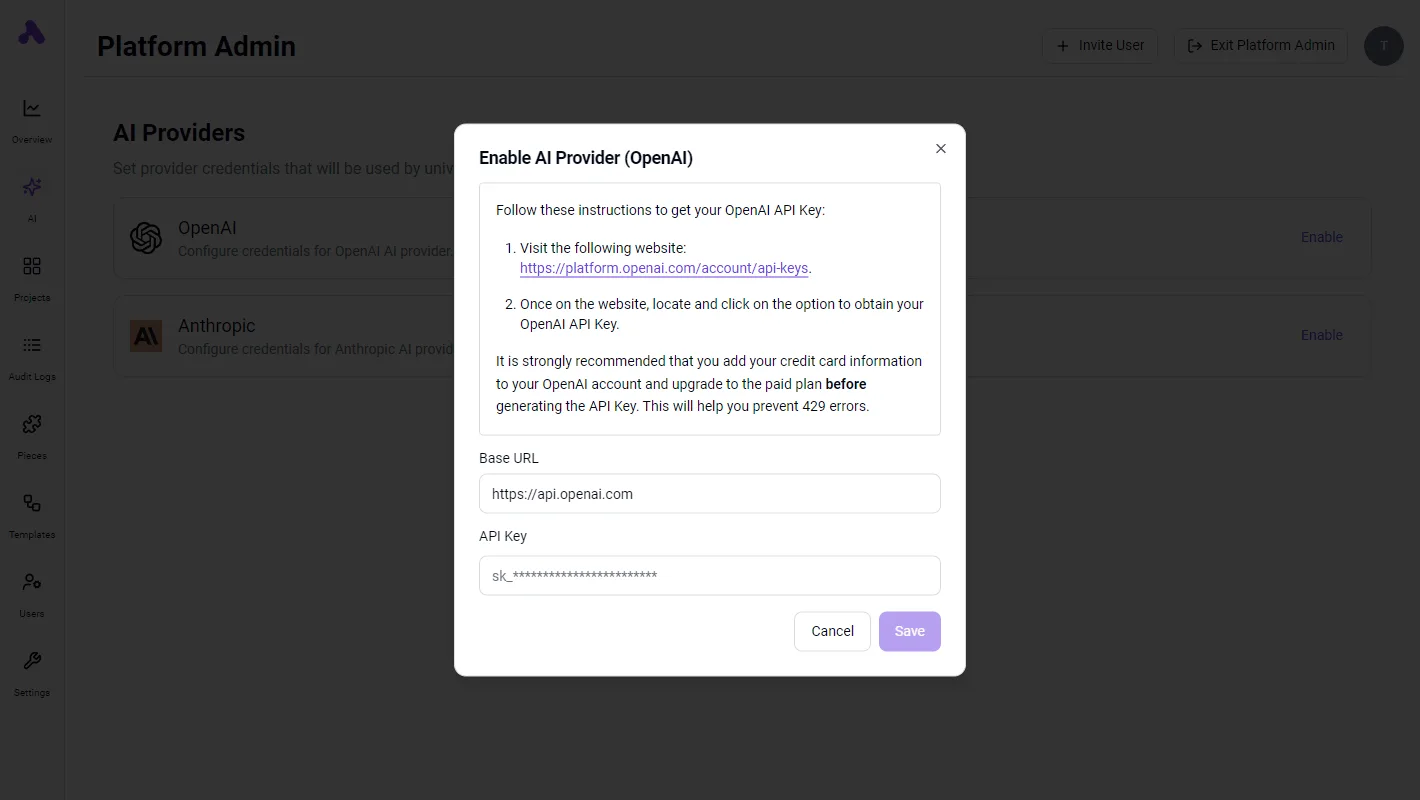
Check: Jira now appears as an integration in Admin Center, with no connected site. Capture this screen, because the empty state is what you compare against after Step 3.
Step 3: Link the two with the Jira URL and permissions
Enter your Jira site address in the URL field, then select the connect option. Jira opens a consent screen listing what Zendesk may read and write.
Read it before approving, since this is where a security reviewer will ask questions, and approve it with the Jira account you want the link to run under.
That account matters. The link attributes every issue and comment it creates to that account, so a personal login means a colleague's name on every ticket-driven issue after they leave. Use a dedicated account if your policy allows one.
Check: the integration page shows your Jira site as connected. Screenshot the Jira app configuration alongside it.
Create and link your first Jira issue
Open any ticket and find the Jira section in the ticket sidebar. Choose to create an issue, pick the project and issue type, complete the required fields, and submit.
If a field your Jira project requires is missing from the form, creation fails, so fix that in Jira's project settings rather than guessing.
Check: the issue key appears in the sidebar and the ticket shows as linked inside Jira. Screenshot the sidebar.
Turn on Zendesk Jira comment and status sync
Return to the integration settings and enable sync for comments and status. Then test both directions: add a comment on the Jira issue, and confirm it reaches the ticket, then change the issue's status and watch for the update.
With a working, synced pair in place, the next question is what this setup refuses to do.
Configure Zendesk Jira field mapping and sync
Most of what this setup refuses to do is a setting nobody opened. The app maps a short, fixed set of fields, and it syncs the rest only if you switch it on. All of it comes from Zendesk's help center documentation, checked on 2026-10-16.
Which Zendesk fields map to Jira
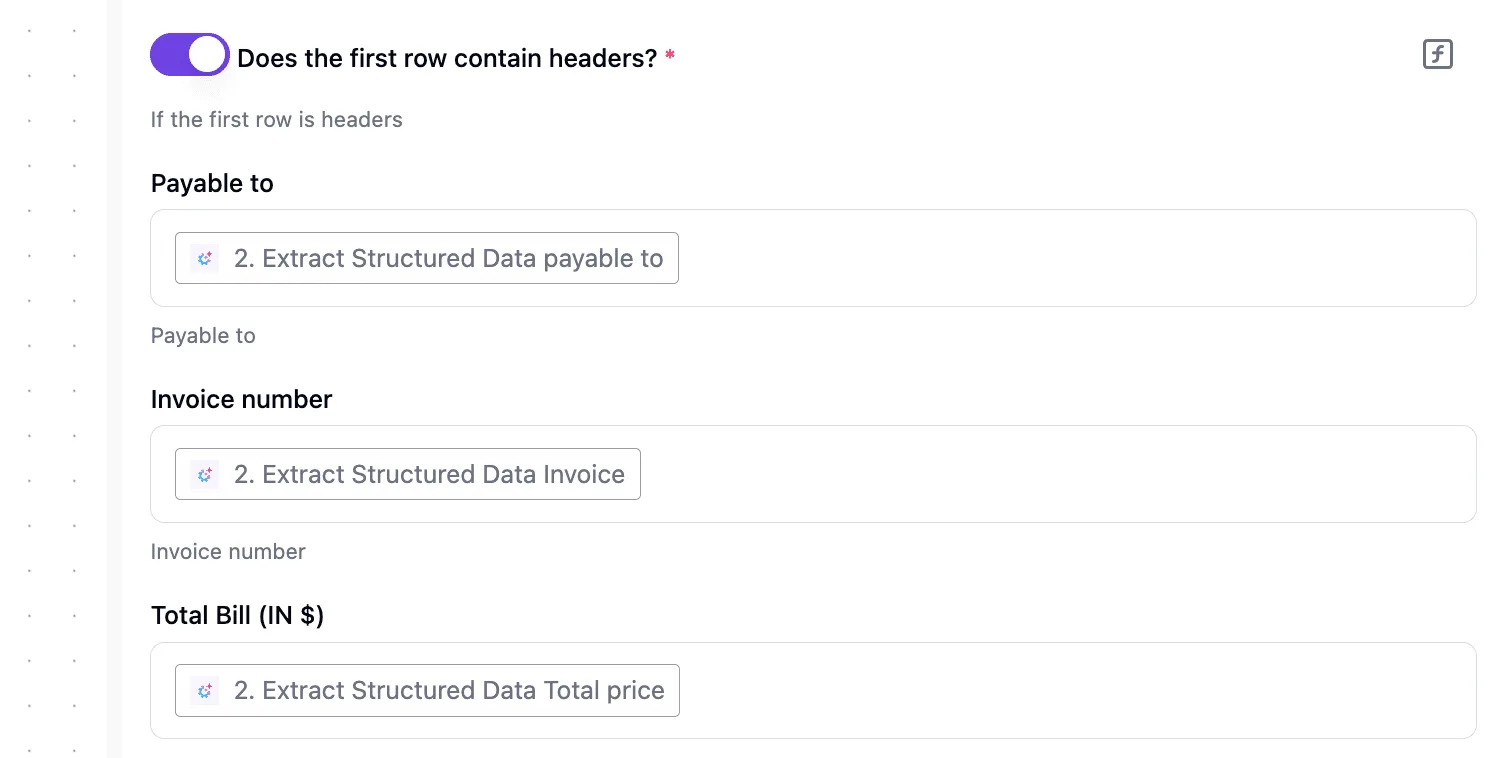
Creating an issue from a ticket copies the ticket's subject and description into the Jira issue, and you pick the project and issue type in the Zendesk sidebar. Anything beyond that is a configuration choice, not a default.
If your agents fill in a Zendesk custom field and expect it to appear in Jira, check that someone added it to the sync configuration. If nobody did, the issue arrives without it, and nothing flags the omission.
Zendesk Jira comment and status sync behaviour
Nothing is shared until you opt in, and the direction is a setting. With it off, a Jira developer can answer a question in the issue and the agent will never see it in the ticket.
With it on, the comments you share are the ones you chose to share, so confirm whether internal notes are included before a customer reads one.
Going the other way, the Jira status appears in the Zendesk ticket sidebar as information. It doesn't close or reopen the ticket for you, so a resolved issue sits next to an open ticket until an agent acts.

Documented Zendesk Jira integration limits
Read the table as a list of things the app doesn't do for you, because each "no write-back" or "creation only" entry is a gap you will either accept or fill with automation. Every row records what the documentation says about that field.
| Item | Sync direction | Documented limit | Vendor page | Date checked |
|---|---|---|---|---|
| Status | Jira to Zendesk | Displayed in the ticket; doesn't change the ticket's own status | Zendesk help center, Zendesk Support for Jira | 2026-10-16 |
| Priority | Zendesk to Jira | Applied when the issue is created; no documented ongoing sync | Zendesk help center, Zendesk Support for Jira | 2026-10-16 |
| Comments | Either or both, by setting | Off until enabled; only shared comments travel | Zendesk help center, Zendesk Support for Jira | 2026-10-16 |
| Custom fields | Zendesk to Jira | Only fields added to the sync configuration | Zendesk help center, Zendesk Support for Jira | 2026-10-16 |
| Issue types | Chosen in Zendesk | Limited to types the target Jira project offers | Zendesk help center, Zendesk Support for Jira | 2026-10-16 |
| Tickets per issue | Link, not a sync | A documented cap on tickets attached to one issue | Zendesk help center, Zendesk Support for Jira | 2026-10-16 |
For incident work, the last row matters most. A widespread outage produces many tickets for one Jira issue, and the cap stops further linking without much ceremony.
Whether you can live with that cap, and with the one-way status display, decides whether the native app is enough or an automation layer has to close the gaps.
You can follow the rest of this with the builder open. Start free, no card.
Fix Zendesk Jira integration errors
When something fails, it usually traces to one of three causes. Either the wrong person installed or authorized the app, a ticket or issue sits outside what the link can see, or an automation layer you added is writing back into the thing it watches.
The table lays out each symptom against its documented cause and the fix, so you can match your error to a row before reading further.
| Symptom | Cause from docs | Fix |
|---|---|---|
| Can't connect | Zendesk cannot reach the Jira site, or the link was authorized from the wrong side | Re-run the link from Zendesk with the correct Jira site address, and confirm the Jira app is installed |
| Admin-role error | Setup needs administrator rights in both products | Have an admin in Zendesk and in Jira complete the step |
| Issues missing from sidebar | The ticket isn't linked, or the Jira user can't see the project | Link the issue again and check project permissions |
| Comments not syncing | Comment sync is a setting, and it's limited to what the app supports | Enable it in the integration settings and test with a fresh comment |
| Duplicate links | The same issue was linked twice, or a second tool created its own | Remove the extra link and keep one creator |
| Rate limit or API error | Either product throttles requests per account | Slow the calls, queue them, and retry later |
| Loop risk | An update on one side triggers an update on the other | Filter out changes made by your own integration user |
The sections below group the rows by where they bite, starting with the ones that stop setup cold.
Zendesk Jira connection and authentication errors
When the person clicking through setup lacks rights on one side, a failed connection and an admin-role error are the same problem seen twice. Linking needs an administrator in Zendesk and in Jira, so a support lead with agent-level Jira access will stall.
Send the task to the right admin rather than hunting for a bug. If the error persists, check the Jira site address first, because a mistyped address looks exactly like a network fault.
When the sidebar shows nothing, assume the link is the issue, not the app. An issue created in Jira by hand isn't attached to any ticket until someone links it.
Permissions matter too: the Jira user behind the connection only sees the projects an admin gives it, so an issue in a restricted project simply never appears.
Zendesk Jira sync stops or duplicates issues
If comments don't travel, the setting is usually off or you expected two-way behavior from a one-way display. Duplicates appear when two creators exist, typically the native app and an automation.
Rate limit errors arrive when a bulk update hits either API at once. Loops are the one risk the native app doesn't carry; you add it the moment an automation writes back to a ticket it is also watching.
Any row you can't clear from here points to a gap the native app doesn't cover.
Automate Zendesk to Jira beyond the native app with Activepieces
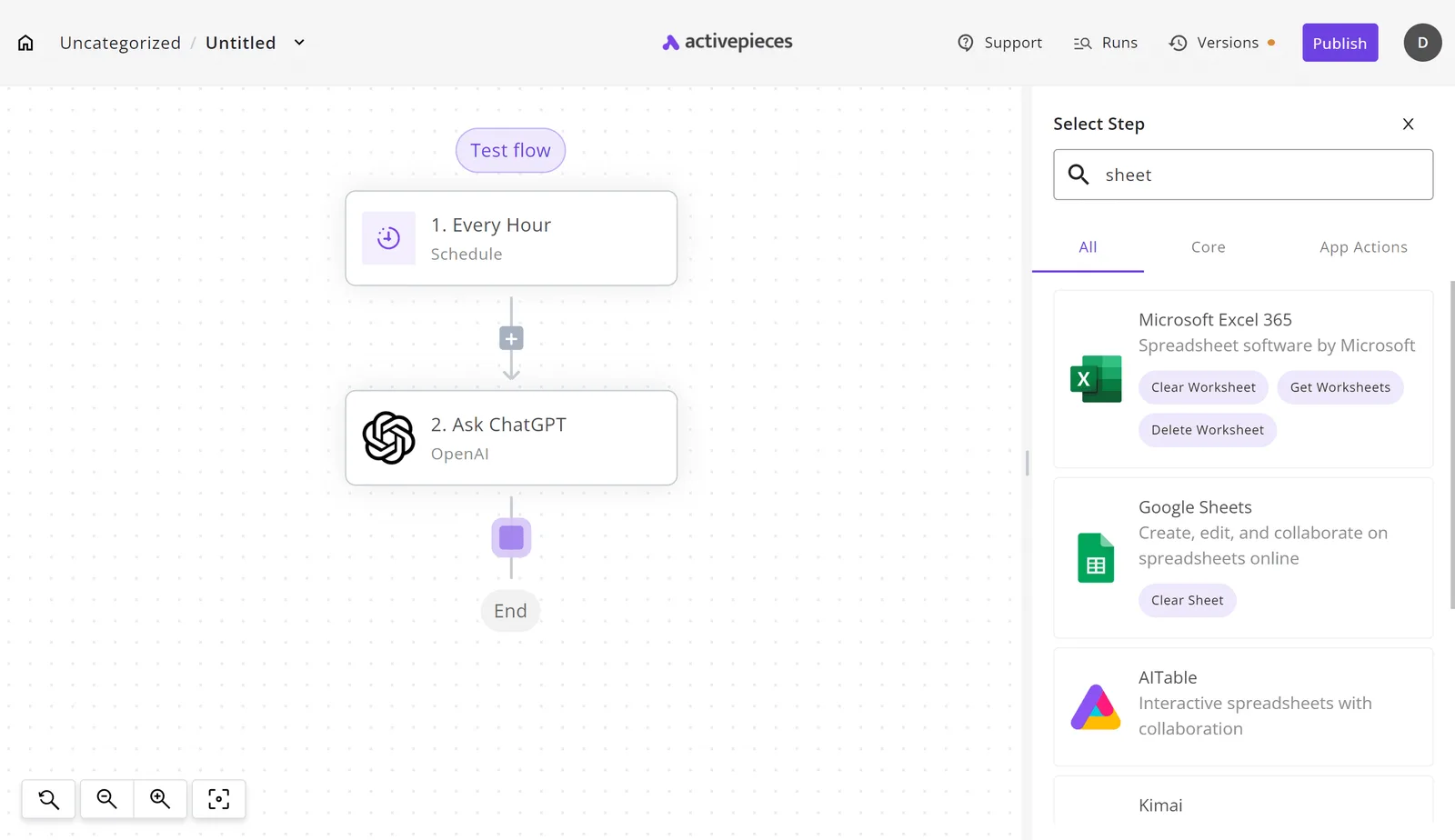
Activepieces closes those gaps by sitting between Zendesk and Jira as a workflow you control, with both Zendesk and Jira Cloud among its 741 integrations, so your rules create issues rather than an agent's click. The cases where that matters are these:
- creating issues only when conditions match
- mapping Zendesk fields to custom Jira fields
- routing by tag to different Jira projects
- writing the issue key back to the ticket
Use those four as the test for what follows: whether you can skip them, how the flow runs, and how it stays clean.
If agents decide by hand which tickets escalate, everything lands in one Jira project, and the standard fields cover what developers need, stay with the native app.
Automation earns its place only when escalation should happen without someone remembering to do it, or when the destination depends on the ticket's contents.
- The trigger is a new or updated ticket in Zendesk.
- A condition step checks the ticket, for example a tag or priority. If it fails, the run ends and no issue exists.
- A branch per tag picks the Jira project.
- The Jira Cloud create-issue action maps the ticket subject, description and any custom fields you need.
- A Zendesk update-ticket action writes the new issue key back to the ticket.
You can start the flow free.
To build this same shape, any workflow tool with Zendesk and Jira connectors works. The practical differences are hosting and billing: Activepieces runs on cloud or self-hosted, has an MIT-licensed core, and allows unlimited flows on every plan, including free.
Check each one's current pricing against your ticket volume before choosing.
Avoid duplicate Jira issues and sync loops
The write-back in step five is also your duplicate guard. Add a check at the top of the flow: if the ticket already holds an issue key, stop.
Without it, the update you make to store the key fires the trigger again, and the flow creates a second issue, then a third.
If Jira creates the issue but the write-back fails, a retry will create another. Retries carry the same risk, so review failed runs rather than rerunning them blindly.
Bursts of tickets can also draw rejections from Jira's API. Failed runs show which ticket was missed, and those you can replay by hand.
Frequently asked questions
Does the Zendesk Jira integration cost extra?
You won't pay for the official Zendesk Support for Jira app as a separate add-on, but that doesn't mean it is free for you.
It runs on top of paid Zendesk and Jira plans, and your Zendesk plan decides whether the app is available to your agents.
Before you promise it to a team, check the plan requirements on the Zendesk Marketplace listing. Discovering a plan gap after installation costs you the time you were trying to save. Any automation layer you add later has its own pricing, separate from both products.
Can I connect Zendesk to Jira Server or Data Center?
Possibly, but verify it against the current documentation for your exact version. The app was built around Jira Cloud, and Atlassian has been retiring Server, so a self-hosted Jira is the case most likely to fall outside what the official app supports.
If your Jira sits behind a firewall, Zendesk also has to be able to reach it, which is a network change that someone other than the Zendesk admin must approve.
When the official app doesn't fit, an automation tool that can call your Jira's API is the usual fallback, and it still needs that same network access.
Can one ticket link to several Jira issues?
Yes. A single Zendesk ticket can be linked to more than one Jira issue, and the reverse also works, with several tickets pointing at one issue.
This is how most teams handle a bug that generates many complaints: one engineering issue, with every affected customer ticket attached.
There is a catch: each link is separate. Status changes and comments on one issue don't automatically update the others, so agents should check every linked issue before telling a customer the problem is fixed.
How do I disconnect or reset the integration?
Disconnect at the level that matches the problem. To detach one ticket, unlink the issue from the ticket's sidebar; the Jira issue stays in Jira, and only the connection between the two records is removed.
Do the reset only when authentication is broken or you are changing Jira instances. To reset the whole integration, an admin removes the connection in Zendesk's admin settings and removes the companion app from Jira, then reinstalls and relinks.
Removing the connection can break the sidebar view on existing tickets, so tell agents before you do it.
Related reading
References
Build it
Set this up in minutes.
No code required. Connect your accounts, and Activepieces runs it from there.
Start free Talk to sales