
Gemini CLI MCP Server Setup in 2026 (10-Minute Guide)

Oct 17, 202617 min read
A Gemini MCP server is an MCP server that a Gemini client, usually Gemini CLI, connects to so the model can call its tools, much as it would with servers built on Activepieces or any other framework that speaks the protocol.
Docs checked 17 October 2026; the end state is a server listed in /mcp and one tool call, in about 10 minutes.
Understand Gemini MCP servers
What counts as a Gemini MCP server
The phrase gets used for three different things:
- Gemini CLI can use an MCP server, which suits anyone who wants Gemini to reach a database, API or file tool. This guide covers it.
- A server can wrap Gemini CLI (gemini-mcp-tool), so another client, such as an editor or a different agent, can call Gemini as a tool.
- Gemini API function calling is for developers building their own app loop, who define tool schemas in code and skip MCP entirely.
If you typed the query to fix No MCP servers configured, you're in the first group.
The official registry went from 456 to 10,298 servers, per gravity.fast, roughly 22 times larger, meaning the ecosystem now offers options for nearly any integration need. GitHub repos went from 5,097 to 18,256, about 3.6 times.
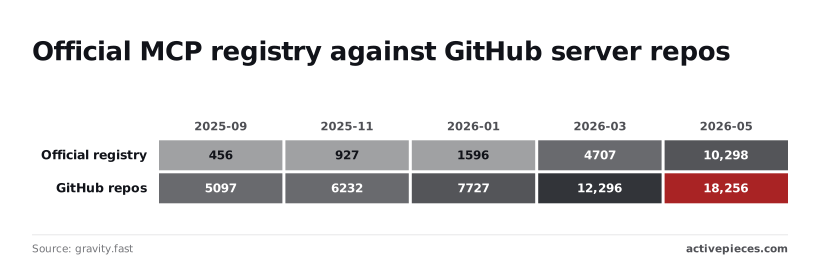
Neither is a complete catalogue: the registry is growing faster, but it still lists fewer entries than GitHub. Pick a server by whether you can run it and see its tools, not by where it's listed.
Which Gemini clients support MCP
When Gemini CLI starts, it reads servers from the mcpServers block in settings.json, and it is the client this guide tests. Servers can run locally over stdio or remotely over HTTP, including the one from Activepieces, whose MIT-licensed core you can self-host.
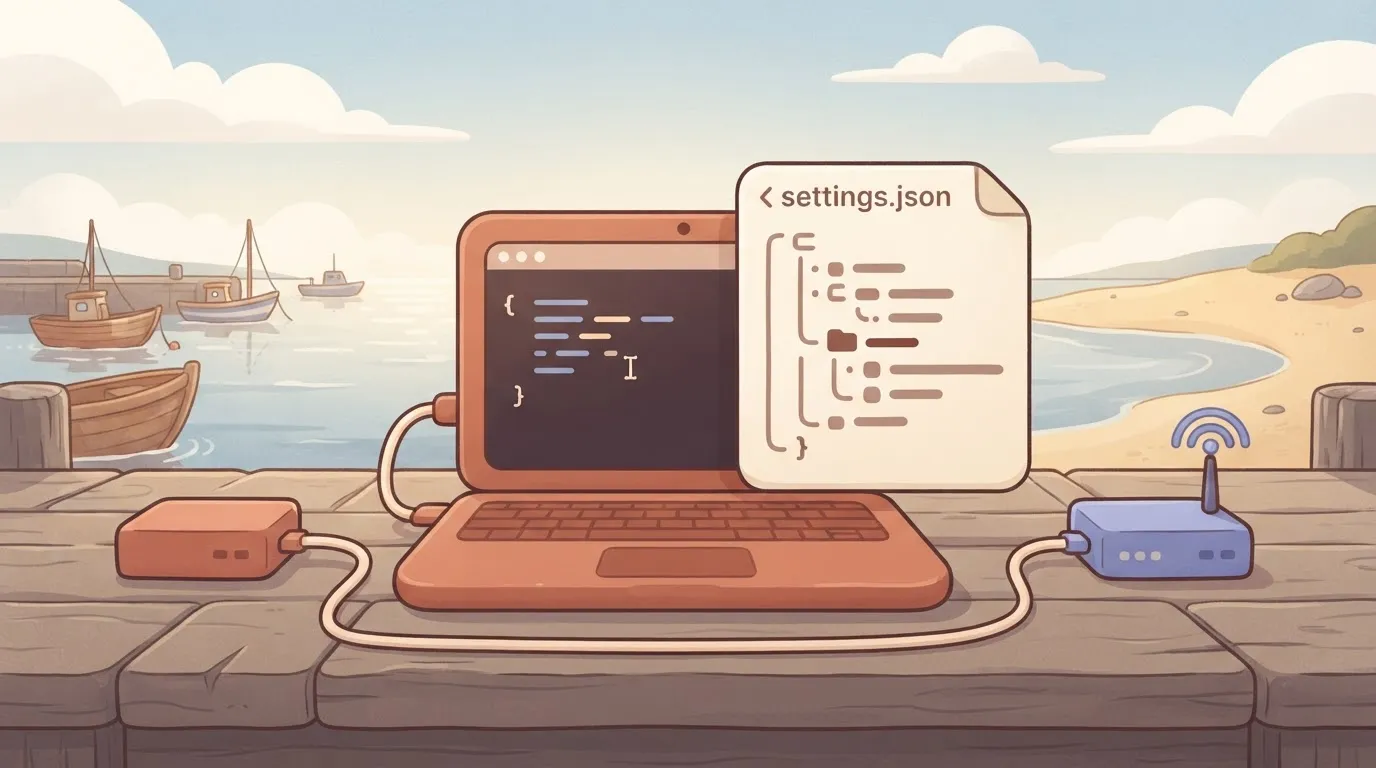
The raw Gemini API is different. It takes function declarations, not MCP configs, so a server you add to the CLI does nothing there.
- Add one entry under
mcpServersin~/.gemini/settings.json. - Restart
gemini, because the file is read at startup. - Run
/mcpand confirm the server is listed as connected. - Ask Gemini to call one specific tool by name.
Step 3 is the checkpoint. If the server is missing or disconnected, every later failure traces to config, transport, auth or tool limits, and we check them in that order.
This takes minutes, not a project: automate it in Activepieces free.
Add and connect your server
Start with config: the whole job is one settings.json entry and one /mcp check that reports the server as CONNECTED. The list below is the full path, and each step maps to a stage underneath.
- Install Gemini CLI.
- Sign in.
- Add an
mcpServersentry tosettings.json, or rungemini mcp add. - Restart the session.
- Run
/mcpand confirm CONNECTED.
Mapped onto stages, steps 1 and 2 cover installing and signing in, steps 3 and 4 cover the settings entry, and step 5 is the check.
npm install -g @google/gemini-cli
gemini
On first launch, the CLI prompts you to authenticate. Pick the Google login, finish it in the browser, and stop there. If the CLI can't talk to the model, nothing downstream tells you why, so prove a plain prompt works before touching MCP.
Stage 2: add the server to settings.JSON
Pick a scope first. User scope lives in ~/.gemini/settings.json and follows you into every project. Project scope lives in .gemini/settings.json inside the repo and travels with it.
Use project scope for anything a teammate should get on clone. This example uses the reference filesystem server:
{
 "mcpServers": {
 "files": {
 "command": "npx",
 "args": ["-y", "@modelcontextprotocol/server-filesystem", "/home/you/work"],
 "env": {},
 "cwd": "."
 }
 }
}
For a stdio server, command is the executable, args is an array (not one string), env passes variables to the child process, and cwd sets its working directory.
A single string in args is the classic mistake, and it fails as a spawn error rather than a config error.
If you'd rather not edit the file by hand, the shortcut writes the same entry for you:
gemini mcp add files npx -y @modelcontextprotocol/server-filesystem /home/you/workRestart the session afterward. A running session doesn't re-read the file, so an edit made mid-session looks like the server doesn't exist.
Inside the new session, run /mcp. You want your server name with CONNECTED beside it and its tools listed underneath.
If the name is missing, the file wasn't read, so check the path and the JSON. If it shows DISCONNECTED, the entry was read but the process failed to start or handshake, and the next section starts there.
Run Gemini MCP tools and restrict access
Once a server shows CONNECTED, all it has proven is that it can start. It hasn't proven it can do anything, so the next step is to make Gemini CLI call one of its tools and approve the prompt it raises.
Run your first Gemini MCP tool call
Ask for something that can only be answered by the server, such as "list the files in the allowed directory" for a filesystem server. Gemini CLI will stop and show a confirmation prompt naming the server and the tool.
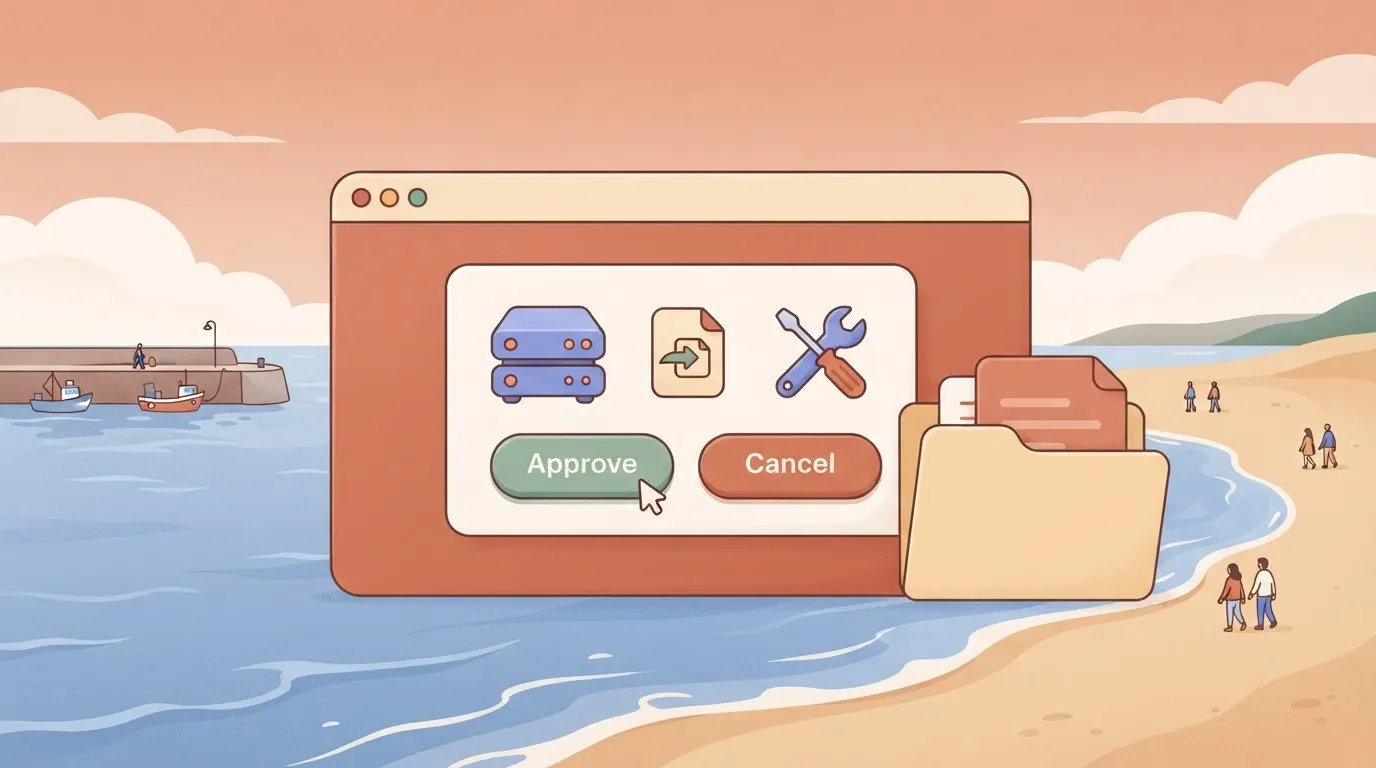
Choose "Allow once" the first time. If you pick "always allow" now, you have granted that permission before seeing what the tool returns.
If the prompt never appears and the model answers from its own knowledge, the tool wasn't offered to it. Run /mcp again and check that the tool is listed under the server. That mismatch is a discovery problem, not a model problem.
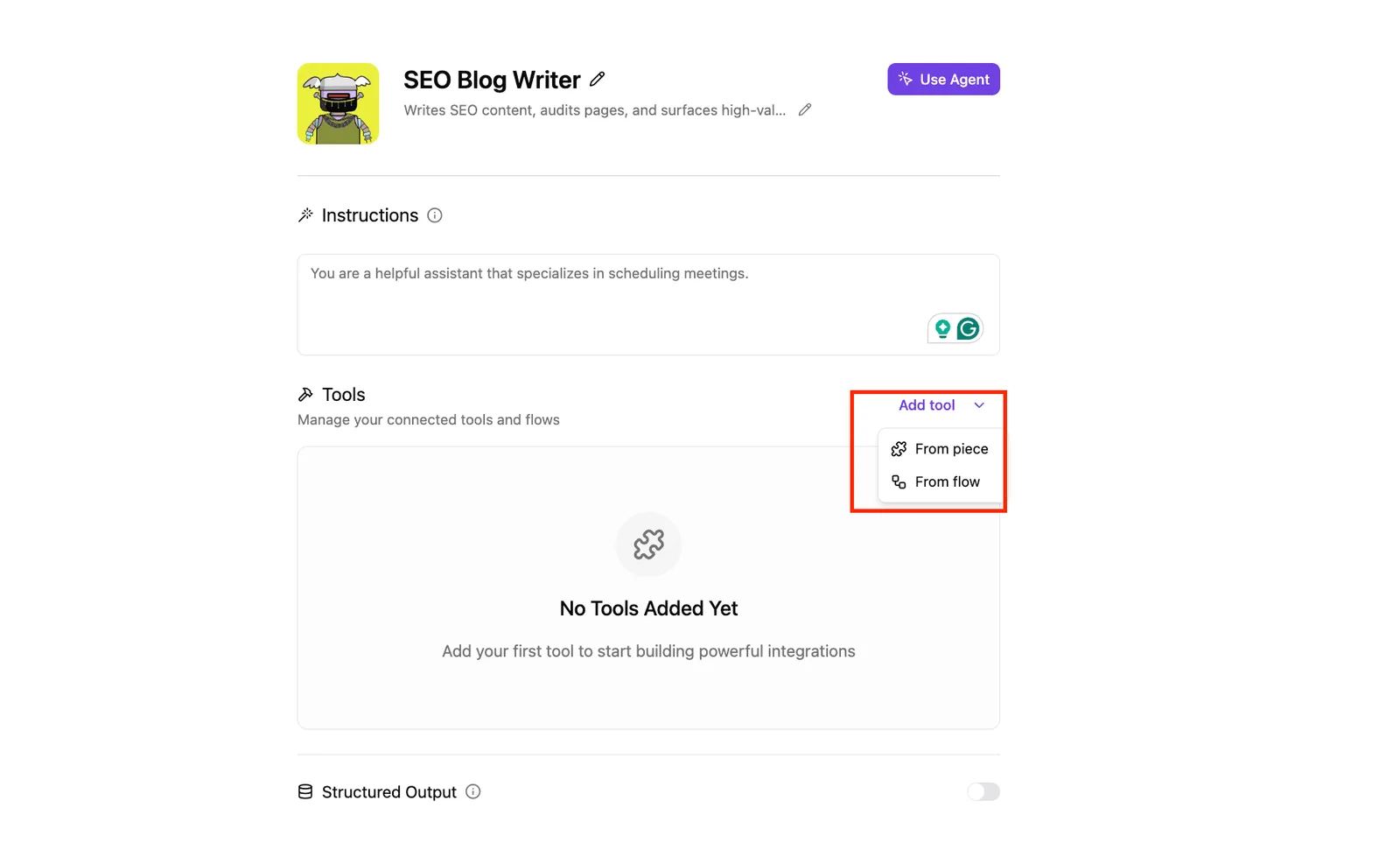
In the screenshot below, a different product's agent builder shows an empty Tools panel and an "Add tool" menu. It makes the same point as /mcp: until a tool is listed there, the model has nothing to call.
Stage 5: connect a remote HTTP or SSE server
Use httpUrl for a streamable HTTP server and url for an SSE server; putting a streamable endpoint under url is a common cause of a handshake that never completes.
Add headers for a static token, or let the CLI run OAuth when the server asks for it.
Few servers are remote. MCPtrove puts 89% of public MCP servers on stdio, 9% on streamable HTTP and 2% on SSE, so implementing stdio support covers almost all servers.
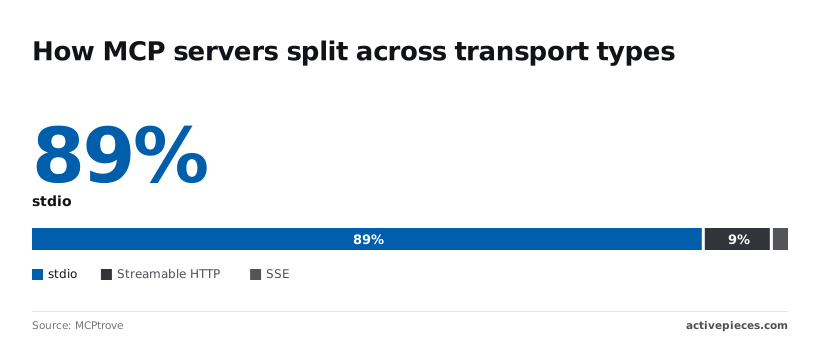
So most tutorials you copy from assume a local process, and their command and args block won't translate to a hosted endpoint.
With SSE at 2%, when you have a choice, you're unlikely to find a server that requires it.
Stage 6: limit tools and set trust
When a name appears in both lists, the exclusion wins: includeTools is an allowlist and excludeTools is a denylist. Use the allowlist for any server that exposes write or delete operations.
trust: true skips the approval prompt for that server entirely. Keep it off for anything you didn't write, and for a server you did write, turn it on only after you have read what each tool does.
Gemini MCP settings and limits
Copy an example carelessly and you can enable trust by accident, because it is the one setting that removes confirmation prompts and it sits in the same block as every other server field.
The table below lists each setting under mcpServers and what it does, with undocumented behavior marked as such. Use it to check an entry before you blame the server.
| Field | Purpose | Default | Example | Documented? |
|---|---|---|---|---|
command |
Executable for a stdio server | None | "npx" |
Yes |
args |
Arguments passed to the command | None | ["-y", "my-server"] |
Yes |
env |
Environment variables for the child process | None | {"API_KEY": "$API_KEY"} |
Yes |
cwd |
Working directory of the child process | Inherited | "./tools" |
Yes |
url |
SSE endpoint | None | "https://host/sse" |
Yes |
httpUrl |
Streamable HTTP endpoint | None | "https://host/mcp" |
Yes |
headers |
Extra headers on HTTP requests | None | {"Authorization": "Bearer …"} |
Yes |
timeout |
Request timeout in milliseconds | CLI built-in | 30000 |
Yes |
trust |
Skip confirmation for this server's tools | false |
true |
Yes |
includeTools |
Allowlist of tool names | All tools | ["search"] |
Yes |
excludeTools |
Blocklist of tool names | None | ["delete_repo"] |
Yes |
Prices and plan limits checked against docs.claude.com and claude.com and openai.com and gemini.google on October 17, 2026.
Pick one transport per server: command for stdio, url for SSE, httpUrl for streamable HTTP. If a server connects but shows no tools, a wrong transport field is the first suspect. When a tool appears in both includeTools and excludeTools, the exclusion wins.
Global MCP settings
To restrict which configured servers may run, use the global allow list. It has no restriction by default, looks like "allowed": ["github"], and is documented.
The global exclude list blocks named servers regardless of their own entry, is empty by default, looks like "excluded": ["legacy"], and is also documented.
Both lists filter by server name, not tool name. A server that is configured but absent from the allow list won't load, and nothing in the entry itself tells you why.
On naming, tools are exposed under a server-prefixed name, such as github__search, and the docs only partly cover this. The rules on which tool schemas the CLI accepts aren't stated at all.
Treat anything the docs don't state as unknown, and test it with one tool call before you build on it.
You can follow the rest of this with the builder open. Start free, no card.
Fix common Gemini server errors
Run one check at a time, in order, and every failure below sorts itself out; the table lists them in the order I'd check them.
Start with gemini --debug (or the debug toggle in the interactive session) so the logs tell you which row you're in before you change anything.
| Symptom | Likely cause | Fix |
|---|---|---|
| Disconnected | Process started, then exited or never answered | Run the exact command by hand and read its stderr |
command not found |
npx, uvx or the binary isn't on the PATH Gemini CLI sees |
Use an absolute path to the executable |
| Invalid JSON | Trailing comma or comment in settings.json, or a server printing logs to stdout |
Validate the file; send server logs to stderr |
| Startup timeout | Cold package download or slow initialization | Pre-install the package, then raise the timeout |
| OAuth / 401 | Missing, expired or wrong credentials on a remote server | Re-authenticate or fix the header |
| Missing tools | Connected, but tools filtered or not exposed | Check include/exclude lists and the server's tool listing |
| Untrusted folder | Workspace not trusted, so project-level config is ignored | Trust the folder or move the entry to user settings |
Read it top to bottom: the early rows stop the server from existing at all, the later ones only bite once it is running. Fixing a tool filter while the command can't even launch wastes an hour.
Server shows Disconnected
When the status reads Disconnected, Gemini CLI spawned your command and lost it.
Copy the command and args from settings.json into a plain terminal and run them. If that prints a stack trace, you have your answer. If it hangs silently, it's probably waiting on stdio, which is correct behavior.
Your shell finds npx through a version manager, and the CLI's child process doesn't, which is why command not found is nearly always a PATH difference. Absolute path, done.
Invalid JSON is the other cheap one, and a server that writes a banner to stdout corrupts the protocol stream the same way a bad comma corrupts your config.
Gemini MCP server tools missing or failing
Even when it shows as connected, a server can still offer nothing. Check the include and exclude lists on that entry first, since an allowlist you forgot about silently hides everything else.
Then confirm the server actually registers tools at startup; some only do so after authenticating.
One more cause belongs here: untrusted folders. If the entry lives in a project's .gemini/settings.json and the folder isn't trusted, it is skipped without much noise. MCP doesn't warn you loudly about this yet, so check trust before blaming the server.
Remote server auth and timeout errors
When you get a 401, the request reached the server and was refused, so the transport is fine and the credential isn't. Re-run the OAuth flow, or confirm the header value is what the server expects, not what you assumed.
Startup timeouts on remote or npx-launched servers usually come from a cold first run, so install once ahead of time, then raise the timeout only if it still fails.
Once each row passes, make one tool call. That's the proof.
Connect Gemini to business apps with Activepieces
Through one settings.json entry, Gemini CLI can reach Slack or Google Sheets instead of a server you write and maintain, because Activepieces runs an MCP server that exposes its 741 integrations as tools.
When a hosted MCP server beats writing your own
You just proved the plumbing works with one tool, so the next server is probably not worth building by hand.
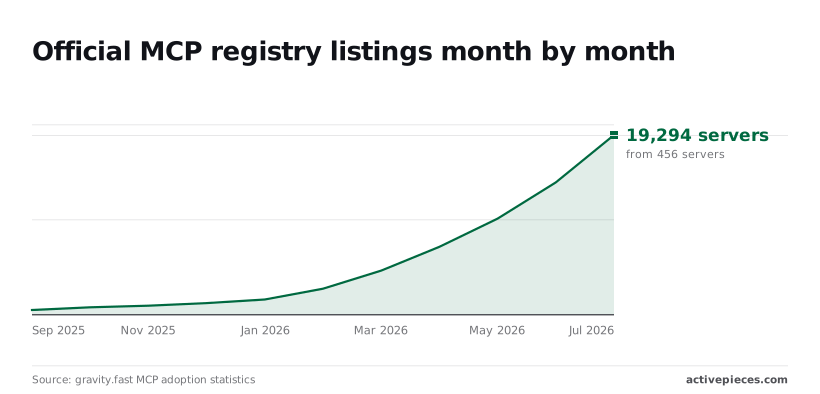
In September 2025 the official MCP registry listed 456 servers, then 753 in October, 927 in November and 1,206 in December, revealing roughly 200–300 new servers per month. It reached 1,596 in January 2026 and 2,756 in February.
That's roughly six times the September count in five months, so a server for a mainstream app most likely exists already, and your own would be one more to patch.
In Activepieces, connecting a integration is the only registration step: the same integration action that runs as a step in a flow is also served as a tool schema on the per-project MCP server, so Gemini CLI, Claude, ChatGPT or Cursor can call it.
There is no second catalog to publish to and no export step, which matters because a catalog you have to re-integrate for your agents is a second migration.
You can see it in packages/pieces in the open source repo, which holds 741 integrations, making it straightforward to verify the scope yourself.
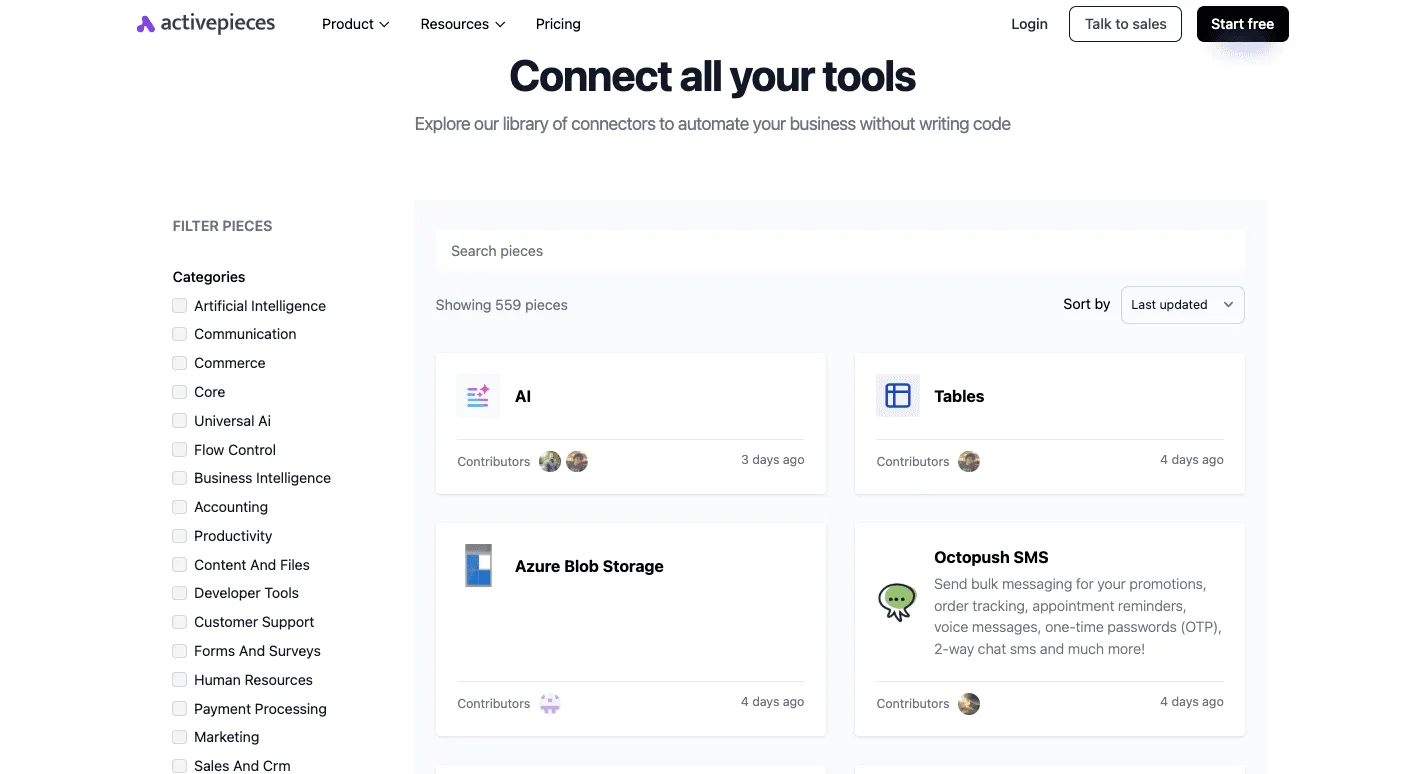
Its connectors library lists 559 integrations, sorted here by last updated, with categories like Communication, Sales And Crm and Developer Tools down the left.
The recent timestamps show active maintenance, which matters because a stale connector fails at the API call, not at your config.
Write your own when the tool wraps an internal system no public connector can reach. It also makes sense when you need strict control over what each tool exposes. For Slack, Sheets or a CRM, hosted wins.
- Connect the apps you want in your Activepieces project, and they become tools on its MCP server; point Gemini CLI at that server. Every tool you add counts against Gemini's tool limit, so start with two or three.
- Add an entry under
mcpServersin settings.json, usinghttpUrlfor a streamable HTTP endpoint, pointing at that server. - Restart Gemini CLI and run
/mcp. The server should show as connected, with its tools listed. - Ask for one harmless read, such as listing rows from a test sheet, before trusting anything that writes.
For Slack, Sheets or a CRM, hosted wins.
If /mcp shows the server disconnected, you are back to the diagnostic order: config first, then transport, then auth.
Activepieces doesn't change that order, and because unlimited flows come on every plan, including free, you can work through it on a test project at no cost.
It also doesn't remove the auth step. Each integration still needs its own connection to the underlying app, and a missing one fails at call time, not at startup.
Frequently asked questions
Most of these come down to the same few causes: the wrong client, the wrong file, or a session that never reloaded.
Is there an official Gemini MCP server?
Is there an official Google Gemini MCP server I can install? Not one that matches the search phrase. "Gemini MCP server" usually means Gemini CLI acting as the client of some other server, so there's nothing Gemini-specific to install.
Community servers do exist that wrap the Gemini API so other clients can call it as a tool. Read their code before giving them an API key.
Using the Gemini API without Gemini CLI
Can the Gemini API use MCP servers without Gemini CLI? Yes. The Python SDK can take an MCP client session as a tool, so the SDK lists the server's tools and routes the model's calls to it.
You own the session: start the server, keep the connection open for the whole request, and close it yourself. The support is still labelled experimental, so pin your SDK version.
Running more than one server
Can I run more than one MCP server in Gemini CLI? Yes. Each server is its own key under mcpServers in settings.json, and Gemini CLI merges their tools into one list. Give every server a short, distinct name.
Two servers exposing a tool with the same name is the usual source of confusing behavior, and the name is how you tell them apart in /mcp output, which is why you should check the server name when debugging unexpected tool behavior.
How do I stop Gemini from running an MCP tool without asking?
Leave "trust" unset or false on that server. Setting it to true does skip the confirmation prompts for that server's tools, which is the whole point of the flag. If you set it while debugging, remove it afterward.
Also remember that choosing "always allow" in a prompt is a standing permission, so don't click it on a server you haven't read.
Why does Gemini CLI ignore my MCP server after I edit settings.JSON?
A running session never sees your edit, because the CLI reads its config at startup. Quit and relaunch, then run /mcp to check that the server shows as connected with its tools listed.
If it still doesn't appear, you probably edited the wrong file. A project-level .gemini/settings.json can override your user-level one, and a JSON typo such as a trailing comma can silently drop the whole entry.
Related reading
References
Build it
Set this up in minutes.
No code required. Connect your accounts, and Activepieces runs it from there.
Start free Talk to sales