
How to Use the Google Chat API and Pick Your Auth

Nov 23, 202616 min read
The Google Chat API is a REST interface at chat.googleapis.com for building Chat apps, whether you code them by hand or wire them up through a tool like Activepieces, and managing spaces, messages and members. Google doesn't bill you per request to call it.
Someone still has to own the credentials it runs on, because that person gets the 2am page when they expire.
Understand Google Chat API access and costs
What the Chat API lets you do
For most automations, these are the only resources you touch. Each maps to its own set of methods, and which of them your credentials may call depends on the authentication type you pick.
- Create messages in a space or in a thread
- Manage spaces: create, update, list and delete them
- List members and add new ones
- Add and delete reactions on messages
- Upload media to attach files to messages
Audit these five before you build, because they are the surface area. Anything an app can post, a bad token can also fail to post, and the error you see will differ by authentication type.
Nobody has to be hired to wire this up: describe the routing to the built-in chat in Activepieces, say which Chat message belongs in which space, and it builds and publishes the flow itself.
What lands in your account is an ordinary flow, the same one a builder would have made by hand, and it sits under the same roles, audit logs and run traces as the flows people build themselves.
MoneyGram, Moneypenny, Alan and FundingSocieties run Activepieces in production. The app-or-user credential choice stays with you.
Workspace plans that include Google Chat API access
Which Workspace edition your organisation pays for decides access. According to Google's flexible plan billing page, checked 2026-11-23, Workspace editions cost:
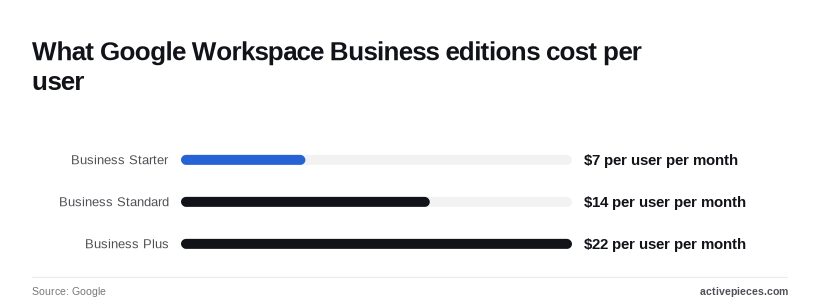
- Business Starter costs $7 per user per month
- Business Standard costs $14 per user per month
- Business Plus costs $22 per user per month
Even the cheapest edition includes Chat, so the API doesn't push you into a higher tier. The per-user price is what you multiply by headcount, and an app that acts on behalf of users runs inside that bill, not beside it.
Whether people actually use it is a separate question from access. In two workplace surveys reported by BOXIL Magazine, the percentages of respondents were:
- Microsoft Teams drew 17.25% and 67.8% of respondents
- Google Chat drew 13.01% and 7.8% of respondents
- Slack drew 7% and 7.5% of respondents
In both surveys Chat trails Teams, but it edges Slack in the second. If your colleagues mostly sit in another tool, check where the people you're automating for actually work before you commit.
What it costs per request
Nothing, in the sense that matters for budgeting: the API is free to call, and the Workspace seats above are the only line item.
Quotas still apply. They cap how fast you can call, not how much Google charges you, so the failure you plan for is a throttled request, not a surprise invoice.
The next section covers authentication, which determines which of those quotas and errors you'll meet.
This takes minutes, not a project: automate it in Activepieces free.
Enable the Chat API and configure the app
Whichever authentication you pick, setup starts in one Cloud project: enable the Google Chat API there, configure the app on its Configuration tab, and add it to a test space.
Do it in a project your team owns, because the project is what gets paged when calls start failing.
Create the Cloud project and enable the API
Create a new project in the Google Cloud console, or choose an existing one. Decide who owns it before you click anything.
A project created under a personal account is the classic orphan: the developer leaves, billing and quota settings go with them, and nobody can find the app at 2am when messages stop arriving. Put it under the organization, and name at least two people as owners.

With the project selected, open the API library, search for Google Chat API and enable it. The API is free to call, so enabling it adds no charge of its own. Enabling it doesn't create a Chat app. That happens on the Configuration tab.
Open the Google Chat API page for the project and go to Configuration. The fields are few, and each one decides something later:
- App name, avatar URL and description, which are what people see when they find the app in Chat.
- Functionality, where you choose whether the app receives one-to-one messages, joins spaces and group conversations, or both.
- Connection settings, where you say how Chat delivers events to you: an HTTP endpoint URL, Apps Script, or Pub/Sub. If your automation only sends messages and never reacts to them, you can still keep this minimal, but you must choose something to save the app.
- Visibility, where you limit the app to named people or groups in your domain while you test.
- Logs, where you switch on error logging to Cloud Logging.
Turn the logging on. Without it, a failed delivery leaves nothing for whoever is on call to read, and you'll be debugging blind.
Save, and the app registers under that project.
Add the app to a test space
Create a throwaway space in Google Chat, with only yourself and a colleague in it. Then add the app: open the space's menu, choose the option to add apps, and search for the name you set.
If it doesn't appear, the usual cause is visibility. You're not on the list of people allowed to see it.
Post a message that mentions the app. If you configured an endpoint, you should see the event arrive there. If you didn't, the check is simply that the app is a member of the space.
At this point you have an app registered, owned and present in a space where a mistake costs nothing. It has no credentials yet.
Choose app or user authentication
When something goes wrong at 2am, this choice decides whose name appears in the audit trail. Choose app authentication when the automation should act as a bot the project owns, and user authentication when it must act as a named person.
A project with no credentials has to pick one before it can send a message.
Operationally, five points matter, and the table below sets the two side by side on them. Read the "who the message appears as" row first, because it also tells you who owns the failure.
App authentication (service account, chat.bot) |
User authentication (OAuth 2.0) | |
|---|---|---|
| Who the message appears as | The Chat app, with its own name and avatar | The person who granted consent |
| Scope string | https://www.googleapis.com/auth/chat.bot |
Per-resource scopes such as chat.messages, chat.spaces and chat.memberships |
| Allowed methods | Those the app may call in spaces it has been added to | Those the consenting user may perform in Chat |
| Admin approval | None for this scope; a person must still add the app to a space | Users consent individually; a Workspace admin may restrict which apps can request it |
| Setup effort | Service account, key and Chat app configuration | Consent screen, client ID, and storage and refresh of tokens |
Prices and plan limits checked against docs.claude.com and claude.com and openai.com and gemini.google on November 23, 2026.
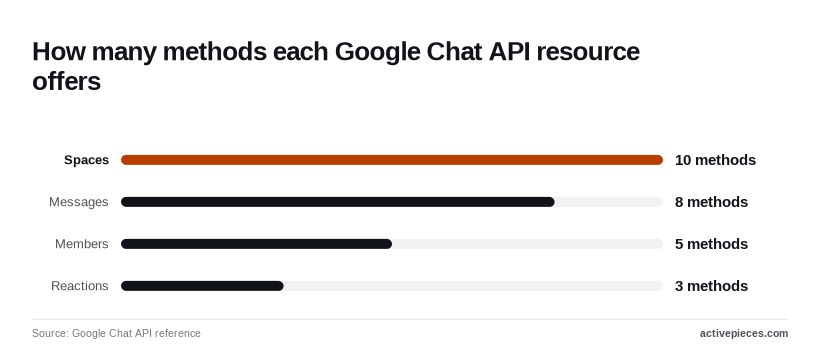
To see why scope choice matters, look at the method counts below. They come from the Google Chat API reference.
App authentication with a service account
Nothing stops working when the person who built it leaves, because a service account gives the automation an identity that outlives any employee.
The trade-off is reach: the app sees only the spaces where someone added it.
Nothing stops working when the person who built it leaves, because a service account gives the automation an identity that outlives any employee.
Messages carry 8 methods in the reference, so most of the sending, editing and reading you need is available, but a bot that's not a member of a space can't touch it.
User authentication with OAuth 2.0
Because it acts as a person, messages show their name and their access limits apply.
Per the Google Chat API reference, spaces have 10 methods, the largest resource, and that's where this route earns its cost: creating and managing spaces is work an installed bot often can't do.
5 methods cover members, which means adding and removing people is a short list, but each call runs as whoever consented. If that person's account is suspended, the automation fails with it, so name an owner for the token.

Default to app authentication for notifications and bot-style replies. Reach for user authentication when the action must name a person, or when you need the space and membership methods a bot can't reach.
Reactions, at 3 methods, are the smallest resource, so they rarely decide the choice. Pick on attribution and ownership first, and on method counts second.
You can follow the rest of this with the builder open. Start free, no card.
Stage 3: Send a first message with messages.create
Whose name appears on a first message depends on the token you send; the message itself is one authenticated POST to the space's messages endpoint with a text body.
That's the ownership question again: when this call fails at 2am, the sender identity tells you whose credential to check.
Read the sequence below as the whole call from start to finish. Take from it that only the token step differs between app and user authentication; the rest is identical.
- Find the space ID from the space URL or from
spaces.list. - Get a bearer token for the identity you chose.
- POST to
/v1/spaces/SPACE_ID/messageswith{"text": "..."}. - Read the
namefield in the response.
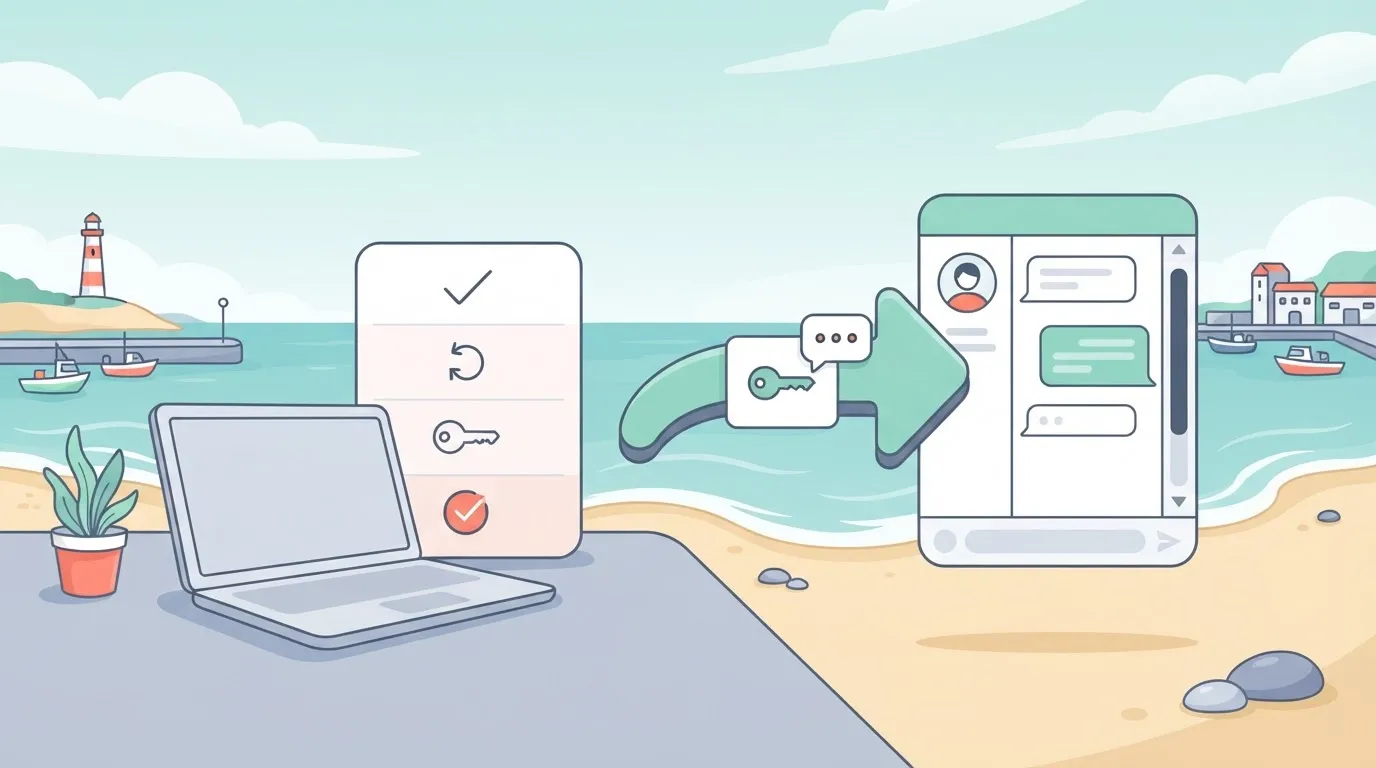
Each step is expanded below.
Find the space ID
Open the space in Chat and look at the URL. The identifier after the room segment is the space ID.
If you can't reach the space in a browser, call spaces.list and take the ID from each result's name, which reads spaces/ followed by the ID.
An app only lists spaces it belongs to, so a missing space usually means the app was never added to it.
Make the call
Send the token in an Authorization: Bearer header, set the content type to JSON, and put the text in the body. With curl that's a single request to https://chat.googleapis.com/v1/spaces/SPACE_ID/messages.
The Google API client libraries wrap the same operation as spaces.messages.create, and they handle token refresh for you. That matters more once the script runs unattended.
Check that the token carries a message-creating scope. A token without one is rejected, and the error names the scope problem rather than the space.
If you only need to post into one space and never read anything back, an incoming webhook is a lighter alternative. You create it in the space settings and post to its URL with no OAuth flow.
The cost is that it posts as a webhook, so it can't reach other spaces or call any other method. Choose it knowingly.
Read the messages.create response from the Chat API
When the call succeeds, it returns the created message. Its name field has the form spaces/SPACE_ID/messages/MESSAGE_ID, and that string is the handle for every later operation on the message: updating it, deleting it, or replying in a thread.
Store it wherever your automation logs its actions, so the person on call can trace a post back to the run that made it.
Then open the space. The text should be there, attributed to the app or the user, depending on the token. If the message is missing, the response and the sender are the first two things to check.
Understand Google Chat API quotas and errors
When a call fails, the status code tells you who owns the fix. That's the token holder, whoever manages the space, whoever wrote the request, or whoever runs the schedule.
Whoever is paged at 2am can go from the log line to one action with the list below, which pairs each code with its cause and fix.
- 401: the token is expired, malformed or missing the scope the method needs. Refresh it or re-consent with the right scope.
- 403: the app is not a member of the space, or the call returns PERMISSION_DENIED because the chosen authentication doesn't allow that method. Add the app to the space or switch authentication type.
- 404: the space or message name is wrong. Rebuild it from the resource name the API returned.
- 400: the request body is malformed, most often a card. Validate the card JSON.
- 429: a quota was exceeded. Retry with backoff.
Each is covered in turn below.
Google Chat API quota limits by method
For every method, Google's usage limits page lists quotas, with separate limits for reads, writes and project-wide traffic. Message creation is also limited per space, so a single busy space can throttle your app long before the project total is anywhere near its ceiling.
Check the quota page in the Cloud console for your project's current figures rather than relying on a copied number, because Google can change them.
Fix Google Chat API 401 and 403 errors
If you get a 401, the credential failed before the API looked at what you asked for. Check that the token hasn't expired and that its scopes cover the method; a scope that worked for reading won't authorise writing.
When the credential is valid but not permitted, you get a 403. As an app, you can't post into a space nobody added you to, so the owner of that space is the person to ask.
A PERMISSION_DENIED body usually means you picked the wrong authentication type for the method, which is the choice this article opened with.
Fix Google Chat API 404 and 400 errors
On a 404, check the resource name first: it is almost always a hand-typed space ID, a missing prefix, or a message from a space you can't see. Copy names from API responses instead of assembling them.
If a message with a card gets a 400, the card JSON doesn't match the schema. Send the same message as plain text first. If that succeeds, the fault is in the card.
When you get a 429, you have exceeded a quota, and repeating the call immediately only extends the throttle. Wait, retry with exponentially increasing delays plus a little randomness, and cap the number of attempts.
If it recurs on one space, queue writes for that space instead of sending them in parallel.
Call the Google Chat API without code using Activepieces
Carry the queueing advice over to a flow. A trigger that fires in bursts becomes a burst of writes, so build the flow to send one message per run and watch the spaces that fail.

Google Chat is one of the 750 integrations in the MIT-licensed Activepieces open source monorepo, roughly 60% of them community-contributed, so another app can post or react to Chat messages without code. An HTTP action covers the methods the integration doesn't expose.
Choose your Google identity for Chat
Start with ownership, because the connection is where authentication lives. Whichever Google identity you authorize is the identity Chat sees, so the choice you made between app and user authentication is made again here.
If a personal account holds the connection and that person leaves, the flow fails with an authorization error and whoever is on call inherits it. Create the connection under an account the team controls, and write down who owns it.
Send the same message as Stage 3
In the screenshot below, an Activepieces flow named "Community Summarizer - Get Messages" reads from Discord, not Chat, but the shape is what to copy. A trigger comes first, then a stored record, an AI check, a Router and a send step.

On the right, the panel shows the trigger's Connection, Limit and Channel fields, and the unpublished-changes notice at the top shows the flow isn't live until you press Publish.
Replace the Discord steps with the Google Chat integration, point the send step at the space you used in Stage 3, and compare the result with your direct call.

To report a rejected write where someone will read it, a Router can route failures to a different space.
For methods the integration doesn't offer, add the HTTP action and reuse the same connection. The endpoint and request body are then exactly what the Chat API reference specifies.
Stay with code when you need to control retries and backoff yourself, or when you must queue writes per space. Stay with it too if the reviewer of the change needs a diff rather than a canvas.
A flow is also an owned system, and it needs a named maintainer like any service.
On Monday:
- Pick the one message from Stage 3 that matters most and rebuild it as a flow.
- Create the connection under an account the team controls.
- Publish the flow and compare its output with your direct call.
- Name the person who gets paged when the connection expires.
Related reading
References
Build it
Set this up in minutes.
No code required. Connect your accounts, and Activepieces runs it from there.
Start free Talk to sales