
Lightroom Pricing in 2026: What Every Plan Costs You

Nov 5, 202614 min read
Lightroom is Adobe's photo editing and organizing app, and its exported catalogs can feed into whatever workflow you already run, even one built on Activepieces. Your bill depends on how much cloud storage you attach and whether you add Photoshop through the Photography bundle.
The plan details come from Adobe's Lightroom 1TB plan FAQ, as listed on 5 November 2026. The dollar figures here are list prices that can vary by region and tax, and the plan page at checkout is the only number that binds you.
Lightroom Plans, Prices and Limits as Checked Today
The plan table, verified on 5 November 2026
The table below shows how each plan splits storage and apps.
| Plan | Cloud storage | Apps included |
|---|---|---|
| Lightroom 1TB | 1TB | Lightroom |
| Lightroom 2TB | 2TB | Lightroom |
| Lightroom 5TB (1TB plus add-on storage) | 5TB | Lightroom |
| Photography 20GB | 20GB | Lightroom, Lightroom Classic, Photoshop |
| Photography 1TB | 1TB | Lightroom, Lightroom Classic, Photoshop |
Compare the Lightroom 1TB and Photography 1TB rows first, because Adobe indicates that Photoshop is the line item that moves the price.
Once your cloud library fills, syncing stops until you delete photos or buy more space. The 20GB Photography plan fits a few hundred edited photos at most, so a shooter with a large archive will hit it quickly.

Keep full archives on your own drives, and let Activepieces copy finished exports out for you, since its free plan costs $0 and includes unlimited flows. That way the cloud holds only what you're editing, and you can often stay on a smaller tier.
Adobe sells each plan two ways. Monthly billing lets you leave whenever you like, but if you know you'll be editing all year, paying monthly is the more expensive habit.
If you are running this arithmetic for your own team, see what the same workload costs on Activepieces.
The Real Monthly Bill for Three Named Buyers
$11.99, $74.95 and $399.80 are what a solo creator, a five-person studio and a 20-seat company each spend. All three are paid month to month, so the off-season costs nothing.
The table below multiplies Adobe's published per-seat prices by seat count, so you can see which buyer pays for storage they never fill.
| Buyer | Plan used | Storage per seat | Monthly cost | Yearly cost | Billing assumption | Tax |
|---|---|---|---|---|---|---|
| Solo creator (1 seat) | Lightroom 1TB | 1TB | $11.99 | $143.88 | Month to month, 12 months | Excluded |
| 5-person studio | Photography 20GB | 20GB | $74.95 | $899.40 | Month to month, 12 months | Excluded |
| 20-seat company | Photography 1TB | 1TB | $399.80 | $4,797.60 | Month to month, 12 months | Excluded |
At $11.99 a month, Lightroom 1TB comes to $143.88 a year, which means over $140 in annual spending for a single tool. That fits one person whose catalog of synced originals runs into hundreds of gigabytes.

It's also $3 a month cheaper than the Photography 20GB plan at $14.99, which holds far less, so Lightroom 1TB is the better value.
Five seats on Photography 20GB cost $74.95 a month, or $899.40 a year, roughly $180 per person annually. That works only if originals live on the studio's own drives and the cloud holds little more than working previews.
If each person syncs full shoots, 20GB fills quickly, and you'd be buying upgrades seat by seat.
Put all 20 people on Photography 1TB at $19.99 a seat and the bill is $399.80 a month, or $4,797.60 a year, so each person costs roughly $240 per year.
By default you pay $100 a month more than 20 seats at the 20GB tier ($299.80), which is $1,200 a year, a material annual premium for the default configuration.
Hidden Costs and Limits People Hit After Subscribing
The surprises come from four places: storage that fills faster than you planned, a lapsed plan, annual-plan terms, and monthly AI credit caps. Each is cheaper to check now than to discover mid-project.
Storage overage and add-on pricing
When a plan is full, you either buy more space or stop syncing, and raw files from high-resolution cameras fill one quickly.
Rounded, a 24MP camera gets about 55,000 files into 1TB, while a 61MP camera gets about 19,600, so someone shooting 61MP will fill their storage much faster.
A 61MP shooter with a 2TB plan has room for roughly 39,000 frames, which is a couple of busy years of weddings.
When a payment fails or you cancel, cloud editing stops being something you can count on. Export originals and finished edits to a drive you own before a renewal date you're unsure about. Doing nothing risks being locked out the week a client needs files.

An annual plan is cheaper per month, but it's a commitment: quitting early can cost you part of what you prepaid. Pick it only if you're sure you'll keep the plan the full year.
Lightroom generative AI credit limits by plan
Use them or lose them: generative credits reset monthly, so unused ones don't carry over.
The Photography 1TB plan gives 1,000 credits per month, according to Photutorial. The standalone Lightroom 1TB plan gives 250, a quarter of that. The Photography 20GB plan and Lightroom mobile each give 100.
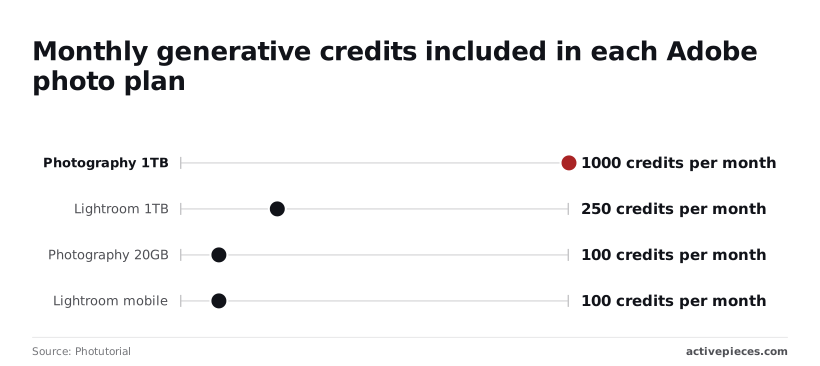
If you lean on generative tools daily, the cheaper plan can run dry within days.
Lightroom vs. competing editors on price
Lightroom's cheaper plan runs dry on storage. Its rivals mostly sidestep that problem by keeping your library on your own drives, which shifts your cost from a bill to a hard disk.
Read the last column first: it tells you what the money buys once you stop paying. The table below sets the five side by side. I've left exact prices out because they change often, so check each vendor's pricing page before you commit.
| Licence model | Entry price | First-year cost | Included cloud storage | If you stop paying | |
|---|---|---|---|---|---|
| Lightroom | Subscription | Recurring, tiered by storage | Twelve months of payments | Yes, sized by tier | Edit access ends; stored files stay, but you lose the editing tools |
| Capture One | Subscription or perpetual | Subscription is lower upfront | Subscription accrues; perpetual is one purchase | Library stays on your drives | Perpetual keeps working; subscription stops |
| ON1 | Subscription or perpetual | Subscription is lower upfront | Same split as above | Library stays on your drives | Perpetual keeps working; subscription stops |
| DxO | Perpetual | One purchase | One purchase | None | You keep the version you bought |
| Darktable | Free, open source | None | None | None | Everything, indefinitely |
If you stop, editing stops, so cancelling costs you the editing tools, not the stored files.
A perpetual licence is one purchase that keeps working. The catch is that major upgrades usually cost extra, so doing nothing costs you new features, not your ability to edit.
Darktable costs nothing and never expires. The price is a steeper learning curve, and you handle backup yourself.
Worth checking against a plan that does not meter every step: one credit covers a whole run on Activepieces.
Choosing the Cheapest Lightroom Plan for Your Usage
Count gigabytes before you look at a price, because the cheapest plan is the smallest one that holds the RAW files you want in the cloud.
Per terabyte, a 24MP camera at about 18MB a file fits 56,349 to 112,698 RAW photos, so a typical shooter keeps a decade or more of work on 1TB.
A 45MP camera at 33MB fits 30,057 to 60,114, which is still comfortable for most people. A 61MP camera at 51MB fits 19,398 to 38,797.
Shoot 5,000 frames a year and you could fill that terabyte in under four years. The high-resolution buyer is the one who gets caught by the storage tier.
Work through it in this order:
- Multiply your file count by the megabytes per RAW, then divide by 1,000 for gigabytes. Include the next two years of shooting, or you'll pay for an upgrade you could have planned.
- Decide whether you need Photoshop. If you do, price the Photography bundle against Lightroom plus standalone Photoshop, because buying them separately can cost more than the bundle that already includes both.
- Choose cloud or local-only. Files kept only on your own drives use none of the cloud allowance, but backup becomes your job.
- Map the cloud gigabytes you counted to the 1TB, 2TB or 5TB tier, or to the Photography plan if step 2 said yes, so you know your tier.
- Compare one year of the next tier up against the cost of switching tools, including the hours it takes to move and re-organize your catalog.

Switching only wins when the upgrade gap, repeated every year, keeps growing past what the new tool and your migration time would cost. If you're one tier short, upgrade. If you're two tiers short and still growing, price the switch.
Automating Post-Export Chores with Activepieces
Activepieces does nothing to your Lightroom bill, but it prices the way you'd want every tool to: one credit per flow run, however many steps the flow has, and unlimited flows even on the free plan.

A ten-step flow that files, emails and logs costs the same as a two-step workaround, so you never trim steps to save money, whereas Zapier bills per task and Make per module, as their pricing pages show.
Its core is MIT-licensed, with 747 integrations counted straight from its public GitHub monorepo.
If you've already matched your plan to your storage, this is a separate question: what you do with the files once they leave Lightroom.
Triggering the workflow from a Lightroom export folder
Lightroom itself offers no trigger an outside tool can listen for. It doesn't announce "export finished" to anything.
So the workflow starts one step later, at a folder. You export to a watched location, such as a folder on a synced drive, and Activepieces notices a new file land there and begins a run.
At one credit per run, the free plan's 1,000 credits a month cover 1,000 exported files.
That has a cost worth stating plainly: the automation only works if you export to that folder every time. Export to the desktop one afternoon and nothing fires, and nothing warns you. Pick one destination and make it your export preset.
Look at the illustration below for the whole path.
The export folder is the trigger, a single Activepieces flow, billed at one credit per run, sits in the middle, and three things come out the other side, a sorted client folder, an email notification and a spreadsheet row.
Take from it that one new file produces all three results without you touching it again.

What follows is the work that flow replaces.
Manual Lightroom delivery chores this workflow replaces
Every delivery without it is the same three chores. You drag files into the right client's folder, write the "your photos are ready" email, and add a line to your job tracker so you know what has gone out.
Skip one and you pay later: a client asks where their gallery is, or an invoice goes out late because nobody logged the job.
From the same trigger, the flow does all three. It files the image by client, sends the notification, and adds the row.
It won't edit, cull or judge anything, and it won't fix a mislabeled export. If the file name is wrong, the filing is wrong too, so the work moves from repeating chores to naming things consistently.
Checklist before you renew or subscribe to Lightroom
In one sitting, six small checks will tell you whether your current Lightroom plan fits or whether you're paying for room you never use.
The list below is short on purpose.
- Open Adobe's pricing page and write down the date you looked. Adobe changes plans and bundles, so a price without a date is a guess a few months from now.
- Read the storage figure shown inside Lightroom. That number, not the size of your hard drive, decides which tier you need.
- Compare the annual price against the monthly price for the same plan. Annual usually costs less per month, but it commits you for the year, so only take it if you're sure you'll keep the plan.
- Count who else needs a licence. If an assistant or second shooter edits in the same account, a personal plan may not cover them, and a team licence is priced per seat.
- Set a renewal reminder a couple of weeks before the date. Doing nothing means the plan renews at whatever the price is then, whether or not you still need it.
- Start one alternative trial and price it against your real library. A rival that looks cheaper on its page can cost more once your files are in it.

Once those six answers are on one page, the choice usually makes itself: keep the plan, drop a tier, or move.
A rival that looks cheaper on its page can cost more once your files are in it.
Frequently asked questions
Is there a free version of Lightroom?
Yes, but only a limited one: Adobe's Lightroom mobile app on phones and tablets works without a subscription, with basic editing and no paid features. If you want the full editing tools, the desktop apps, or meaningful cloud storage, you're paying.
Adobe has also offered a trial period on the paid plans, so you can test the real thing before committing. Check the length on Adobe's site, because it has changed over the years.
Can I buy Lightroom once instead of subscribing? Not the current version. Adobe sells Lightroom by subscription only, and the last one-time-purchase release, Lightroom 6, is no longer sold or updated.
Any seller offering a "lifetime" license is worth treating with suspicion. If you want to stop paying, the honest options are a cheaper plan or a different editor.
Does Lightroom pricing differ for students and teachers?
Adobe runs education discounts for eligible students and teachers, and they are usually priced differently from the standard plans.
Which plans qualify, and how much you save, depends on your school and region, so confirm on Adobe's education page before assuming the Photography plan is covered.
Skip the discount hunt if you're not eligible, since resold "student" accounts are a common way to lose both money and files.
Can I switch Lightroom plans mid-subscription?
Generally yes, you can change plans from your Adobe account, for example moving from a standalone Lightroom plan to the Photography bundle, or to a different storage tier.
How the billing adjusts depends on whether you pay monthly or annually, and cancelling an annual plan early can carry a fee. Read the confirmation screen before you click, because that screen shows what you'll owe.
Is Lightroom Classic included in the Photography plan? Yes. The Photography plan includes Lightroom Classic, the desktop-focused version that keeps files on your own drive, alongside the cloud-based Lightroom and Photoshop.
The standalone Lightroom plan covers the cloud version only, so if you rely on Classic, the bundle is the plan that includes it.
Related reading
References
Running the numbers
See what the same workload costs here.
Free forever plan, and every paid plan self-hosts at no extra cost.
See pricing Talk to sales