
Neon MCP Server: How to Set It Up (2026 Guide)

Oct 9, 202614 min read
By implementing the Neon Model Context Protocol (MCP) server, you create a secure, standardized bridge that allows Large Language Models (LLMs) to read from and write to Postgres databases using natural language.
Neon MCP Server connects LLMs to Postgres databases
You are moving away from hard-coded API wrappers, much like how developers use Activepieces to automate their workflows, to achieve a more dynamic and scalable architecture.
Instead, you're providing a model like Gemini 3.8 Flash with a direct schema map and query execution capabilities. This means the AI can self-correct its SQL syntax based on real-time database feedback.
What the Model Context Protocol does for databases
Standardizing how models discover and interact with data transforms a static database into a dynamic tool for agentic workflows. Instead of writing custom connectors, the MCP server provides a consistent interface that exposes database tables as resources and SQL execution as tools.
Standardizing how models discover and interact with data transforms a static database into a dynamic tool for agentic workflows.
This architecture allows a model such as Claude Sonnet 5.5 to browse your schema and understand foreign key relationships. It can pull specific records without a developer manually defining every possible query parameter.
For the operations lead, this reduces the time spent on data plumbing because the model handles the translation between a user’s prompt and the underlying relational data.
AI and DevTools lead the MCP server ecosystem
Interoperability between reasoning models and technical infrastructure is now a priority, as indicated by the rapid growth of the FewServers directory. The ecosystem is currently dominated by several primary categories.
Activepieces exposes every registered integration as an agent tool, so a integration configured for a flow is immediately available as a tool schema on its per-project MCP server.
This allows Claude, ChatGPT, or a custom agent to call the same logic used in a structured automation without a second migration or manual export step.
The MIT-licensed core supports 738+ integrations, ensuring that once a database action is defined, it is immediately reachable by any MCP-compliant host. This unified catalog removes the need to wire up connections twice for different execution environments.
Prerequisites for installing the Neon MCP server
Before you can connect a Postgres instance to an agentic workflow using the Neon MCP server, you must have a local Node.js environment (v18 or higher) and a Neon project already provisioned. The server relies on environment variables for authentication.
You'll need your database connection string, specifically the pooled connection URL. This ensures the model can maintain a stable link during high-concurrency reasoning tasks.
Finally, you must use an MCP-compliant host, such as the Claude Desktop app or a custom implementation using the MCP SDK, to act as the execution environment for the server.
This takes minutes, not a project: automate it in Activepieces free.
Step 1: Configure the Claude Desktop runtime environment
Establishing a link between your database and the Model Context Protocol requires three specific technical prerequisites to ensure the bridge can authenticate and execute queries. These components form the foundation of the connection:
- A Neon API Key, which provides the necessary read/write permissions for the bridge to interact with your cloud-native Postgres instance.
- Claude Desktop (available on macOS or Windows), which serves as the local host environment where the AI model interacts with the MCP server.
- Node.js version 20.19.0 or higher. This runtime environment supports the modern asynchronous operations required by the Neon MCP server.
Securing these assets first prevents configuration interrupts. Once these are in place, you can move directly into the configuration steps.
Locating your Neon connection string and API key
To allow the MCP server to identify and access your specific database cluster, you must retrieve your project credentials from the Neon Console. Navigate to the Connection Details section of your dashboard to copy the connection string.
This string includes the host, database name, and user credentials required for the bridge to establish a handshake. Next, generate a new API key in your account settings.
This key is the security token that authorizes the Claude Desktop environment to perform actions on your behalf. Without these two specific strings, the MCP server will fail to initialize.
Editing the claude_desktop_config.JSON file
Adding the Neon server definition to the Claude Desktop configuration file configures the runtime so the application knows which external tools to load at startup.
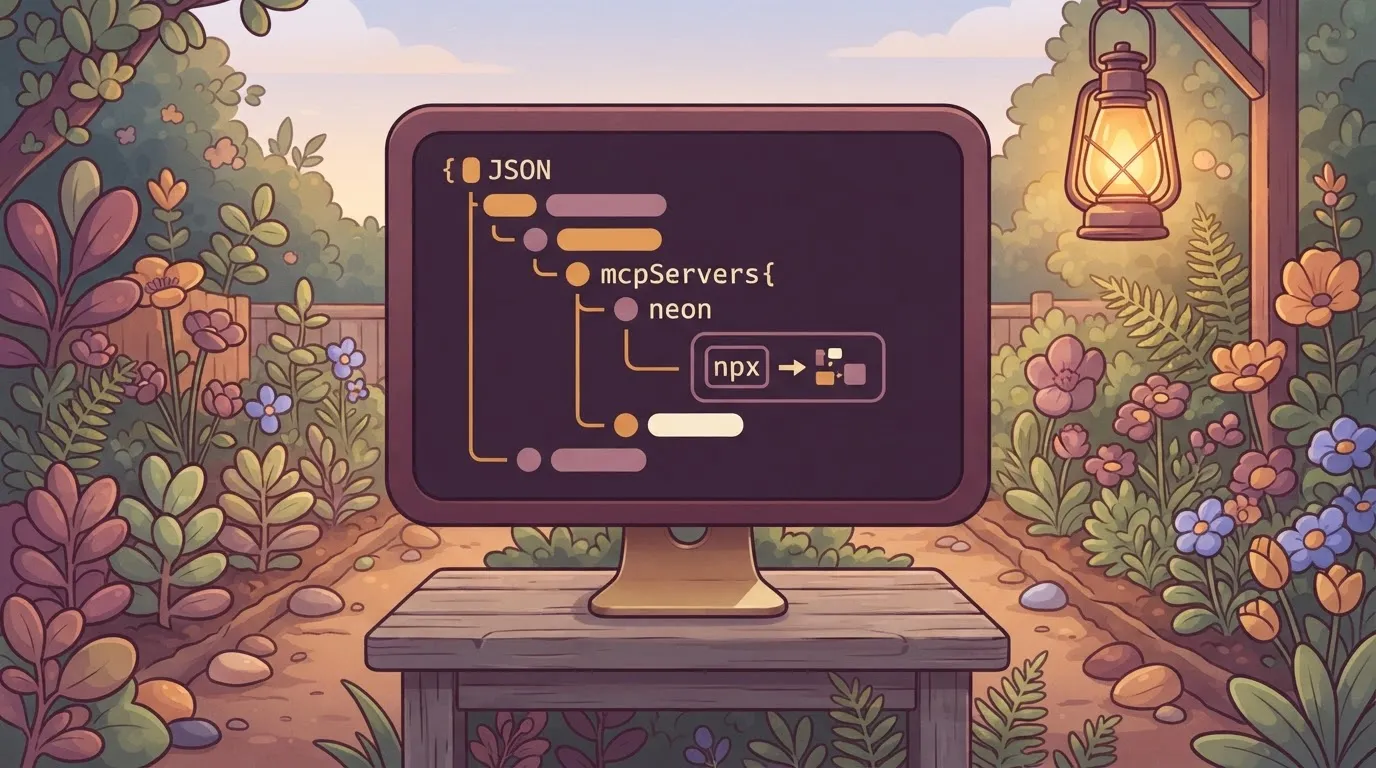
Open your claude_desktop_config.json file, typically found in the %AppData%\Roaming\Anthropic\Claude directory on Windows or ~/Library/Application Support/Claude on macOS, and insert the following JSON structure:
- Add a
mcpServersobject to the root of the JSON file. - Define a
neonserver entry that specifiesnpxas the command to ensure the latest version of the Neon MCP server is pulled from the registry. - Include an
envobject containing yourNEON_API_KEYandDATABASE_URLas environment variables.
Strictly managing these variables within the JSON file ensures that your sensitive credentials remain scoped to the Claude Desktop process rather than being exposed globally.
Defining the server configuration block
The configuration requires a specific nested structure to map the command-line arguments to the environment variables. You must replace the placeholder values with your actual Neon API key and the pooled connection string retrieved from your console.
{
 "mcpServers": {
 "neon": {
 "command": "npx",
 "args": ["-y", "@neondatabase/mcp-server-neon"],
 "env": {
 "NEON_API_KEY": "your_api_key_here",
 "DATABASE_URL": "postgresql://user:[email protected]/neondb?sslmode=require"
 }
 }
 }
}
This block instructs Claude to use the Node Package Executor to fetch and run the Neon server package on demand. The environment variables are passed directly to the child process, allowing the server to authenticate with the Neon API without manual shell exports.
Verifying the server connection in Claude
Restart the Claude Desktop application after saving the configuration file to force a reload of the MCP server environment. You can verify the success of the integration by clicking the plug icon in the interface, which displays the active toolsets available to the model.
If the configuration is correct, the Neon tools will appear in the list. These tools include schema inspection and SQL execution.
This visibility confirms that models like Claude Sonnet 5.5 can now actively query your Postgres tables. The model can then ground its responses in your live production data.
Connecting Gemini or GPT models via CLI
While Claude Desktop provides a graphical interface, you can connect models like Gemini 3.8 Flash or GPT-6 Astra to Neon by running the MCP server as a standalone process. This approach is necessary for developers building custom AI agents or using command-line reasoning tools.

By using the MCP Inspector, you can host the server locally and expose its tools to any LLM that supports the protocol. This allows you to test queries and schema discovery in a controlled environment before deploying to a production agent.
Bridging the gap between web interfaces and local servers
Standard web interfaces for Gemini or ChatGPT cannot communicate with a local terminal process directly due to browser security sandboxes.
To use these models with your local Neon MCP server, you must use a host application that supports the protocol, such as a specialized IDE extension or a local agent runner.
The inspector acts as a middleman for testing, but for production use, you point your custom LLM client to the local transport address provided by the inspector.
You cannot simply paste a URL into a standard chat text box and expect it to find your local machine.
Running the server with the MCP Inspector
The MCP Inspector is a utility that hosts your server and provides a web-based interface for debugging. You can launch the Neon server by passing your environment variables directly to the command line.
Run the command export NEON_API_KEY=your_key followed by export DATABASE_URL=your_url in your terminal. Then, execute npx @modelcontextprotocol/inspector npx -y @neondatabase/mcp-server-neon to start the bridge.
This command initializes the server and provides a local URL where you can interact with the tools. Any LLM capable of making HTTP requests to a local MCP host can now access your Postgres data through this bridge.

Integrating with custom LLM applications
For developers building standalone applications, the MCP SDK allows you to embed the Neon server directly into your code. This enables models like GPT-6 Astra to function as autonomous database administrators within your own infrastructure.
You can initialize the MCP client in your application and point it to the Neon server's transport layer. This setup ensures that the model's reasoning capabilities are tightly coupled with your database operations.
This method provides the highest level of control over how the LLM interacts with your data. It allows you to implement custom logging and additional security layers between the model and the Neon API.
You can follow the rest of this with the builder open. Start free, no card.
Neon MCP server limitations and troubleshooting
Models like Claude Sonnet 5.5 can now query your Postgres tables to ground their responses in live production data. Maintaining this connection requires managing resource constraints and security boundaries that differ from standard application development.
Neon concurrent connection limits by compute size
Neon allocates database resources using Compute Units (CUs), which directly dictate how many simultaneous queries an AI agent can execute before the server rejects new requests.
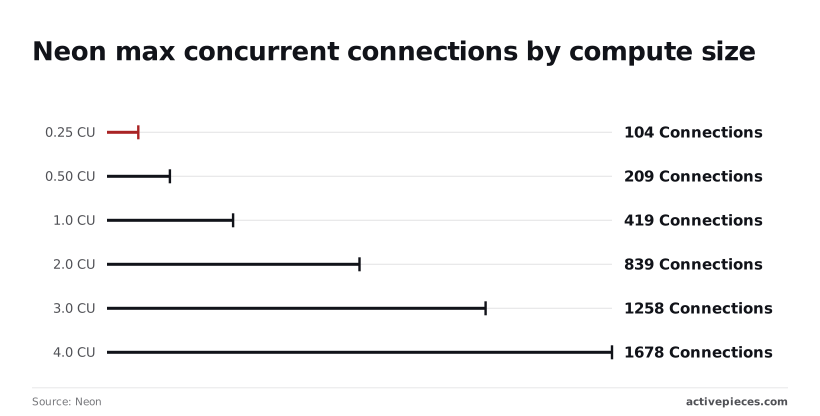
- 0.25 CU provides 104 connections Neon, meaning a small team can test basic MCP prompts but will hit a ceiling during automated batch processing.
- 0.50 CU provides 209 connections, which allows for broader agentic workflows where multiple models query the database at once.
- 1.0 CU provides 419 connections, supporting production-level traffic for internal AI tools.
- 2.0 CU provides 839 connections. This prevents complex, long-running transactions from models like GPT-6 Astra from blocking other users.
- 3.0 CU provides 1258 connections, necessary for large-scale data extraction tasks.
- 4.0 CU provides 1678 connections, providing the overhead required for massive parallel processing across enterprise agent fleets.
Fixing Postgres connection pool and timeout errors
The mismatch between the stateless nature of LLM tool calls and the persistent nature of Postgres sessions causes the primary friction in MCP deployments.
| Error | Common Cause | Operational Consequence |
|---|---|---|
| Connection Timeout | 5-minute idle scaling | The first prompt after a break fails while the compute wakes up. |
| Schema Too Large | Exceeding 4KB metadata limit | The LLM loses the context of certain tables and cannot query them. |
| Auth Failure | Invalid API key or environment | The MCP server fails to boot, leaving the agent without data access. |
To mitigate these, ops teams must enable connection pooling to multiplex these sessions, as a single agentic loop can otherwise exhaust a 0.25 CU instance in seconds.
Security risks of granting write access to LLMs
When a model like Claude Opus 5.5 is given write access, a single hallucinated SQL command can truncate a table. Granting an LLM INSERT or DELETE permissions transforms it from a research assistant into a system administrator with no "undo" button.
To restrict an LLM to read-only access, you must provide the MCP server with a connection string for a dedicated Postgres role that has been granted only SELECT privileges.
This risk makes it the only configuration where we mandate a dedicated, restricted database user. We limit these roles to specific schemas so that a prompt-injection attack cannot bridge into sensitive audit logs or user credentials.
Automate Neon database tasks with Activepieces workflows
Activepieces brings the agent into the same governance model as your employees, using enterprise RBAC, SSO, and SCIM to control which Neon projects the MCP server can actually touch.
While a manual chat interface requires a human to initiate a query, this workflow builder allows the system to monitor external triggers and execute predefined database logic without manual oversight.
By mapping incoming data from third-party services directly into the MCP environment, teams ensure that their Postgres instance acts on real-world changes as they happen.
Triggering MCP actions from external SaaS events
Connecting SaaS platforms to the database through Activepieces eliminates the latency of manual data entry. It initiates AI-driven workflows the moment a record changes in an external system.
When a lead is updated in Salesforce or a new issue is logged in GitHub, Activepieces captures the webhook and passes the payload to a reasoning model like Claude Sonnet 5.5.
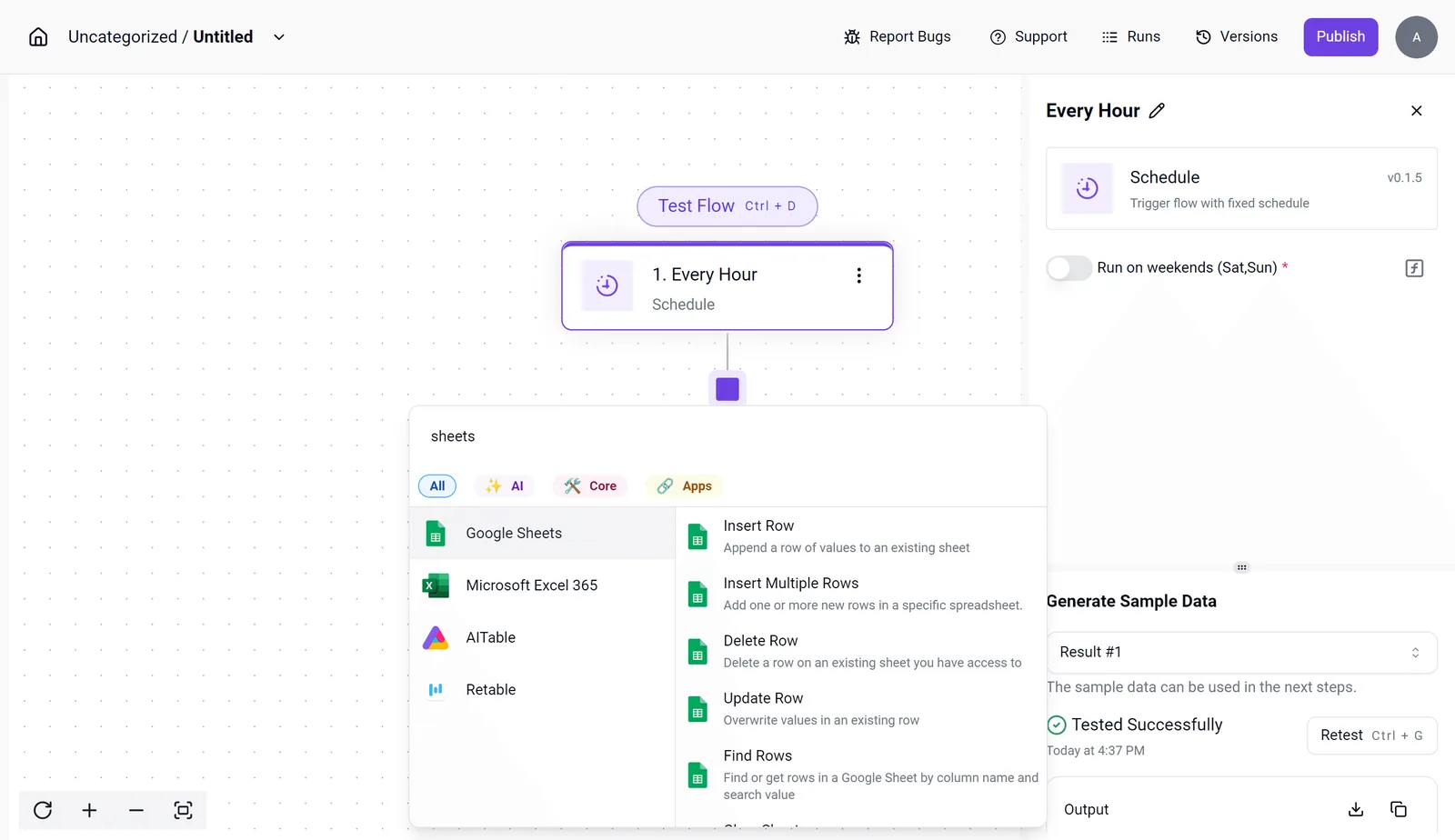
This model uses the Neon MCP server to cross-reference the new event against existing database tables. The system can then automatically flag high-value accounts or assign developers based on historical workload patterns stored in Postgres.
Building a self-healing database alert system
A self-healing alert system uses Activepieces to bridge the gap between static monitoring and active remediation. It allows models to write corrective queries back to Neon.
When a monitoring tool detects a performance bottleneck, it triggers a workflow that sends the error log to Gemini 3.8 Flash. This model is optimized for long-horizon agentic workflows.
The model then uses its MCP connection to inspect the current state of the database and suggest or apply a fix.
- The monitoring service sends a POST request to an Activepieces webhook, so the automation flow has the exact error context.
- The workflow passes the error details and the Neon schema to GPT-6 Astra, so the model can generate a non-destructive SQL command to resolve the issue.
- Activepieces executes the command through the MCP server, so the database is restored to a healthy state before a human operator even opens the dashboard.
Frequently asked questions about Neon MCP server
Does the Neon MCP server work with the free tier?
The Neon MCP server is compatible with Neon’s Free Tier. This means developers can prototype agentic workflows without incurring infrastructure costs during the initial build phase.
The Free Tier includes a set amount of shared compute and storage. It's a functional environment for testing how models like Claude Sonnet 5.5 or Gemini 3.8 Flash interact with live schemas.
However, the Free Tier lacks the "Autoscaling" feature found in paid plans. The database won't automatically increase resources if an LLM triggers a complex, resource-heavy recursive query.
Can I use the Neon MCP server with VS Code?
By installing the Claude Dev extension or similar MCP-compatible plugins that bridge the editor to the server, you can use the Neon MCP server within VS Code. This setup allows Gemini 3.7 Flash or GPT-6 Astra to execute SQL commands directly within your development environment.
This eliminates the need to manually copy-paste schema definitions into a chat window. By configuring the server in your local settings file, the model gains the ability to verify its own code changes against your Neon database in real-time.
How do I restrict the LLM to read-only access?
Database-level permissions provide a hard boundary that the model can't bypass. Relying on the LLM’s instructions to not delete data is a security risk.
For a secure implementation, follow these steps:
- Create a new SQL role specifically for the AI agent within the Neon console.
- Grant that role
CONNECTpermissions to the database andUSAGEon the relevant schemas. - Use the
GRANT SELECTcommand on specific tables to ensure the model can only view data without the ability to performINSERT,UPDATE, orDELETEoperations. - Update your environment variables to use the connection string associated with this restricted role.
This configuration ensures that even if a high-reasoning model like Claude Opus 5.5 or GPT-6.1 Sol attempts a destructive command, the database engine will reject the request, thereby preventing unauthorized data modification, so the integrity of the information remains secure despite the model's intent.
This protects your production data from accidental corruption.
Related reading
References
Build it
Set this up in minutes.
No code required. Connect your accounts, and Activepieces runs it from there.
Start free Talk to sales