
Notion API Quickstart: Get a Key and Make Your First Call

Nov 19, 202615 min read
The Notion API is a REST API at api.notion.com that you call with an integration token, whether from your own code or from an automation tool such as Activepieces.
It lets you read and write pages, databases and blocks in any workspace content you have explicitly shared with that integration. We checked this on 19 November 2026.
Get Notion API keys and explore capabilities
What the Notion API is and what it can do
Every request goes over HTTPS to api.notion.com and carries the token as a bearer credential. You can query databases, create and update pages, append blocks, read users and add comments.
By the end of your first hour you can have a script creating a row in a database and reading it back.
Share one page, and the integration can reach that page and its children, nothing else. The token can only see what someone has shared with it.
That's the first control to record: which pages the integration can touch, and who granted that access.
If you'd rather call the same endpoints without writing code, Activepieces runs unlimited flows on its free plan, with 1,000 credits a month, but the ownership questions below still apply.
Which plan you need for API access
You can create an integration on any of the four plans, so your plan tier doesn't restrict your ability to build integrations, though Business and Enterprise get a higher rate limit. Price per member is the other difference that matters for this decision.
| Plan | API access per Notion docs | Price per member per month |
|---|---|---|
| Free | Included | $0 |
| Plus | Included | $10 per seat / month |
| Business | Included | Listed on Notion's pricing page |
| Enterprise | Included | Quoted by Notion sales |
Before anyone approves spend, Free lets you prove the integration works. On Plus, the $2 gap between annual and monthly billing is the cost of staying flexible, so choose monthly only if you may drop the plan soon.
Pick a plan for your team's other needs, not for the API, then move on to the integration type.
Internal versus public integrations
When the job is a script, a back-office sync or anything your own team runs, you want an internal integration. It belongs to a single workspace. A workspace owner creates it, copies its token and shares pages with it by hand.
If you're shipping a product to other people's workspaces, choose a public integration. It uses OAuth, so any workspace can install it and each installer grants access to their own pages.
For either type, write down the owner before you write the code. A token tied to one person's account is a handover problem waiting for the day they leave. Name an owner, record where the token is stored, and decide who rotates it.
Everything below works on Activepieces' free plan. Start without code or a credit card.
Create an integration and copy the token
Create an internal integration in your Notion workspace, copy its secret, then share the pages it may touch; until you share a page, the token can reach nothing.
Because the secret acts as the integration's identity, the person who creates it becomes its first owner, so record that name as you go.
- Open the integrations page in your Notion settings and choose to create a new integration.
- Name it for the job it does, not for the person building it, so the audit trail still makes sense after a handover.
- Select the workspace it belongs to. An internal integration is bound to this one workspace and can't be used in another.
- Set the type to internal.
- Under capabilities, tick only what the job needs: read content, update content or insert content. Add user information only if the job must see people, and prefer the option without email addresses.
- Save, open the configuration tab and copy the internal integration secret.

Store the secret in your secrets manager at once, not in a chat message or a repository. A token with update rights can overwrite pages, so the capabilities you ticked define the worst case if it leaks.
Share a page or database with it
A new integration sees nothing. Open the page or database, use the menu at the top right, find Connections, and add your integration by name. Access passes down to child pages, so share the narrowest parent that covers the work, not a top-level page.
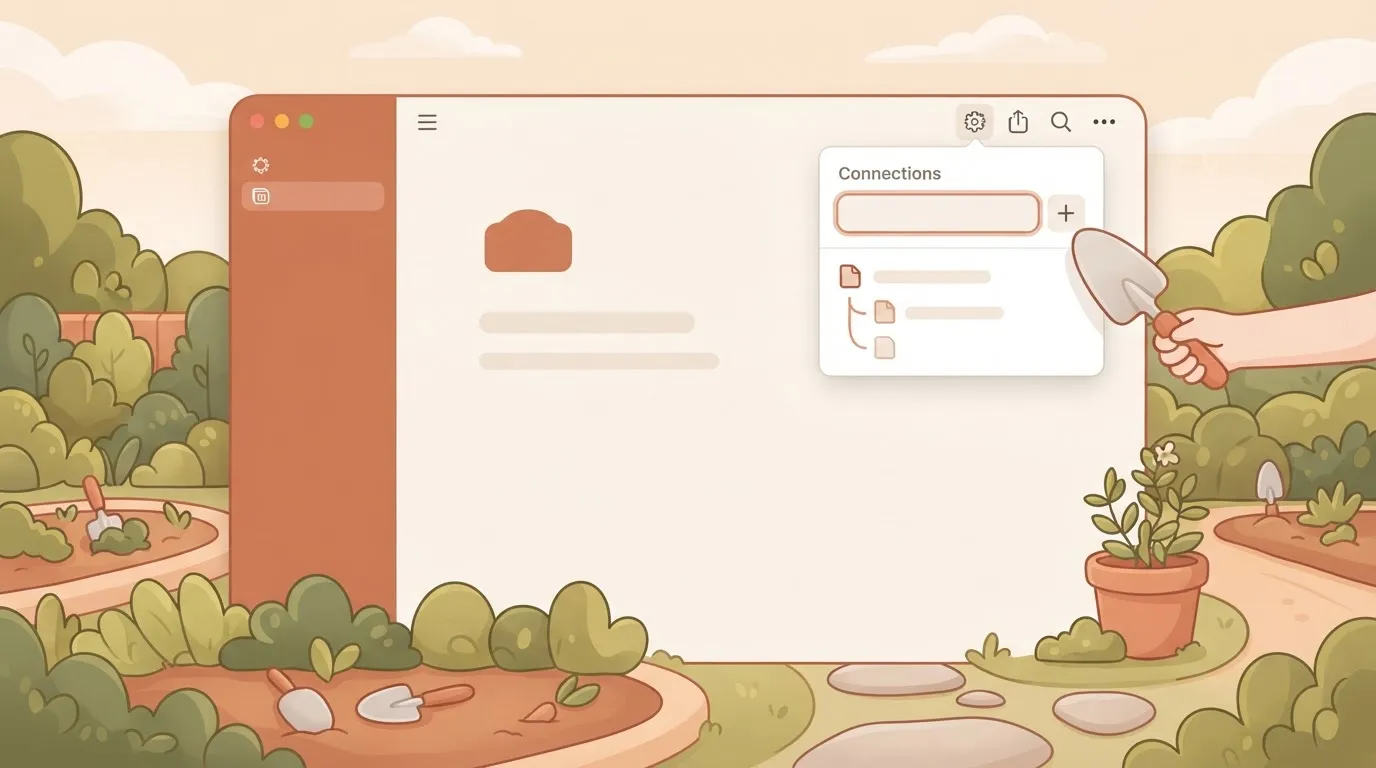
When a call fails on a page you haven't shared, you get a not-found response, not a permission message, so check sharing first. That one habit saves most of the first hour of debugging.
Once you share the page, the integration is connected and a first request with the secret as a bearer token will succeed.
If you're syncing Notion with other apps rather than building a product on it, Activepieces lets you connect your credentials once as a connection and use them in a flow without code.
Its source sits in the packages/integrations/community folder of the MIT-licensed repository on GitHub, among the 750 integrations counted there, roughly 60% of which are community-contributed, which means most of the library's code is maintained by volunteers.
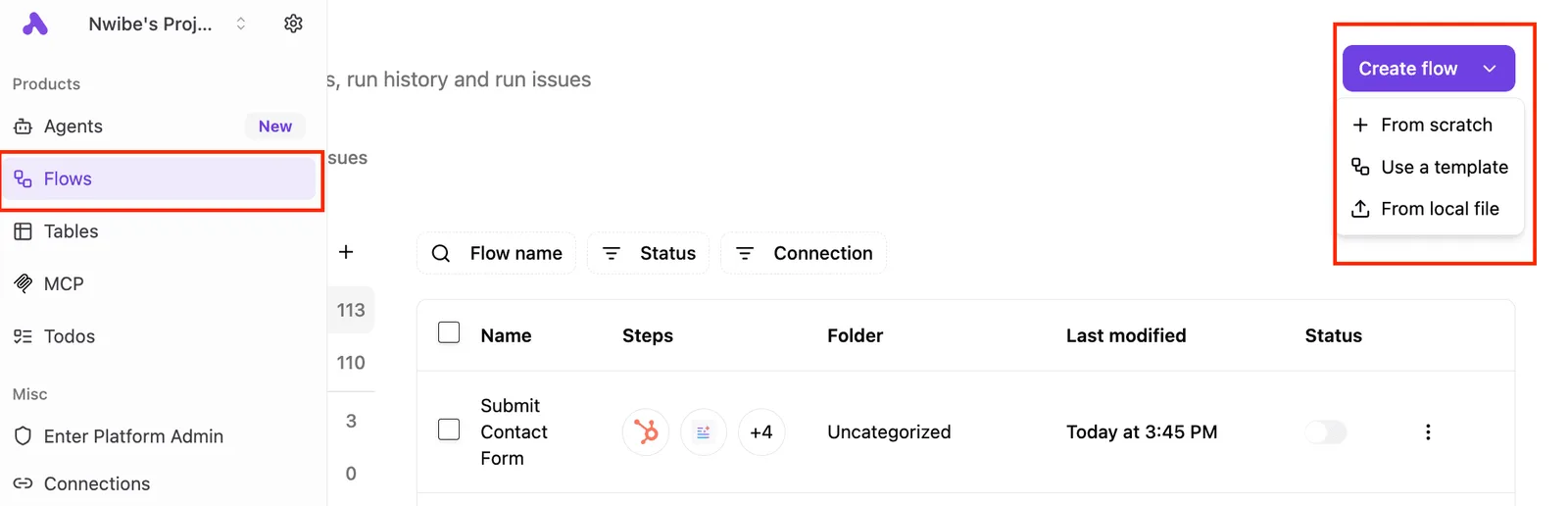
In that list, a "Submit Contact Form" flow with four steps sits beside a Create flow button offering a blank start, a template or a local file, giving you either an example or a blank slate, meaning you can choose between following an example or starting fresh.
Next, decide whether this token is enough or whether you need the OAuth route.
OAuth for public integrations
If other workspaces must install your integration, create a public one instead. An internal token suits one workspace you control.
A public integration uses OAuth: you register a redirect address, receive a client ID and client secret, and each customer's admin approves access and chooses which pages to share.
Because each approval returns a separate access token, treat every customer's token as its own record with its own owner.
Send your first request and read a database
Send a POST to the query endpoint, carrying the integration token in an Authorization header and a Notion-Version header. The version header pins the API behaviour you are coding against.
Use the token belonging to the workspace whose page you are querying, and confirm who shared that page with the integration.
Under the current version, you query and write against a data source ID, not the database ID in the page URL. Notion's docs now separate two objects.
A database is the container that appears on a page, and it holds one or more data sources. The data source holds the schema and the rows.
curl -X POST "https://api.notion.com/v1/data_sources/$DATA_SOURCE_ID/query" \
 -H "Authorization: Bearer $NOTION_TOKEN" \
 -H "Notion-Version: 2025-09-03" \
 -H "Content-Type: application/json" \
 -d '{}'
Send an empty body and you get rows with no filter.
A 404 with object_not_found almost always means the page was never shared with this integration, not that the ID is wrong. Check the sharing first, because the integration sees only what its owner explicitly gave it.
curl -X POST "https://api.notion.com/v1/pages" \
 -H "Authorization: Bearer $NOTION_TOKEN" \
 -H "Notion-Version: 2025-09-03" \
 -H "Content-Type: application/json" \
 -d '{
 "parent": { "type": "data_source_id", "data_source_id": "'"$DATA_SOURCE_ID"'" },
 "properties": {
 "Name": { "title": [{ "text": { "content": "First API row" } }] }
 }
 }'
Match the property names to the data source's schema exactly. Name here assumes your title column kept its default name. If the integration has read access only, this call fails even though the query succeeded, so check the capabilities set on the integration.
Read the Notion API database response and properties
Read the response and you find a results array of page objects, plus has_more and next_cursor. Each page carries its values under properties, and each property is typed. A title is an array of rich-text objects, not a string, so your code must unwrap it.
Look at has_more on the very first call. When it's true, you received only part of the data, and the cursor is how you fetch the rest.
Code that ignores it will look correct on a small test table and silently drop rows on a large one.
Easier to see it running than to read about it: set it up free, no card.
Notion API rate limits, size limits and pricing
At more than 3 requests per second per integration on most plans, Notion answers with a 429 and a Retry-After header, so attempting to push faster will immediately fail. Size caps apply to every request, and the pricing figures we found list per-seat charges only.
Request rate limit and the 429 response
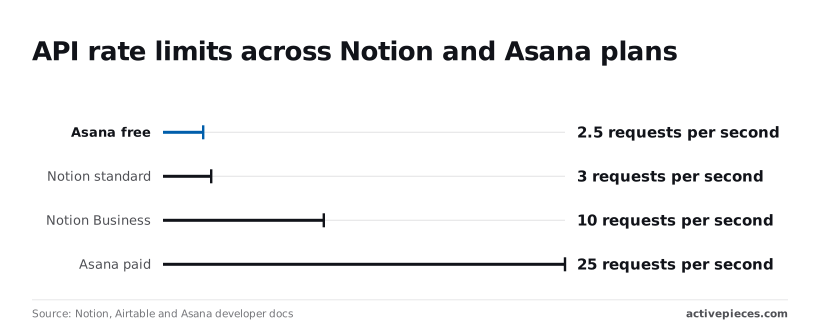
Fire calls without pacing and you will be throttled within seconds: Notion's request limits page sets an average of 3 requests per second on standard plans.
Business and Enterprise workspaces get 10 requests per second, which means a bulk sync that takes an hour on a standard plan can take a third of that on Business.
For comparison, Asana, a work-management tool, allows about 150 requests per minute on its free tier. Asana's paid tier allows 25 per second, 2.5 times Notion's Business ceiling.
When you exceed the limit, Notion returns HTTP 429 with a Retry-After header. Wait the number of seconds it gives before retrying, rather than guessing a backoff.
Notion API payload and size limits table
Check batch sizes against the table before you write the loop, not after the first rejected request. It shows each limit as published, with its source and the date it was read.
| Limit | Value | Source | Date |
|---|---|---|---|
| Average request rate | 3 per second (10 per second on Business and Enterprise) | Notion docs | 2026-11-19 |
| page_size maximum | 100 | Notion docs | 2026-11-19 |
| Blocks per request | 1,000 | Notion docs | 2026-11-19 |
| Payload size | 500 KB | Notion docs | 2026-11-19 |
| Rich-text characters | 2,000 | Notion docs | 2026-11-19 |
With a page_size cap of 100, a table of 5,000 rows takes at least 50 paginated requests, about 17 seconds at the standard rate, which is why loading it all at once isn't practical.
Text over 2,000 characters in one rich-text object must be split across several, and a page body above 1,000 blocks must be sent in more than one request.
What the API costs
Going by the pricing we found at Dupple, seats are what you pay for. Free is $0 per member per month, Plus is $12 billed monthly or $10 billed annually, and Business is $24 monthly or $20 annually.
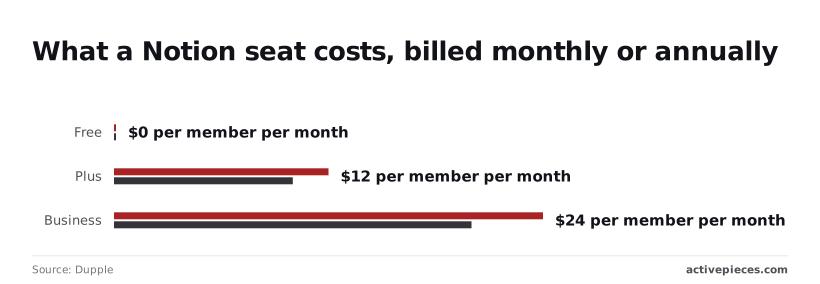
Pay annually and you save $2 per Plus seat and $4 per Business seat each month, so $24 and $48 a year.
It lists no separate charge per API call, so your cost is the seat plan, and the practical price of heavy use is the rate limit rather than a metered bill. Business is where the 10-per-second ceiling begins.

Common Notion API errors in production and fixes
When something breaks in production, it arrives as one of a small set of status codes. Almost every one traces back to who owns the integration and what it was granted. The rate ceiling is only one of them.
Read the 404 row first: it's the most common failure and the one that looks like a bug when it isn't, so when you hit this error yourself, you'll already understand what it means, or you'll debug code that isn't broken.
The table below lists each code with its usual cause, the fix, and the docs page.
| Code | Cause | Fix | Docs |
|---|---|---|---|
| 401 | Token missing, malformed or revoked | Send the integration token as a bearer token; regenerate it if the owner revoked it | Status codes |
| 403 | Integration lacks the capability the call needs (read, update or insert content) | Enable the capability in the integration's settings | Status codes |
| 404 | Page not shared with the integration | Share the page or database with the integration from its connections menu | Status codes |
| 400 validation_error | Request body doesn't match the schema, such as a wrong property name or type | Retrieve the database and match property names and types exactly | Status codes |
| 409 | Conflicting concurrent change | Retry after a short delay | Status codes |
| 429 | Request rate exceeded | Wait for the interval in the Retry-After header | Request limits |
| 5xx | Fault or timeout on Notion's side | Retry with backoff; contact support if it persists | Status codes |
Log the response code and body with every failed call and you can route most incidents without a debugging session, because each row has one fix.
When you get a 404, the page usually exists but was never shared with the integration. Ask the page owner to add the connection.
A 403 means the integration can see the object but lacks a capability. Change that in the integration settings, and record who approved it.
Fetch the database schema before writing and build payloads from it, not from memory, because property names are case-sensitive and each value must match its property type.
Honor the Retry-After header on a 429. For 409 and 5xx, back off with increasing waits and a retry cap. Reads are safe to repeat. Before retrying a create, query for the record first, or a timeout will leave you with duplicates.
Stop after the first response and you lose rows without any error. List and query endpoints return one page of results; if has_more is true, send next_cursor back as start_cursor and repeat until it's false. That's why pagination belongs in the first integration you ship.
Stop after the first response and you lose rows without any error.
Call the Notion API without code using Activepieces
If you would rather build a workflow than a script, Activepieces lets you make the same Notion calls, and a run costs 1 credit however many steps it has.
The permission, rate-limit and pagination problems stay yours to plan for, because the tool sits on top of the same API.
Pagination is the clearest case: a workflow that reads a database still has to be built to walk every page of results, not just the first.
Store your credential as a connection
Ask first who owns the connection. In Activepieces, the Notion integration stores your credential as a connection, so the token is held in one named place and not pasted into each step. Audit logs of who changed what are part of the Ultimate plan.
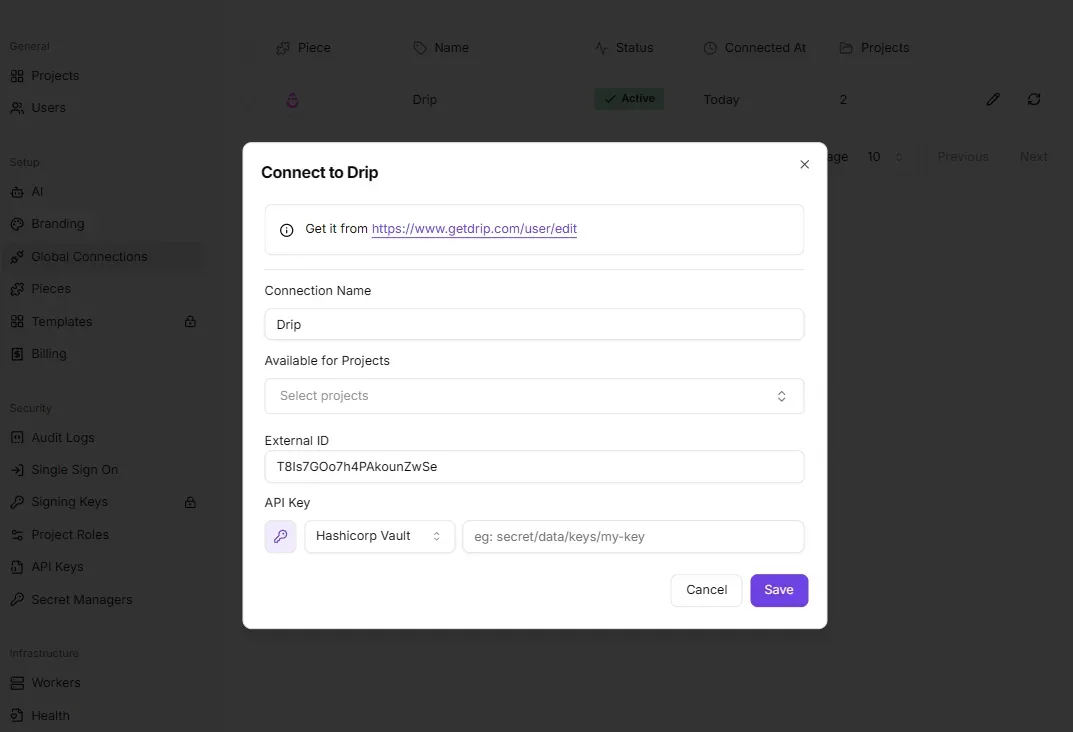
Whoever creates that connection is the person whose integration every flow depends on. If they leave, the flows fail.
If a flow can't find a page, it's usually a sharing problem, not an Activepieces fault.
The connection doesn't widen what the integration can see: Notion still returns only the pages and databases that someone has shared with the integration, and the integration's code in the MIT-licensed repository is open to read.
Share each page explicitly, then confirm it in a test run before you build further.
For changes, such as a new database item, the Notion integration offers triggers, and for common tasks such as creating or updating a page, it offers actions. These cover routine work.
They also hide the request, so check what a given action sends before you rely on it for volume or for a specific API version.
Use the custom API call action for any endpoint
When the built-in actions don't cover an endpoint, the integration includes a custom API call action. It sends a request to a Notion URL you specify, using the connection you already made.
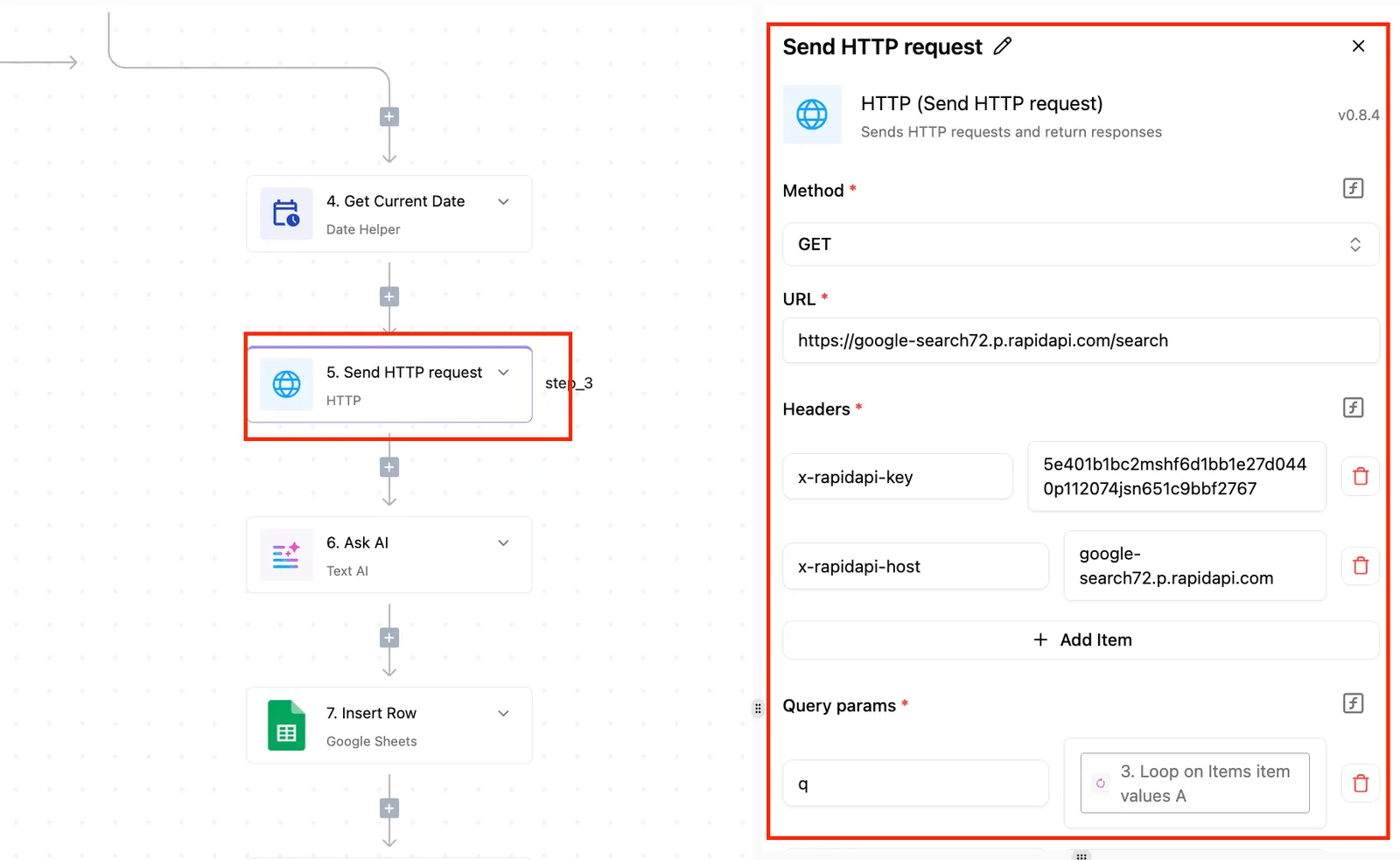
That means you can call an endpoint the piece doesn't wrap, and you control the request yourself: the method, the path, the body and the headers.
This is where you set the Notion-Version header yourself, so the version is pinned in the flow and doesn't shift under you.
It's also where you handle the cursor for paginated results and decide what a 429 response should trigger, such as a wait and a retry.
Doing that in a flow is the same discipline as doing it in code, only drawn on a canvas.
On Monday, work through the checklist below. Each item matches a failure described earlier in this article.
- Store the token in a connection, not in individual steps.
- Share each page and database with the integration.
- Pin
Notion-Versionin every custom API call. - Handle 429 responses with a wait and a retry.
- Follow pagination cursors until no more results are returned.
- Record who owns the integration and the connection.