Power Automate Templates: 6 Worth Using in 2026

Oct 15, 202614 min read
If you manage people who sign things off, start with a flow, built in a tool like Activepieces or whatever automation platform you already use, that fires on each new SharePoint file, sends an Approvals request, and notifies the approver through Outlook or Teams.
It replaces chasing sign-offs by email.
1. Document approval from SharePoint: best for managers
Trigger, steps and apps
- The trigger is "When a file is created" in a SharePoint library.
- Step two starts an Approvals request on that file.
- Step three posts the approver a message in Teams or sends an Outlook email.
- A final step writes the outcome back to a library column.
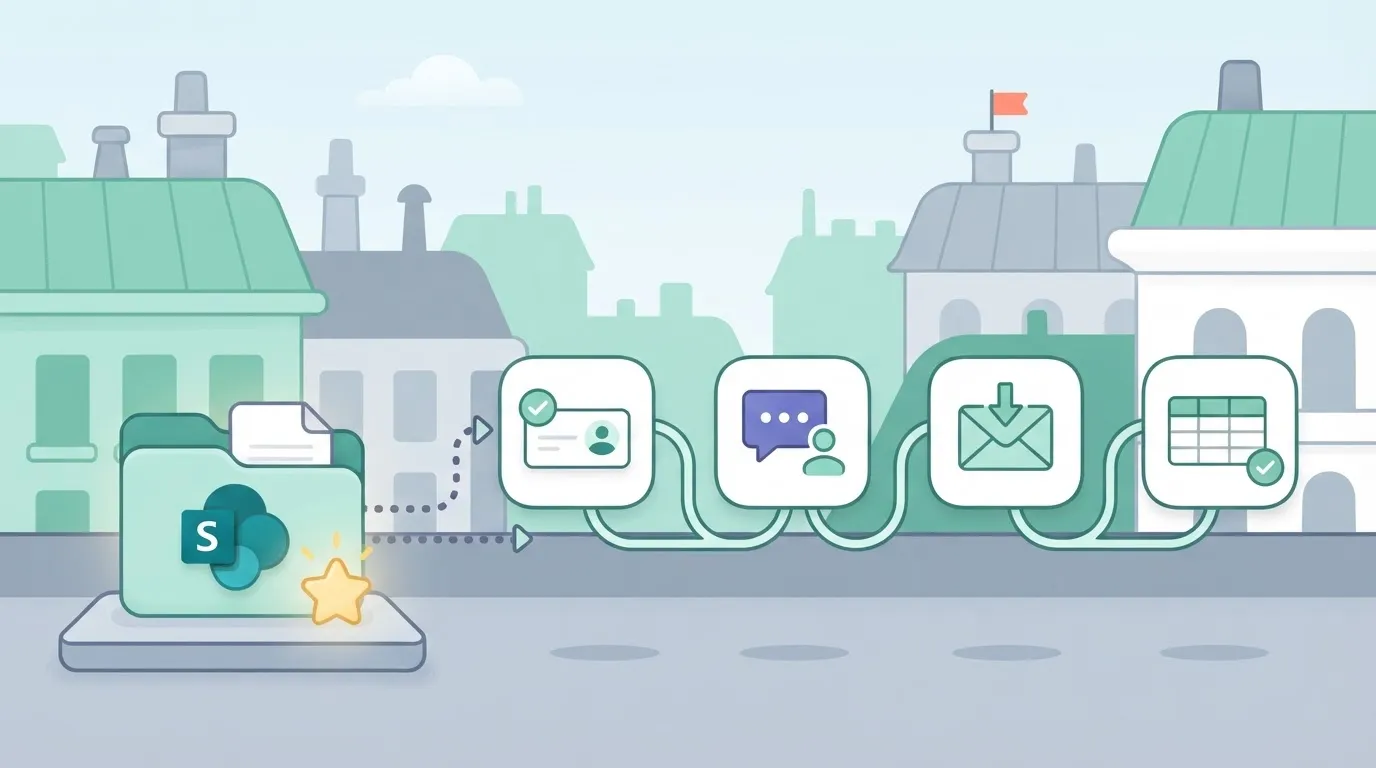
Because SharePoint, Approvals, Outlook and Teams are all standard-tier connectors, a Microsoft 365 seat that already includes Power Automate covers the flow with no premium add-on.
Power Automate template throttling limits and strengths
Licensing is not where this flow breaks; throttling is. Microsoft Learn lists the following:
- SharePoint allows 600 API calls per minute per connection
- Outlook and Forms allow 300 API calls per minute
- OneDrive allows 100 API calls per minute
Licensing is not where this flow breaks; throttling is.
Take a 400-file bulk upload with one Outlook email each. That's 400 calls against a 300 ceiling, so about 100 notifications are delayed.
If the flow copies files through OneDrive, the same upload hits the 100-call cap after a quarter of the files. Single documents are fine; batch uploads need a digest email instead.

This takes minutes, not a project: automate it in Activepieces free.
2. Forms survey responses to Teams and Excel
Uploads come in bursts, and surveys are the opposite pattern: one small response at a time, each one logged as an Excel row and announced in Teams the moment it arrives.
The trigger is "When a new response is submitted" in Microsoft Forms. That trigger only tells the flow a response exists, so the second step is "Get response details", which pulls the actual answers.
Step three is "Add a row into a table" in Excel Online (Business). Step four posts a message to a Teams channel with the key answers, so the team sees the result without opening the workbook.
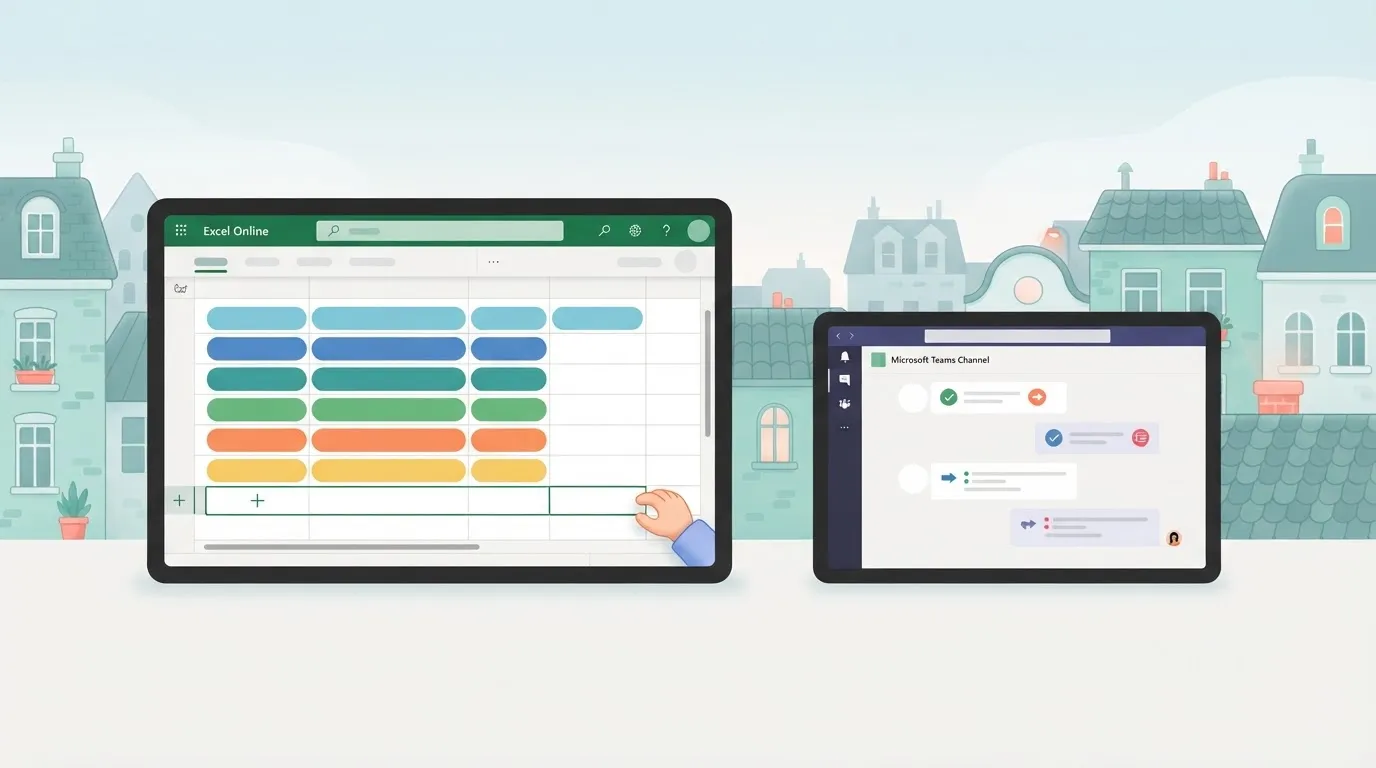
All four connectors are standard tier, so this flow adds no premium fee.
The limits sit in the plumbing, and the Excel table requirement is the one that catches most people.
The next list shows the four points where this template fails, so check each before blaming the flow.
- The Excel data must be a formatted table, not a loose range of cells.
- Forms allows 300 API calls per connection per 60 seconds, so a burst of responses at a survey deadline can be throttled and delay rows.
- The flow needs the response ID from the trigger to fetch details, so remove that mapping and the answers come back empty.
- The workbook must sit in OneDrive or SharePoint, because the connector can't write to a file on a local drive.
3. Email attachments to OneDrive: best for invoices
An invoice inbox is the job that most often meets all four of those conditions.
When a new Outlook email arrives with an attachment, the flow saves it to OneDrive or SharePoint under a date-stamped name, with no one watching.
The trigger is "When a new email arrives (V3)" in the Office 365 Outlook connector, filtered to a shared invoices folder with attachments only.
An "Apply to each" loop then runs over the attachments. Inside it, OneDrive for Business or SharePoint (the document store) runs "Create file".
The file name combines utcNow('yyyy-MM-dd') with the original attachment name, so two "invoice.pdf" files from different days never overwrite each other.
The limit is file size.
A scanned invoice bundle can therefore pass in Graph and fail in the connector, and the failure shows up as a missing file, not a loud error. Send oversized mail to a separate folder and review it weekly.

At month end, a burst of supplier emails can be throttled and delayed, because the connectors also enforce per-minute call limits. Add a retry policy to the "Create file" action so a delayed run recovers on its own.
The Microsoft-centred templates here, including the approval flow in pick 1, belong in Power Automate. A closed template catalogue only grows when Microsoft decides it is worth growing, so if the connector your approval flow needs isn't there, you wait on their priorities.
Activepieces lets you generate the missing integration with AI and add it privately to your own instance, and its MIT-licensed core already carries 740 integrations, counted straight from the open-source monorepo on GitHub, with roughly 60% contributed by the community.
4. Flagged email to personal To Do tasks
For a personal inbox, start with this flagged-email template:
- It needs no retry policy
- It needs no premium connector
- It needs no one's permission but your own
- Outlook supplies the flag
- Microsoft To Do (or Planner, if you prefer shared boards) receives the task
- The task carries a link back to the message
The trigger is Outlook's flagged-email event, and the single action is creating a task.
The six steps below take you from a blank flow to a verified run, and the order matters because the test in step 5 only means something once the link from step 4 is in place.
- Sign in to Power Automate with your own work or school account, so the flow runs under the mailbox it watches.
- Create a new automated flow and choose the Outlook trigger for when an email is flagged.
- Add the Microsoft To Do action to create a task, and put the email subject in the title field.
- Add the email's link to the task body, so the task opens the original message.
- Flag a test email in your inbox.
- Open the flow's run history and confirm the run succeeded and the task appears in your list.
Both connectors are standard tier, so a Microsoft 365 licence covers this flow, and a failed experiment costs an afternoon.
Its limit is that it won't sort, assign or escalate anything. Once you're designing a different flow for a team to share those tasks, the next template is where connector tier begins to matter.
5. Scheduled Monday digest to Teams for team leads
One Recurrence trigger reads open items from a SharePoint list or Planner board and posts a single summary into a Teams channel.
The trigger is Recurrence, set to Monday morning in the time zone you choose. Set the zone explicitly, or the post lands at the wrong hour for people elsewhere. The flow then runs three steps:
- Get items from SharePoint (Microsoft's list store), filtered to status not complete, or list tasks from Planner (its task boards).
- Compose the results into one message.
- Post that message to a Teams channel.
Recurrence is built in and the rest are Standard connectors, so no premium licence is needed.
Swapping the source for a database such as SQL Server moves the flow into Premium.
Because it's one message, not one ping per task, the channel stays readable. The weakness is scale. The table shows where each part sits and what fails first on a long list.
| Part | Connector tier | Microsoft's documented limit | What breaks on a large list |
|---|---|---|---|
| SharePoint | Standard | 600 actions per minute | A loop making one call per item hits throttling, so the digest runs late or fails partway |
| Planner | Standard | Per-connection request limits | Fetching every task at once slows the run and risks timeouts |
| Teams | Standard | Per-connection posting limits | One oversized message may be cut or rejected |
| Recurrence | Built in | Schedule set by your plan | Runs can start late, so the digest may not land at the exact minute |
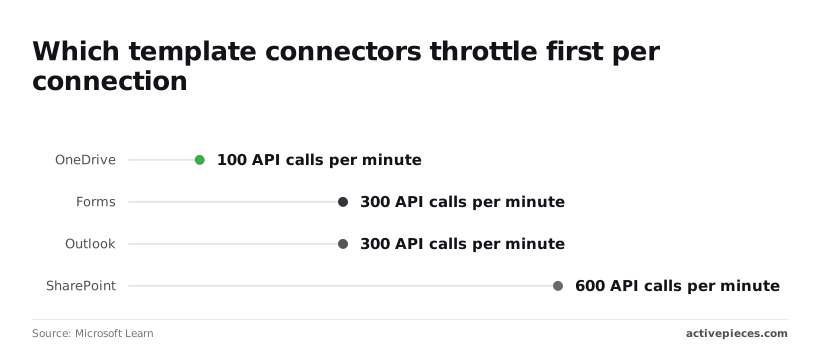
Filter in the query and post once, and the 600-per-minute ceiling never comes into play. Loop over every row, and a big list will run into it.
You can follow the rest of this with the builder open. Start free, no card.
6. New CRM lead to Teams alert for sales
This is the best pick for a sales team, and the only one of the six that needs a paid Premium licence. It also avoids the row-limit trap above: it fires once per new record and never loops over a list.
The trigger is a new lead record in Salesforce, the customer-management system where the leads live. Dynamics 365, Microsoft's equivalent, works the same way.
The flow then pulls the lead's name, company and owner from the record and posts a message to a sales channel in Microsoft Teams.
Licence tier and cost
Count the connectors: Salesforce is Premium, and Teams is Standard. One Premium connector means the whole flow is Premium, so every person who runs it needs the paid licence.
At $15 per user per month, which is what Microsoft's pricing page lists for Premium, ten people cost $150. It lists a Process bot at $150 per month, so ten Premium seats cost the same as one bot.
The bot runs the flow unattended, with no individual licence for each person who triggers it. A Hosted Process bot is $215 per month, and the extra $65 buys a Microsoft-hosted machine this alert never needs, which means at $215 you do.
For a team of ten, a single Process bot costs the same as ten Premium seats.
How to choose and avoid common template mistakes
Pick the template that matches your licence and your volume, because a flow that only works on a plan you don't own is wasted effort.
Match the template to your licence
Start with the connector badge on the template. If it shows a Premium label, a Microsoft 365 seat won't run it, however many people saved it.
A team on Microsoft 365 should stick to standard-connector templates: approvals, SharePoint filing, Outlook alerts.
A team that needs Dataverse or HTTP calls needs a Premium or Process licence first and a template second.
Mistakes that break templates after week one
Microsoft 365 licences include Power Automate, but only for standard connectors. Assuming otherwise is the The flow imports cleanly and fails only when it's switched on.
Next is personal ownership. A flow built under one person's account stops when that person leaves, so move it into a solution with a service account or a co-owner.
Test with real data. Sample rows hide empty fields, odd characters and attachments that are too large.
Power Automate request limits per license
Then check the run limits. Microsoft 365 seats get 6,000 requests per 24 hours, while Premium and Process each get 40,000. That's roughly 6.7 times the headroom.
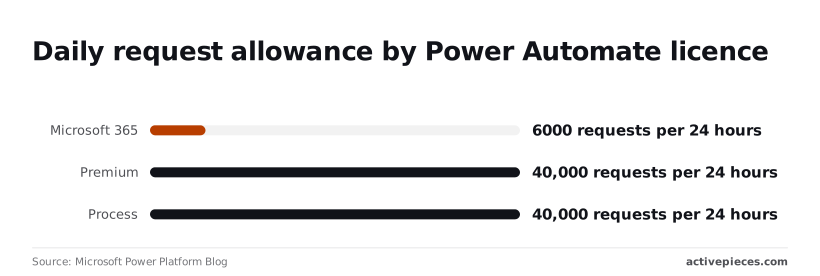
Loop over 500 rows with four actions each and a single run burns 2,000 requests, so three runs a day exhaust a standard seat.
Anything that loops over a large list belongs on Premium or Process, not on the seat you already have.
Error handling for Power Automate templates
Finally, add error handling. Wrap the main steps in a scope, add a parallel branch that runs on failure, and have it email an owner. Without it, a failed run is noticed only when someone asks where the output went.
When another automation tool fits better
If your stack is mostly Google Workspace, Slack or open-source tools, a Power Automate template buys you little, since its strengths are Microsoft connectors.
What Activepieces does about this
The problem this article keeps returning to is that a template is only as usable as its weakest connector. You copy it, import it, and find out at switch-on that one step needs a licence you don't hold.
Activepieces handles that differently at the point where the check happens. Its core is MIT-licensed and you can self-host it, so the connector list does not depend on which plan a seat sits under.
A flow that calls an HTTP endpoint or a third-party app is the same kind of step as any other, and it doesn't push the whole flow into a higher tier the way Salesforce does in pick 6.
The catalogue is open, and you can count it. The MIT-licensed core carries 740 integrations, counted straight from the open-source monorepo on GitHub, and roughly 60% of them were contributed by the community. That matters for the job-first method the article argues for.
If the app your flow needs isn't there, you are not waiting on a vendor's priorities.
You can generate the missing integration with AI and add it privately to your own instance, or read the code of one that exists and see what it actually does before you build on it.
None of this makes the Microsoft-centred picks here worth moving. The approval, SharePoint filing and Teams digest flows sit on standard connectors and cost nothing beyond the seat you already pay for, so keep them in Power Automate.
Activepieces earns its place when the job runs across Slack, Google Workspace, a database or a CRM, or when you would otherwise be pricing ten Premium seats at $150 a month for one alert.

Pick the template by the job and by connector tier first, as the article says, and if the tier check sends you to a bill you don't want, start the same flow free in Activepieces.
FAQ on Power Automate templates
Copying a template costs nothing, but one containing a premium connector won't run on a standard licence, so the connector tier decides what you actually pay.
Five questions come up most often, and the table gives the short answer to each, with the Microsoft documentation page that supports it.
| Question | Short answer | Microsoft page checked 15 Oct 2026 |
|---|---|---|
| Are templates free? | Yes. The template carries no charge, but the flow you build from it runs under your licence. | Power Automate licensing overview |
| Do they need premium licences? | Only when the template includes premium connectors. Standard-connector templates run on licences that already include Power Automate. | Types of Power Automate licenses |
| Where do I find them? | In the Templates area inside Power Automate, and in Microsoft's public template gallery. | Create a flow from a template |
| Can I edit them? | Yes. A template is a starting copy, so you can add, remove or swap steps after you create it. | Create a flow from a template |
| Do they work with non-Microsoft apps? | Many do, through connectors for third-party services. Some of those connectors are premium, so check the tier before you copy. | Connector reference overview |
Rows two and five have the same consequence. A popular template built around a third-party service can quietly require a premium licence for every person who runs it.
Open the template, read the connector list, and compare each connector's tier against the licence you hold before you invest time in editing.
Related reading
Build it
Set this up in minutes.
No code required. Connect your accounts, and Activepieces runs it from there.
Start free Talk to sales