
Topaz Video AI MCP Server: Setup Guide (2026)

Nov 18, 202614 min read
Two separate things are joined in the phrase: MCP, an open standard that lets AI assistants call external tools (the kind of connector that Activepieces also exposes to assistants), and Topaz Video AI, the desktop video enhancer from Topaz Labs.
A Topaz Video AI MCP is a hypothetical or third-party Model Context Protocol server that would let an AI assistant control Topaz Video AI, the desktop upscaling and enhancement app, by passing its tasks to the app's own models and command-line tools.
As of 18 November 2026, I can point to no Topaz page that documents an official MCP server, so any wrapper you find is community-made.
Topaz Video AI MCP terminology
What Topaz Video AI does
You install Topaz Video AI and run it on your own machine. It upscales footage, reduces noise, sharpens, and interpolates frames using its own bundled models.
The app doesn't read your prompts or plan an edit. It takes a file, applies a model you chose, and writes a new file.
What an MCP server adds
To discover and call tools, an assistant goes through a small server that describes what it offers. That is MCP, the Model Context Protocol.
For Topaz, a server would only translate an assistant's request into something the app or its command-line tools can already do. It adds no new enhancement models and no extra quality.

What it can add is convenience: you describe a job in a chat and the assistant starts it.
Activepieces treats every connector as an agent tool: an integration you connect for a flow step is the same integration action exposed as a tool schema on its per-project MCP server, so Claude, ChatGPT, Cursor or an agent of your own can call it with no export step and no second catalog to publish to (the mechanism sits in packages/integrations in the open source repo, alongside the 750 integrations counted there).
The video work still happens inside Topaz.
Official versus community MCP servers
Search GitHub for a Topaz MCP server and four repositories turn up. The table below sorts them by who published them and what Topaz's own pages support.
The takeaway is that a repository's name or description isn't evidence of endorsement, so none of the four should be installed on trust.
| Repository account | Publisher | Claimed official status | Status verified on 18 Nov 2026 |
|---|---|---|---|
| dannymaaz | Individual account | None implied by the account name | Community project, not confirmed by Topaz |
| TopazLabs | Account named after the vendor | Implied by the account name | Unconfirmed; the matching name alone does not prove Topaz published it |
| runapi-ai | Third-party organisation account | None implied by the account name | Community project, not confirmed by Topaz |
| Cavedragon13 | Individual account | None implied by the account name | Community project, not confirmed by Topaz |
A server counts as official only when Topaz's own website or documentation links to it.
Until one does, treat all four as optional experiments, and keep your real workflow on the app and its command-line tools.
This takes minutes, not a project: automate it in Activepieces free.
Topaz Video AI requirements and pricing
I couldn't verify subscription prices or Windows GPU minimums, so those cells are marked rather than guessed. Topaz's pricing page does confirm the tiers and their cloud credits.
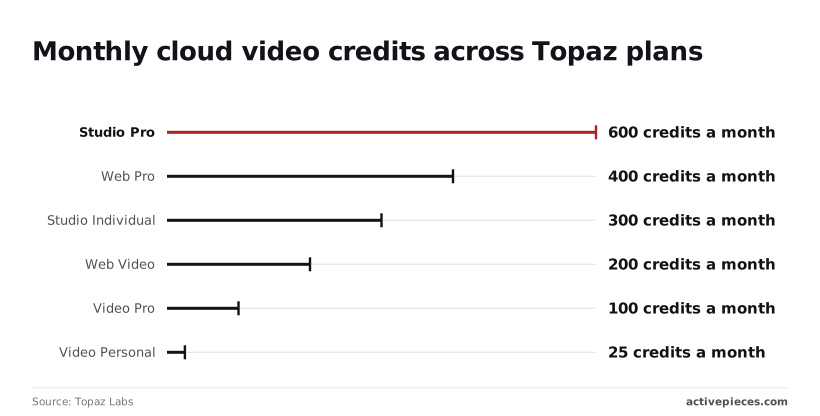
Topaz Video AI licence and pricing tiers
If you want one figure that holds for every tier, it is the monthly cloud credit allowance, which I confirmed on Topaz's pricing page. According to Topaz Labs, the table shows it for the three desktop tiers.
| Tier | Annual price | Monthly price | Monthly cloud credits | Minimum Windows GPU VRAM / RAM | Recommended Windows GPU VRAM / RAM |
|---|---|---|---|---|---|
| Personal | Not verified | Not verified | 25 | Not verified | Not verified |
| Individual | Not verified | Not verified | 300 | Not verified | Not verified |
| Pro | Not verified | Not verified | 100 | Not verified | Not verified |
Per Topaz Labs, the web and studio plans go higher: Studio Pro gets 600 credits a month, Web Pro 400 and Web Video 200. Video Personal's 25 is a taste of the cloud route, not a workflow.
Topaz Video AI hardware and OS requirements
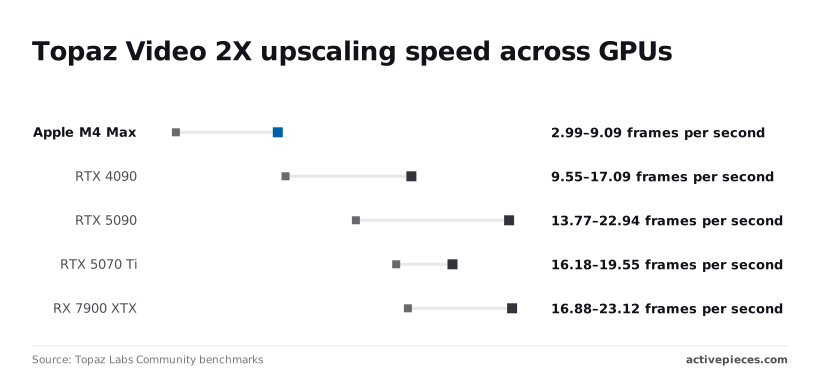
I can't give you Topaz's official VRAM or RAM floor, so the best evidence is what people measured. The Topaz community benchmarks are user-submitted rather than lab-controlled, and they report a slowest-to-fastest model range per GPU in frames per second:
| GPU | Slowest model (fps) | Fastest model (fps) |
|---|---|---|
| Apple M4 Max | 2.99 | 9.09 |
| RTX 4090 | 9.55 | 17.09 |
| RTX 5090 | 13.77 | 22.94 |
| RTX 5070 Ti | 16.18 | 19.55 |
| RX 7900 XTX | 16.88 | 23.12 |
At 2.99 fps, an hour of 24 fps footage is about eight hours of processing on the M4 Max. Its fastest model still takes about 2.6 hours, meaning you're looking at multi-hour waits minimum.
Local or cloud Topaz Video AI processing
If you already own the GPU, local processing is the cheap route. According to Digitalproduction, the fal.ai comparison puts Video2X, run locally, at $0 per hour, which leaves out your hardware and electricity.
According to fal.ai, Topaz's precision route is $72 per hour and the Runway API is $79.20. Starlight Precise runs $432 and FLUX Video $504, so a long archive on those two costs several times what the Topaz route does.

Video enhancement steps in Topaz Video AI
Work through five stages in order. Do it on a short clip first, so a wrong model choice costs you a few minutes instead of an overnight render on your own GPU.
Stage 1: Import a short test clip
Cut a brief excerpt from your source, one that includes the hard parts: faces, fine texture, fast motion. Drag it into the app.
Check the detected resolution and frame rate in the file details before you touch anything else, since every later choice is relative to them.
Stage 2: Choose the enhancement model
Pick the model by the defect, not by the name. Soft or compressed footage and clean footage that only needs more pixels call for different models, and the app's own descriptions say which is which.
Start with automatic settings, then override them only if the result is wrong.
Stage 3: Set resolution and frame rate
Set the output size and, if you need it, frame interpolation.
Where artifacts show up is in interpolated frames, especially on fast motion, so leave the frame rate alone unless the footage's visibly choppy.
Stage 4: Preview before processing
Use the built-in preview to compare the original and the enhanced version side by side. Scrub to the hard frames from Stage 1 and look for waxy skin, shimmering edges and smeared text.
If something's off, change one setting and preview again.
Stage 5: Export and compare
Export the test clip, then play it at full size next to the source in a normal player, not only inside the app. A different player shows problems the preview can hide. Only when the clip holds up do you queue the full file.
You can follow the rest of this with the builder open. Start free, no card.
Topaz Video AI via MCP or command line
You can run Topaz Video AI from the command line through the ffmpeg build it ships with, using Topaz's own filters. That route works whether or not any MCP wrapper is installed.
The command-line route Topaz documents
Bundled with the app is a modified ffmpeg that exposes the upscaling models as filters. It uses the same licence as the desktop app, so the machine must be signed in there first, and a headless box without a signed-in licence won't render.
Run it in this order:
- Open the desktop app once and confirm the licence shows as signed in on this machine.
- Point your shell at the bundled ffmpeg, and set the model directory and model data directory environment variables Topaz documents so the filter can find its models.
- Write the filter command with a model and a scale, for example
ffmpeg -i in.mp4 -vf tvai_up=model=prob-3:scale=2 out.mp4. Take the model name from your installed list, since names change between releases. - Run it on a short clip first, a few seconds with a face and some motion.
- Check the output file: resolution, duration, audio presence, and whether faces or text look worse than the source.
Where an MCP wrapper fits
Above that command sits the wrapper, which lets an agent assemble and launch it. It adds convenience, not capability, and it can only do what the filter can.
Treat any wrapper's claims about models or features as unverified until they match Topaz's own pages, and keep step three above as the fallback you can run by hand.
The vendor-neutral way is to write the wrapper yourself. With the official MCP SDK for Python or TypeScript, a server of a few dozen lines can expose a single tool, enhance_clip(input_path), and nothing else.
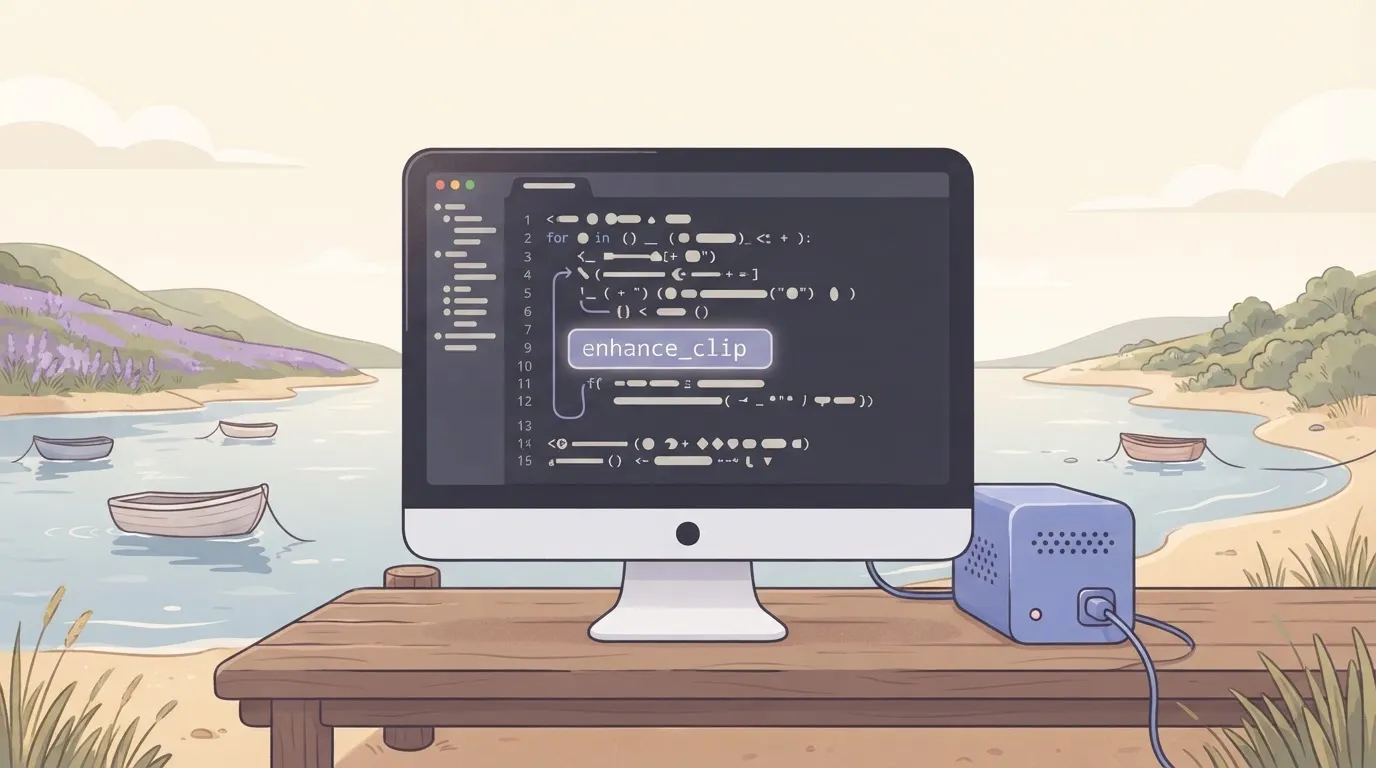
Inside the tool, run the bundled ffmpeg with the tvai_up filter from step three, with the model and scale fixed in the code so the assistant never chooses them. Check the exit status and return an error if it is non-zero.
On success, return the output path plus the resolution and duration read back from the new file, so the assistant reports what exists on disk rather than what it hopes was written.
The alternative is to vet a community wrapper: read its source, confirm it only shells out to the bundled ffmpeg, and run it on a short clip before an assistant is allowed near it. Activepieces, covered below, is one hosted option for the same job.
Mistakes that waste render time
- Running a full file before testing a short clip, then discovering the model path was wrong.
- Using a system ffmpeg instead of the bundled one, which has no Topaz filters.
- Picking a model by name from an old tutorial that your version no longer ships.
- Trusting a wrapper's success message without opening the output file.
Batch enhancement jobs with Activepieces
Whatever Topaz costs you, Activepieces adds nothing to the enhancement itself: it's an automation layer that hands files to the Topaz job on your machine and reports what happened. It has no upscaling models, and it can't make a Topaz result better or faster.
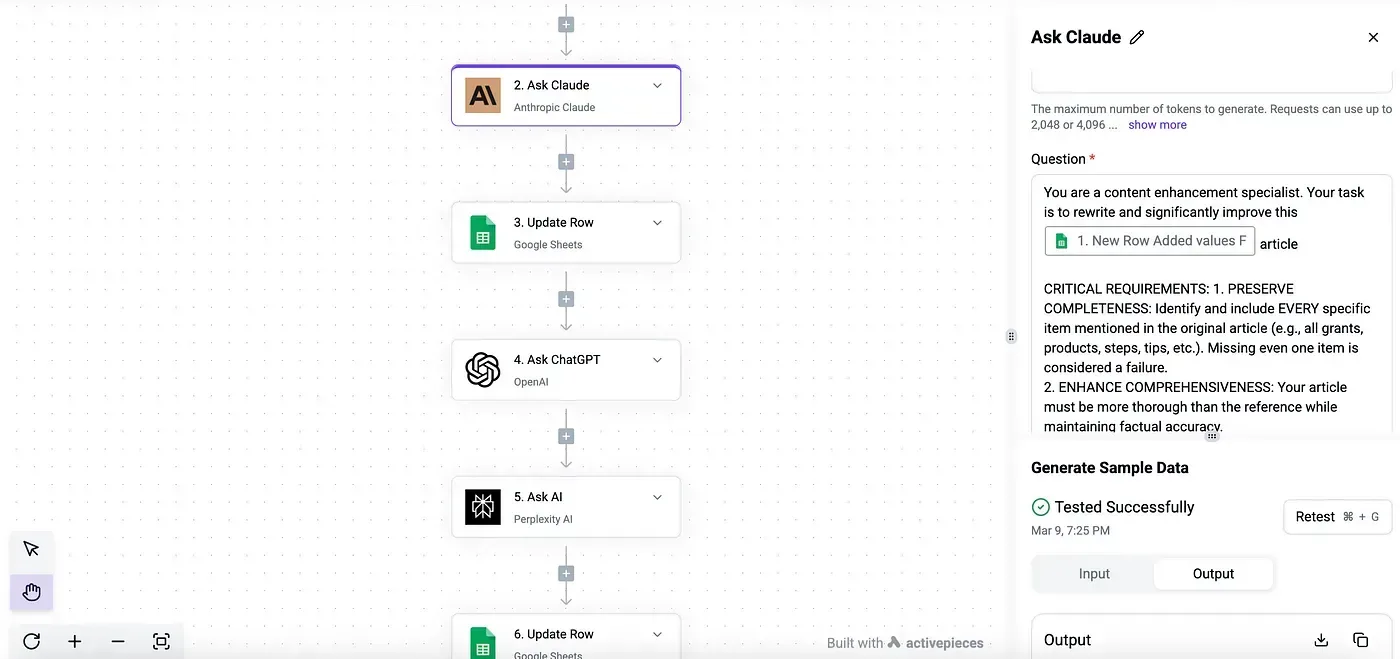
What it does add is no cap on the number of flows, since every plan, including free, allows unlimited flows, and the free plan on Activepieces Cloud comes with 1,000 credits a month.
Trigger on new files
To start a flow, Activepieces needs a trigger, and the one I would use is the webhook. A small script on the Topaz machine watches the input folder and posts the new file's path to the flow when something lands.
Don't assume Activepieces can watch your local disk by itself, since the flow runs wherever it is hosted.
The free self-hosted Community Edition is the MIT-licensed core, so it can run on your own infrastructure next to the Topaz machine, but the watcher is still a few lines of your own code, and it's the part that breaks first if the machine sleeps or the folder is renamed.
Run the job and report back
In the middle of the flow sits a call into Topaz's command-line tools, through a script on the Topaz machine or an HTTP endpoint you put in front of one. Topaz does the enhancement there, using its own models and your settings.
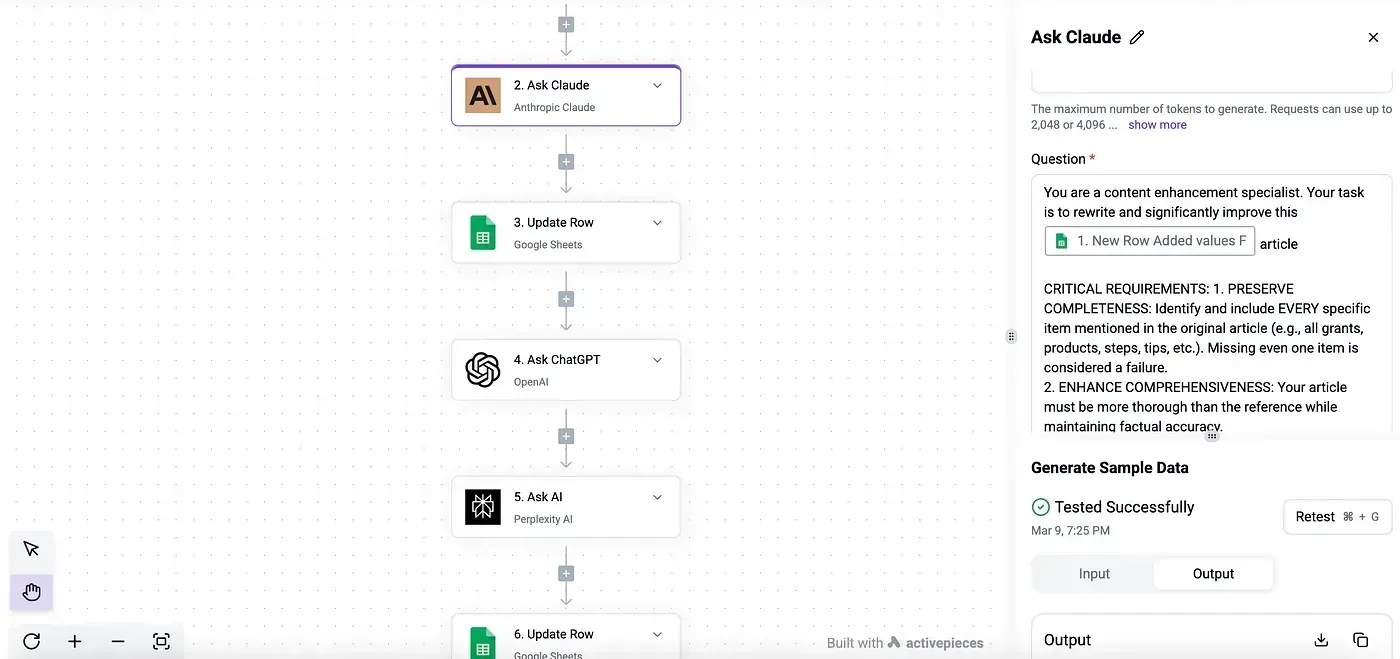
Activepieces only waits for the result, then moves the output to a delivery folder or sends a message. MoneyGram, Moneypenny, Alan and FundingSocieties run Activepieces in production, so this waiting-and-reporting step is not an exotic use of it.
Before announcing success, check the exit status of the job, because a flow that reports "done" on a failed render is worse than no flow at all.
Activepieces only knows the Topaz settings you pass into the flow, so log them yourself; the extra step costs nothing more, since a run is 1 credit however many steps it has.
Before announcing success, check the exit status of the job, because a flow that reports "done" on a failed render is worse than no flow at all.
Expose one approved workflow over MCP
This is the hosted counterpart to writing your own server, and it's not a Topaz feature: Activepieces runs a per-project MCP server that a client such as Claude, ChatGPT or Cursor can call, and MCPs are included on the free plan.
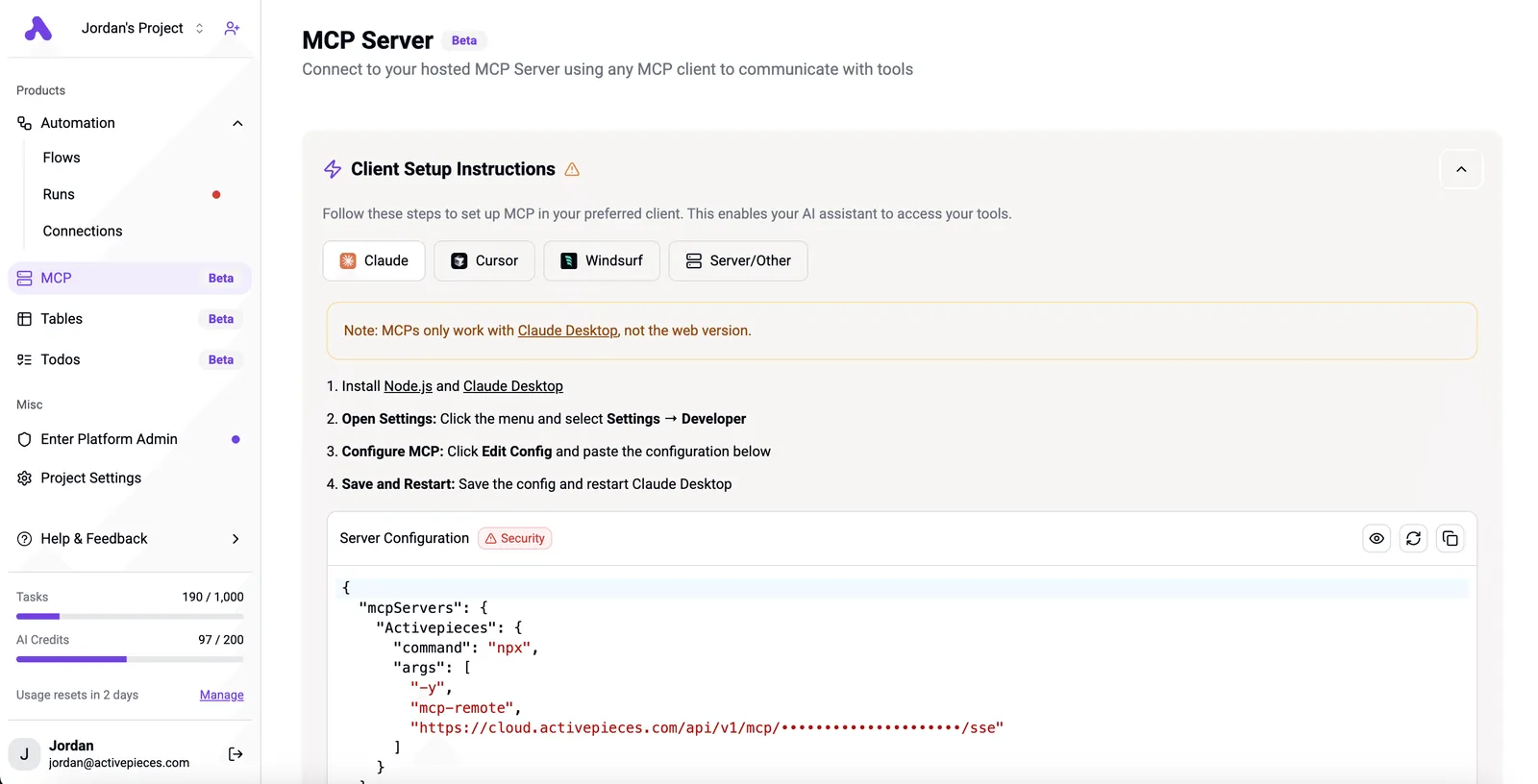
I would expose exactly one flow: the tested one that takes a file and returns an enhanced copy with fixed settings.
Leave out anything that lets a model choose arbitrary commands. Confirm the current setup steps in the Integrations Framework and MCP Server documentation rather than relying on my description, because this part of the product changes quickly.
To see why that restraint is practical, look at the version history panel below. It lists two saved versions of a webhook flow, each with a timestamp and status marker, and the flow itself is a webhook trigger, a code step and an end.
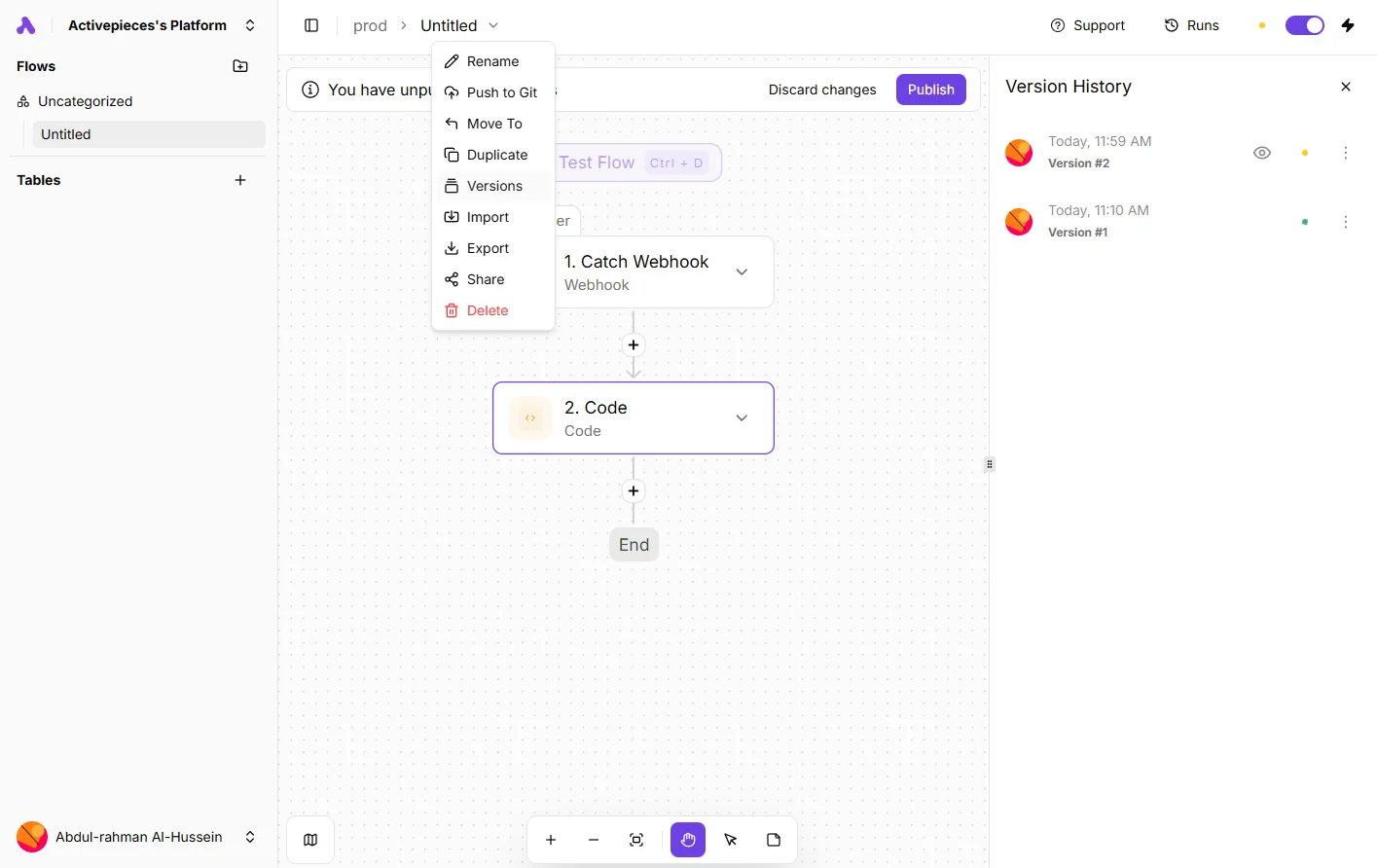
The takeaway is that you can see which revision you tested before you expose it.
Once you've picked the version you trust, treat it as frozen. Make changes in a new version, so the tool your assistant calls is never one you're still editing.
Frequently asked questions
These answers were checked against Topaz's own pages on 18 November 2026. Treat them as a dated snapshot and recheck them before you freeze a workflow around any of them.
Is there an official Topaz Video AI MCP server?
No official server appears on Topaz's pages as of 18 November 2026. Any MCP server you find is a third-party wrapper, so read its code and test it on a short clip before your assistant calls it.
If the wrapper only shells out to Topaz's command-line tools, you can run those directly and skip the extra layer.
Can Topaz Video AI run without a graphical interface?
Yes, through the command-line tooling that ships with the app, which exposes Topaz's models as filters inside an ffmpeg-style pipeline. That's the route a script or an agent should use.
Settings you tune in the desktop app carry over as filter parameters, so work out the look by eye first, then copy the values into the command.
Does Topaz Video AI work offline?
Mostly. Processing runs locally on your machine, not on Topaz's servers, so your footage isn't uploaded for upscaling.
Licence sign-in and model downloads still need a connection at some point. Download the models you plan to use while you're online, and don't assume a fresh install will work on an air-gapped machine.
Is Topaz Video AI better than free upscalers?
It's better at some jobs and not others. Its models are trained for video and aim to keep frames consistent over time, which is where many free tools flicker.
On clean, lightly degraded footage, a free upscaler may be close enough that the paid tool isn't worth it. Run both on the same ten-second clip from your own material and compare them frame by frame before you pay for anything.
Will upscaling fix badly compressed footage?
No. Upscaling can smooth blocking and soften banding, but detail the encoder threw away is gone, and the model fills the gap with plausible guesses.
Faces and text are where those guesses fail most visibly. If you have a cleaner source, use it.
Related reading
References
Build it
Set this up in minutes.
No code required. Connect your accounts, and Activepieces runs it from there.
Start free Talk to sales

