
Zendesk Gmail Integration: How to Set It Up (2026)

Nov 19, 202614 min read
When an event in one app, such as a new ticket or a labeled email, triggers an action in the other, you have a Zendesk Gmail integration.
Zendesk Gmail Integration and What People Automate
What a Zendesk Gmail integration is
A Zendesk Gmail integration is a workflow that listens for a trigger in one app and runs an action in the other. A typical trigger is a Gmail search such as label:support is:unread -from:me.
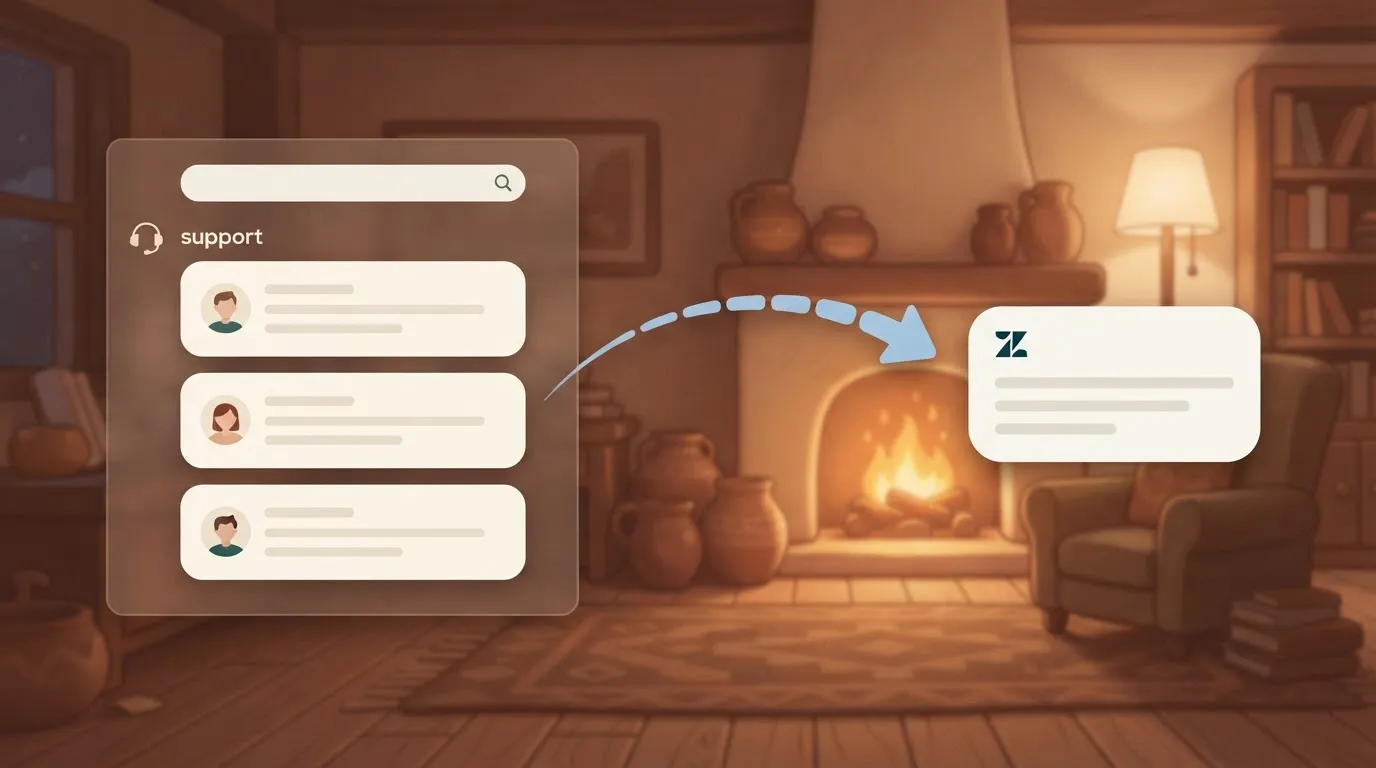
A typical action is creating a Zendesk ticket from the message that matched.
The workflow tool sits in the middle. Activepieces is one such tool, and it packages each app's triggers and actions as a "integration".
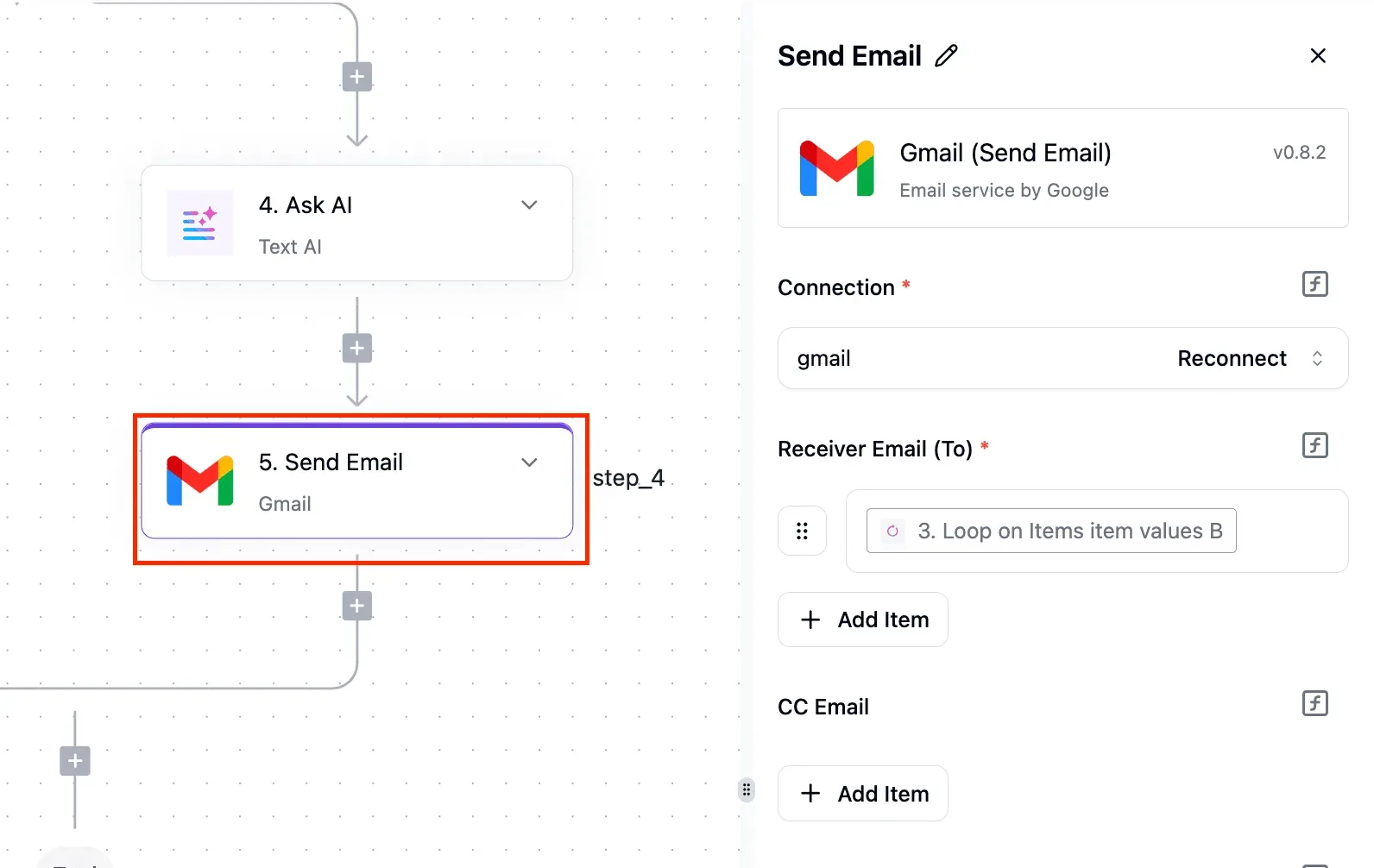
Gmail's trigger is polled, so expect a short delay. Gmail also caps how much one account can send in a day, so a loop that mails every ticket update can silently stop working.
What you need before you start
Collect these first:
- An Activepieces account
- A Zendesk account with API access enabled
- A Gmail or Google Workspace login that's allowed to grant access to the mailbox
- A test mailbox, so a bad filter never touches real customer mail
- A named ticket group in Zendesk to receive the tickets the workflow creates
On Workspace, an admin may restrict third-party app connections, so confirm your login can approve one.
What people automate between the two apps
Most teams start by creating a Zendesk ticket for each email that lands under a support label in Gmail. Others send a Gmail message to the requester when a ticket is solved, so no agent writes each note.
A third pattern forwards high-priority ticket alerts to an on-call inbox.
These automations were checked against the available Zendesk and Gmail steps on 2026-11-19.
This takes minutes, not a project: automate it in Activepieces free.
Mail Routing, Workflow Tools and Custom Code Compared
The two apps can be joined at three levels. The simplest is mail routing: Zendesk gives you a support address, and forwarding from Gmail turns each message into a ticket.
It needs no setup beyond a forwarding rule, but there is no logic between the apps.
The middle level is a workflow tool such as Zapier, Make or n8n, which watches for an event in one app and runs a step in the other.
Gmail is generally checked on a schedule, while Zendesk can push events out as webhooks from its own rules, so the tool either polls or waits to be called.
The last level is custom code, such as a Google Apps Script or a small service that calls both APIs. It can do anything, but you own authentication, retries and upkeep.
For most teams a workflow tool covers the need, and code is worth writing only for the gaps it leaves.
Five Zendesk and Gmail Workflows in Activepieces
Five workflows cover most of the Zendesk and Gmail overlap in Activepieces, and each one's a trigger from one integration paired with actions from the other. The Zendesk piece and the Gmail piece list the steps below, and only the last workflow leaves the list.
| Workflow | Trigger | Actions | Optional filter or HTTP step | Work saved |
|---|---|---|---|---|
| 1 | New Ticket (Zendesk) | Send Email (Gmail) | Filter on ticket priority | No watching a queue for urgent tickets |
| 2 | New Email (Gmail) | Zendesk's ticket-creation action | Filter on sender or subject | No copying messages into tickets |
| 3 | Updated Ticket (Zendesk) | Send Email (Gmail) | Filter on status change | No hand-written status follow-ups |
| 4 | New Email (Gmail) | Create Draft Reply (Gmail) | AI step before the draft | First drafts without sending anything |
| 5 | Tag Added to Ticket (Zendesk) | None listed | HTTP request or webhook | Covers calls no piece lists |
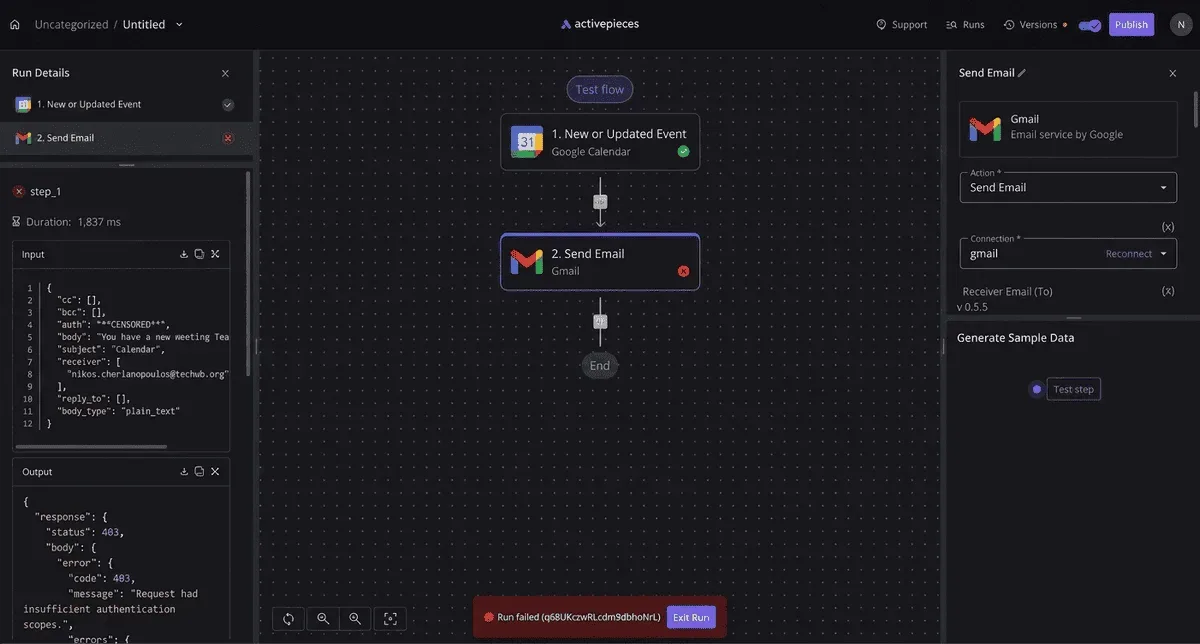
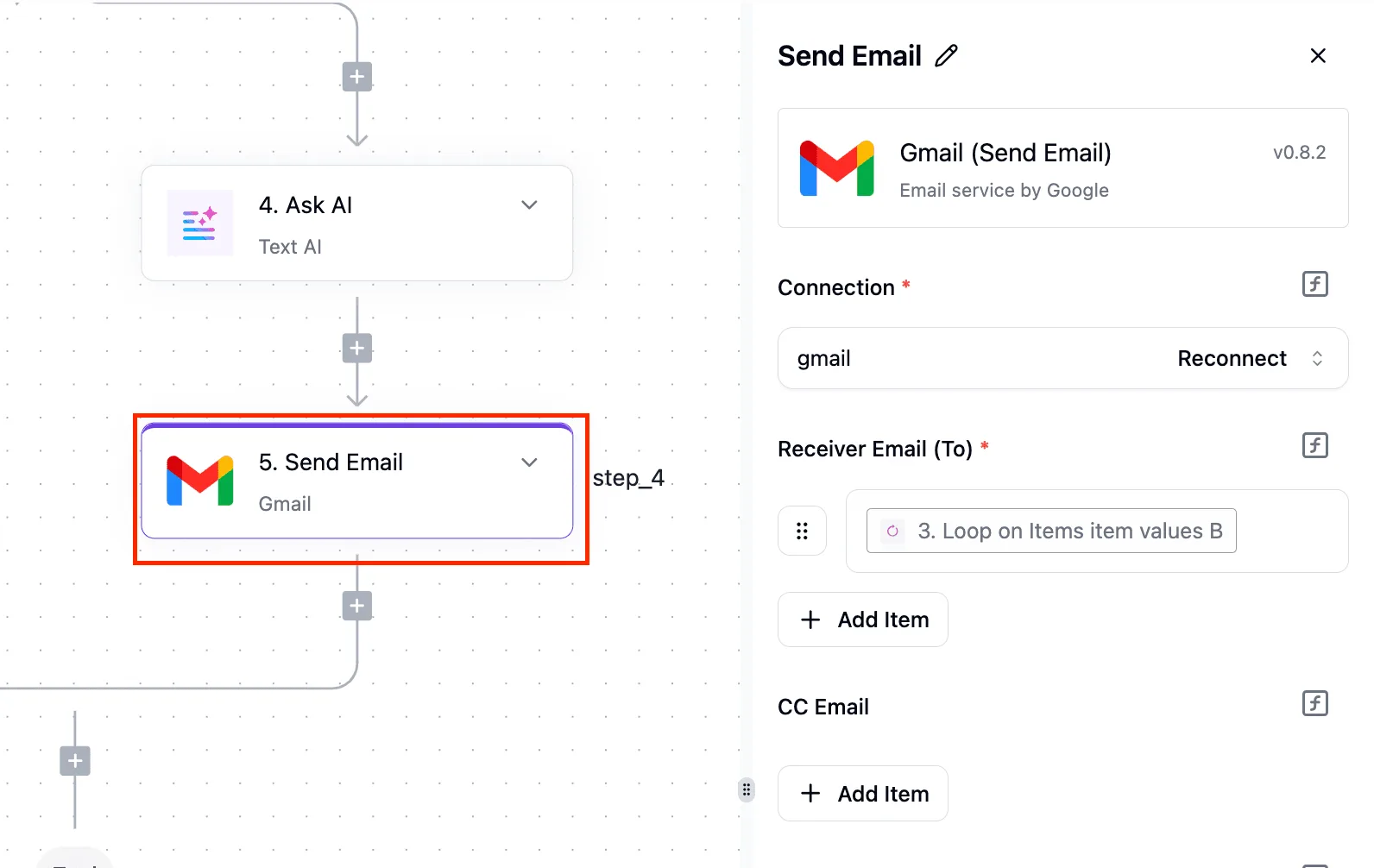
In Activepieces, the New Ticket trigger starts the flow, and Gmail's Send Email action alerts a person or shared inbox. Add a filter so only high-priority tickets send mail. Unfiltered, this becomes a second inbox nobody reads.
Workflow 2: incoming Gmail message to a Zendesk ticket
Filter on sender or subject first, since a trigger on an entire mailbox turns newsletters and auto-replies into tickets. Gmail's New Email trigger fires on each message. Then use the Zendesk piece's ticket-creation action to open the ticket from the message.
Workflow 3: ticket update to a Gmail follow-up
Without a filter, every internal edit emails the customer. The Updated Ticket trigger fires on changes, so filter for the one you care about, such as a status change, before Send Email runs.
Workflow 4: AI-drafted reply held for review
Nothing is sent, so a person reads and edits every reply. Gmail's New Email trigger feeds an AI step that writes a response, and Create Draft Reply saves it as a draft.
Gmail also offers Request Approval in Email if you want a sign-off before anything goes out.
Workflow 5: steps no integration lists, via HTTP request or webhook
When a Zendesk or Gmail call has no listed step, use an HTTP request step to call the API directly, or a webhook to receive an event the triggers don't cover.
Tag Added to Ticket is a good starting trigger, since tags already mark tickets that need special handling.
When a step you need is missing, you don't have to wait on a vendor release: in Activepieces you can have AI generate the missing integration and keep it private to your own instance.

The catalogue stands at 750 integrations, which is the count of folders in the packages/pieces/community directory of the open-source monorepo rather than a marketing figure, and roughly 60% of them were contributed by the community, so you're likely to find the tools you need already supported.
The core is under the MIT licence, stated in the repository's LICENSE file, and MoneyGram, Moneypenny, Alan and FundingSocieties run it in production.
Build the Gmail-to-Zendesk Workflow Step by Step
Build it in five stages, and each one leaves you with something that runs: a trigger that sees mail, a Zendesk connection that creates tickets, a filter that keeps noise out, a test on real mail, and a published flow.
Stage 1: add the Gmail trigger and capture a sample
Start with the trigger step, set to fire on a new email. Pick the Gmail account, then narrow it with a label or a search query.
A query such as to:[email protected] -from:me keeps your own replies from becoming tickets, which is the loop that fills a queue overnight.
Run the trigger's sample-data step so the tool loads a real message. Every later field comes from that sample, so an empty email gives blank dropdowns in Stage 2.
Stage 2: connect Zendesk and map ticket fields
Add a Zendesk action to create a ticket. The connection dialog asks for your Zendesk subdomain and credentials.
Then map the fields from the Gmail sample:
- Subject: the email's subject line.
- Description or comment body: the plain-text body, not the HTML, so tickets stay readable.
- Requester email: the sender's address, so replies reach the customer instead of your shared inbox.
- Requester name: the sender's display name, if the step offers it.
Stage 3: filter out noise
Between trigger and Zendesk action, insert a condition. Continue only when the sender isn't a noreply or mailer-daemon address and the subject doesn't begin with an auto-reply marker such as "Automatic reply".

Stage 4: test with a real email
Send a message from a personal address to the monitored inbox, then run the test against it. Check the result in Zendesk, not just in the flow's green status: confirm the requester, subject and body landed in the right fields.
Send a second message that should be filtered, and confirm nothing was created.
Stage 5: publish and monitor runs
Publish only after both tests behave. Then open the runs list after the first few real emails and look for failed or skipped runs.
A skipped run is the filter working; a failed run usually means a permission or mapping problem you can trace to the step that stopped.
You can follow the rest of this with the builder open. Start free, no card.
Zendesk Gmail Limits and Errors With Fixes
When a run fails, it nearly always traces to one of six causes: an expired credential, a Zendesk rate limit, a Gmail sending cap, an oversized attachment, a duplicate trigger, or a missing threading header.
| Symptom | Cause | Fix | Source doc |
|---|---|---|---|
| 401 on a step | Expired or revoked token, or wrong Zendesk credentials | Reconnect the account and confirm the Gmail send permission was granted | Zendesk API docs, Google OAuth docs |
| 429 from Zendesk | Too many requests in a window | Wait for the Retry-After value, then batch or slow the flow |
Zendesk API rate limit docs |
| Gmail stops sending | Daily cap reached: 500 trial, 2,000 Workspace | Spread sends over days or move bulk mail elsewhere | Google Workspace sending limits |
| Attachment rejected | Over 25 MB outgoing (50 MB incoming) | Send a link instead of the file | Gmail help |
| Two tickets per email | Trigger fires on each message in a thread | Filter to new threads only | Gmail search operators |
| Reply starts a new thread | Missing thread ID or changed subject | Reply in the existing thread, keep the subject | Gmail API threading guide |
Zendesk and Gmail connection and permission errors
When a step returns a 401, the app has rejected your credential, so no mapping change will fix it. Reconnect the account, and when you do, grant the send permission along with read access.
A connection that can read mail but not send will pass your trigger test and fail at the first action.
Rate limits on the Zendesk and Gmail sides
When a burst of requests hits Zendesk, it answers with a 429 and a Retry-After header, so a flow that loops over many tickets should pause for that value rather than retry at once.
A connection that can read mail but not send will pass your trigger test and fail at the first action.
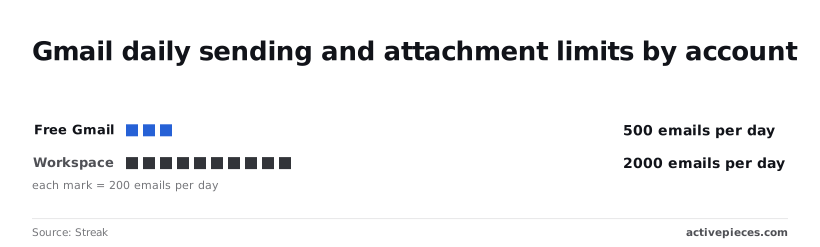
According to Streak, Gmail's ceiling is a daily count, with free Gmail at 500 emails a day and Workspace at 2,000.
A large file can arrive as a ticket and still fail on the way back out, because Gmail caps outgoing attachments at 25 MB and accepts up to 50 MB incoming.
Duplicate tickets and broken threads
If the trigger matches every message, including your own replies, you get duplicates. Narrow the Gmail trigger so it ignores your own mail, for example in:inbox -from:me label:support.
Threads break when the reply action creates a fresh message instead of answering the original. Pass the thread ID, and leave the subject line alone.
When Activepieces Fits and When Another Tool Does
If all you need is Gmail messages becoming tickets, use Zendesk's built-in Gmail setup; use Activepieces when an event in one app must trigger an action in the other. Zapier connects these two apps as well, so it belongs in the comparison.
| Activepieces | Zapier | Zendesk built-in Gmail setup | |
|---|---|---|---|
| Hosting | Cloud, or self-hosted on your own server | Cloud only | Runs inside Zendesk |
| Open-source licence | Open-source core | Proprietary | Proprietary |
| Step limits | Unlimited on its plans, per its docs | Set by your plan | Not a workflow builder, so no steps to count |
| Maintenance | Vendor's on cloud; yours if self-hosted | Vendor's | Zendesk's |
When Zendesk's built-in Gmail setup is enough
If your whole need is mail arriving at a support address and becoming a ticket, stop there. Forward from a filter such as to:[email protected] -category:promotions and let Zendesk handle intake.
It stops being enough when you need logic between the two apps: tagging a ticket from a Gmail label, sending a templated reply on a status change, or filing the message in a shared inbox.
The built-in setup has no steps to add, so those jobs need a workflow tool.
When Activepieces is the better fit
Activepieces counts a run as 1 credit however many steps it has (AI steps cost more), and flows are unlimited on every plan, including free, so there's no step tally to keep.
Its docs list unlimited steps on its plans, so a flow that grows from three steps to twelve won't force a plan change.
The Free plan is $0, so you can build and test the whole flow before paying. Plus is $20 a month, a small line item if the flow becomes something your team relies on, so cost won't become a reason to cut it later.
Choose it over Zapier when you want the option to self-host, or when an open-source core matters for your review process.
Where no listed step covers a Zendesk or Gmail action, an HTTP request step can call the API directly, which you'll rarely need on a first build.
Frequently asked questions
Can Zendesk send replies from my own Gmail address?
Yes. Connect the Gmail account as a support address in Zendesk, and agent replies go out from that address.
A Gmail "send email" step in your workflow also sends from whichever account you authorized, so the sender your customers see is the account you connected.
Does the integration work with Google Workspace shared inboxes?
It depends on how the shared inbox is built. The Gmail connection signs in as one real user, so a shared mailbox you can open from that user's account works.
A shared address that's only a Google Group has no login of its own, so a trigger has nothing to authenticate against. In that case, have the group deliver into a normal mailbox and point the workflow at that.
Can I self-host this workflow instead of using a cloud service?
Yes, if the workflow tool you picked offers a self-hosted edition. Only the tool that runs the workflow moves onto your server. Zendesk and Gmail stay cloud services.
Self-hosting also makes uptime and updates your job. If you use a webhook, Zendesk must be able to reach your server's public address, so a machine behind a firewall will silently receive nothing.
What happens to emails that arrive while the workflow is off?
The emails still land in Gmail, and tickets still exist in Zendesk. What you lose is the automation's reaction to them.
Many Gmail triggers poll for new mail and may not go back for what arrived during the outage, and a webhook sent to a receiver that's down isn't guaranteed to be retried.
Apply a label such as ticketed at the end of every successful run. After an outage, search label:support-inbox -label:ticketed to see what was missed and process those messages by hand or re-run them.
Is the Zendesk Gmail integration free?
Neither app charges separately for the connection itself, but the integrations around it may. Zendesk access depends on your plan, and API-based actions can be limited on some plans, so confirm what yours allows.
A regular Gmail account costs nothing, while Workspace is paid. Workflow tools differ: some have a free tier with limits on runs, and self-hosting trades a subscription for your own server costs.
Related reading
References
Build it
Set this up in minutes.
No code required. Connect your accounts, and Activepieces runs it from there.
Start free Talk to sales