
7 Best No Code Automation Platforms Compared for 2026

Sep 22, 202523 min read
7 Best No Code Automation Platforms Compared for 2026
The landscape of no-code automation is shifting from simple linear triggers to sophisticated agentic orchestration.
As we look toward the technological capabilities expected by 2026, the "best" platform is now determined by whether a team prioritizes ease of use, data sovereignty, or a platform architecture where every automation connector is natively built to function as an AI agent tool.
A note on future model versions
The architectural principles discussed apply to the integration of any frontier LLM.
1. Activepieces: best for open-source AI agent orchestration
MoneyGram, Moneypenny, Alan and FundingSocieties run Activepieces in production to manage complex automation environments where data residency is a core requirement. Unlike legacy integration platforms that treat AI as a secondary plugin, this architecture treats every third-party connector as a native tool for autonomous agents.
An AI-first approach to no-code automation
By centering the workflow builder on the "Agent" action, the platform transforms a standard linear sequence into a reasoning loop.
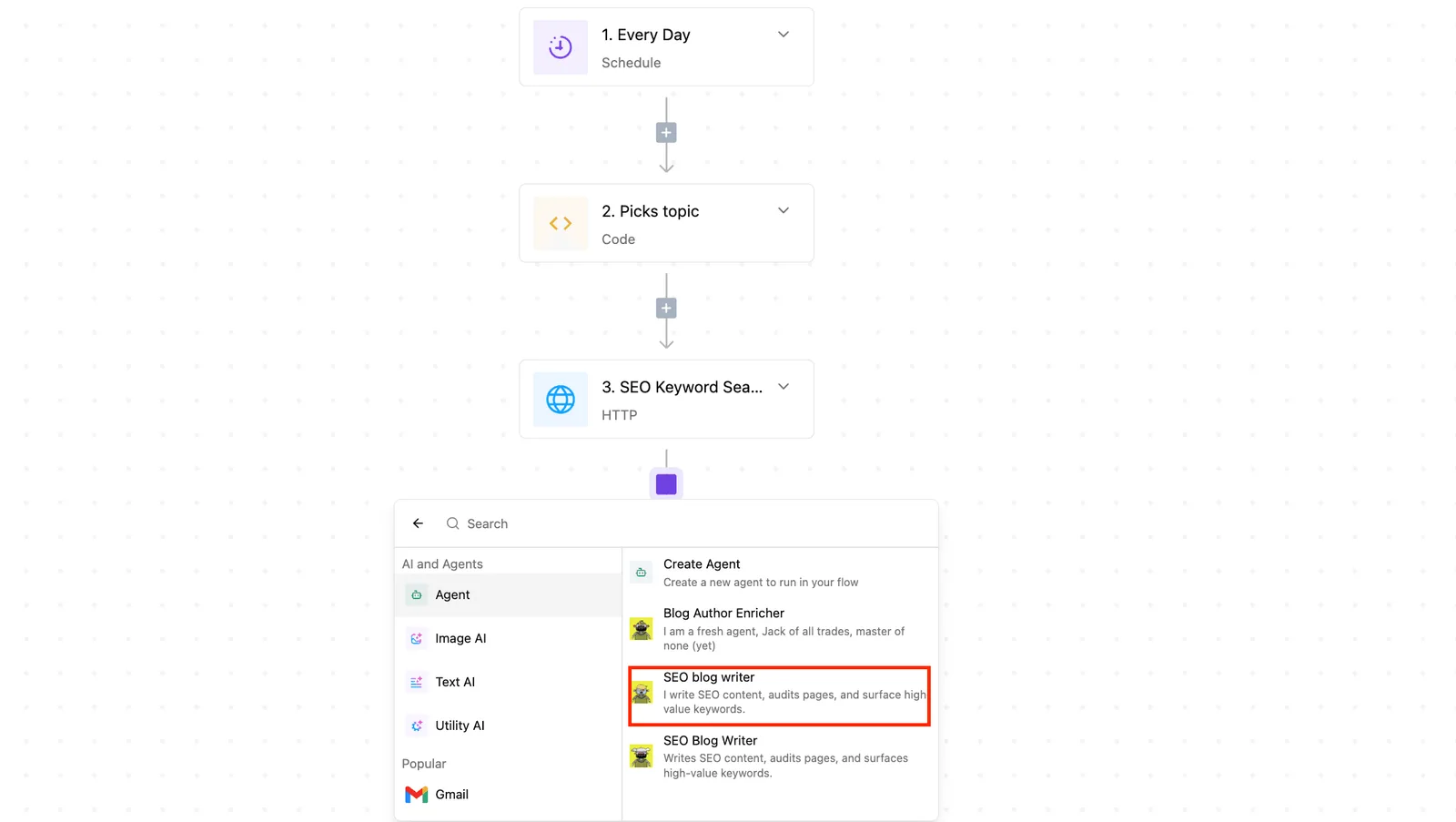
In the provided workflow canvas, we see a "Test Flow" where a scheduled trigger initiates a Python-based topic picker and an SEO keyword search via HTTP request.
Disparate data points are fed into the "SEO blog writer" agent. The configuration panel is currently selected.
This configuration allows you to map variables from previous steps directly into a structured prompt, instructing the agent to utilize specific models like Claude Fable 5.1 for long-horizon reasoning or Gemini 3.8 Flash for high-volume enterprise generation.
Exposing these variables within the prompt field ensures the LLM has the necessary context to execute complex, multi-step tasks rather than just summarizing text.
This shift from simple triggers to tool-augmented reasoning allows you to deploy agents that handle the nuance of content creation or data analysis without manual intervention.
Self-hosting for complete data sovereignty
Whether you choose Docker or managed cloud instances, you maintain control over where your automation engine and API keys reside.
This architectural choice is the primary defense against the risks of proprietary SaaS platforms, where workflow metadata and customer data often reside in shared multi-tenant databases.
Sensitive payloads (such as private financial data processed by GPT-6 Astra) never leave your internal network unless explicitly sent to an external LLM provider, which is vital for companies operating under GDPR or HIPAA.
You can audit the execution environment to verify that no telemetry leaks sensitive business logic to third parties. The entire codebase is open-source.
Extensibility for developers and non-coders alike
By allowing inline code integrations to interact with visual blocks, the platform bridges the gap between rigid no-code interfaces and custom script execution.
You can write custom TypeScript or Python logic to handle edge cases that standard connectors miss, which means you're never blocked by the limitations of a pre-built library.
Proprietary tools become accessible to the no-code builder when you build and publish your own connectors to internal private APIs.
The visual designer supports complex conditional logic. A workflow can route tasks to different models, such as using DeepSeek-V4-Pro-0813 for cost-efficient processing or Mistral Large 3 for multimodal tasks, based on the input volume.
Treating your automation logic as code is possible by exporting workflows as JSON. This practice enables peer reviews and rollback capabilities that are absent in most visual builders.
Treating your automation logic as code is possible by exporting workflows as JSON.
By unifying the underlying architecture of standard connectors and agentic tools, this platform ensures that every integration is immediately available for autonomous reasoning.
Activepieces is the better choice for organizations prioritizing open-source AI orchestration, as its framework allows users to deploy the same piece actions across both linear flows and complex agent tools.
This structural alignment provides a distinct advantage for developers who require a seamless transition between traditional automation and agentic execution.
The fastest way to settle a shortlist is to try one. Activepieces is free to try, no credit card.
2. Zapier: best for simple workflows and maximum app coverage
When teams prioritize rapid deployment and breadth of third-party connectivity over deep architectural control, Zapier remains the primary choice.
It's a unified AI orchestration platform that combines Zap workflows with Tables, Forms, and the Zapier MCP. This setup allows you to build multi-step automations without writing code.
The industry standard for connectivity
A library of over 9,000 integrations forms the foundation of the platform’s dominance, which means users can connect virtually any software tool without needing custom code.
This library allows you to connect fragmented SaaS tools that lack native interoperability, effectively centralizing workflows across your entire tech stack.
Roughly 60% of integrations in the Activepieces catalog are community-contributed, a direct result of an MIT-licensed core that allows outsiders to build and merge new integrations, which means the platform’s expansion relies heavily on the collaborative efforts of its user base.
However, Zapier’s "Long Tail" of apps remains its documented moat for general business operations.
This ecosystem allows a marketing manager to trigger a sequence from a niche CRM to a legacy email tool in minutes, effectively reducing the time-to-value for simple logic gates to nearly zero.
Pricing and plan structures as of October 2026
Because Zapier utilizes a tiered pricing model based on task volume and feature access, you are forced to forecast your automation usage to avoid unexpected overages.
| Plan | Cost per month | Features |
|---|---|---|
| Free | $0 | 100 tasks, basic two-step Zaps, and unlimited Tables or Forms for testing simple logic. |
| Professional | $19.99 (billed monthly) | Multi-step Zaps and conditional paths. |
| Team | $69 (billed monthly) | Shared workspaces for collaboration. |
Prices and plan limits checked against zapier.com and make.com and pipedream.com and workato.com and powerautomate.microsoft.com on October 1, 2026.
Developers can build and test for $0 at Pipedream, whose Free tier includes full development access but no usage credits (production runs require moving to the paid Startup plan), allowing them to prototype complex workflows without immediate financial commitment, meaning early-stage experimentation incurs zero overhead.
Where Zapier hits the ceiling
When workflows involve large binary objects or high-volume data processing, operational bottlenecks appear. The platform enforces a 150 MB limit on file sizes within automation steps, which prevents you from using it for high-resolution video processing or large database exports.
1000 MB is supported by Microsoft Power Automate, while Zapier stops at 150 MB, so users handling large media files will find the former significantly more capable for their storage needs.
An engineer at a media firm can automate 4K video uploads in the latter while the former would fail the trigger. Consequently, if you're handling heavy assets, you must look toward platforms with higher hydration limits or native cloud storage hooks.
3. Make: best for complex visual logic and data mapping
Data can be mapped across hundreds of steps within a single execution path in Make's highly granular visual environment, ensuring that even the most complex business logic can be managed in one unified workflow, so users avoid the fragmentation of jumping between disparate platforms.
This spatial approach to automation makes non-linear logic legible even as the number of integrations increases.
Visual canvas for multi-step workflows
Every module in the Make canvas is a discrete node capable of handling its own error directives and filters. This architecture allows you to drag and drop elements to create sophisticated loops and conditional branches that would require significant code nesting in other environments.
The following workflow demonstrates how a single trigger can initiate a sequence involving data retrieval and iterative processing.
[Workflow automation canvas showing a multi-step flow titled "Test Flow" with 10 numbered steps: 1, implying a complex process that requires careful sequencing to execute successfully, so any error at the start could cascade through the entire chain. Every Week (Schedule), 2.
Get next row(s) (Google Sheets), 3. Loop on Items, 4. Get Current Date (Date Helper), 5. Send HTTP request (HTTP), 6. Ask AI (Text AI), 7. Insert Row (Google Sheets), 8. Ask AI (Text AI), 9. Router, and 10. Send Email (Gmail).]
The platform’s ability to handle high-frequency executions is the primary operational concern once the logic is validated.
Cost-effective scaling for high-volume tasks
Granular control over budget allocation is possible because Make utilizes an execution-based billing model that counts individual operations rather than entire workflow runs.
You can prevent downstream API calls from consuming task quotas. A single scenario can be tuned to filter out unnecessary data at the first module.
State can be persisted between runs without paying for external database calls using Make's built-in key-value storage.
Aggregators and Iterators allow you to batch hundreds of items into a single bundle, which reduces the total operation count for subsequent steps. The platform supports instant triggers that don't consume operations while idling. A listener only costs money when it actually receives data.
The steep learning curve for non-developers
Because it requires an understanding of data types and functional programming concepts, the technical flexibility of the platform introduces a higher barrier to entry.
While you don't need to write raw script, you must manually define how to parse arrays and map JSON keys across modules.
| Concept | Requirement for Success |
|---|---|
| Data Mapping | Understanding the difference between a simple string and a nested collection to avoid mapping errors. |
| Error Handling | Configuring specific "Directives" like Resume or Rollback to manage partial failures in long sequences. |
| Functions | Using built-in formulas for date formatting or math, which follow a specific syntax similar to Excel or JavaScript. |
Technical precision is a requirement that makes the initial setup time for a complex agentic workflow higher than in simpler, linear automation tools. An example is one utilizing Gemini 3.8 Flash for real-time data synthesis.

4. n8n: best for self-hosted and technical flexibility
For teams that can't permit their proprietary data to leave their private infrastructure, n8n offers the granular control over execution environments.
This architecture ensures that sensitive credentials and internal database records remain behind your own firewall, satisfying strict compliance requirements while maintaining the ability to orchestrate complex agentic workflows.
Fair-code automation for data-sensitive industries
Security protocols can be verified before deployment because the n8n platform operates under a fair-code license. This transparency is critical for industries such as healthcare or finance, where legal mandates like HIPAA or GDPR require documented proof of data sovereignty.
Running the engine locally ensures that a workflow utilizing Gemini 3.8 Flash to process patient records never transmits that data to a third-party automation cloud. This eliminates the risk of data leakage through intermediary logs.

- All execution data, including binary files and API secrets, resides on your own servers to meet regulatory compliance standards.
- Self-hosted instances remove the financial penalty for high-frequency polling or massive data migrations that typically trigger tiered overage charges on SaaS platforms.
- The engine connects to local databases and legacy systems without requiring complex SSH tunnels or public-facing API gateways.
- Developers can write custom JavaScript nodes directly within the interface to handle proprietary logic that standard connectors don't support.
The automation layer is transformed from a potential security liability into a hardened internal utility by this level of isolation.
Deployment options: Cloud vs. Self-hosted
Convenience and total control are the two choices between managed infrastructure and a self-managed Docker container. The n8n Cloud offering handles all maintenance and scaling, which is suitable if you're prioritizing speed over infrastructure management.
The automation layer is transformed from a potential security liability into a hardened internal utility by this level of isolation.
Managing your own Postgres database and Node.js environment is required for the self-hosted version. It grants the ability to scale workers horizontally to handle spikes in agentic task volume without increasing subscription costs.
Why a technical background is required
A functional understanding of JavaScript and server administration is required to operate n8n effectively. Unlike platforms that abstract the underlying data structures into simplified labels, n8n exposes the JSON output of every node, meaning you must manually map data paths to pass information between steps.
Precision needed to debug complex loops or conditional logic is provided by this increased learning curve in a way that visual-only tools can't replicate. The engineering team accepts this technical overhead for the flexibility the platform provides.
Activepieces provides a more modern, agent-centric alternative here, where every action in a flow is natively exposed as a tool for LLMs.
The moment a integration is connected, it becomes available on a per-project MCP server, allowing agents in Claude or ChatGPT to call the same 738+ integrations used in standard flows.
This unified architecture removes the need to maintain separate tool schemas, as the same logic that powers a visual step is automatically reachable by an agent.
Reading a table only gets you so far. Build the same workflow in Activepieces and compare it yourself.
5. Workato: best for enterprise-grade security and governance
Security and governance are core architectural requirements for Workato, a centralized integration hub. The platform is designed for you if you view automation as a shared utility across departments, requiring strict oversight of how data moves between systems like SAP or ServiceNow.

Enterprise automation at scale
By decoupling recipe execution from the underlying infrastructure, Workato handles high-volume throughput and allows you to scale without managing servers. The platform utilizes a "Recipe" architecture where each step is version-controlled.
Auditing or rolling back changes to a workflow is possible if they break downstream dependencies.
For teams deploying AI agents, Workato includes connectors for models such as Gemini 3.8 Flash and Claude Sonnet 5.5. These models can trigger actions across the enterprise stack through pre-built authentication layers.
The following table illustrates how Workato scales its operational capacity and connectivity across different subscription tiers.
| Plan | Concurrency | Workbots | On-Premise Agents (OPAs) |
|---|---|---|---|
| Standard | 1 | 1 | 0 |
| Business MCP | 1 | 10 | 3 |
| Enterprise MCP | 15 | Unlimited | 10 |
Operational ceilings for a department are dictated by this tiered structure, as the number of concurrent jobs determines how many simultaneous events the platform can process before queuing occurs.
As a result, if you have global, real-time sync requirements, you must move to the Enterprise MCP tier to avoid latency in critical business processes.
The high cost of entry for small teams
If you don't require its full suite of governance tools, the platform’s pricing and architectural complexity create a barrier.
Workato is sold as a platform fee plus a per-recipe cost, which means a small team trying to automate a single simple task faces a high total cost of ownership.
Low-code alternatives have a shallower learning curve than this platform. Effectively using its advanced logic (such as error handling blocks and lookup tables) requires a mindset closer to traditional software development than drag-and-drop assembly.
Governance and compliance features for IT teams
Granular control over data residency and user permissions is why IT departments utilize Workato through its Environment Management tools. It supports Lifecycle Management, which allows you to move recipes through development and testing in isolated environments.
Accidentally triggering actions in a live production database is avoided when a developer tests a new Grok 4.7 integration, which ensures that experimental code remains isolated from critical operational data, thereby protecting the integrity of real-time business operations, so developers can iterate without risking catastrophic system failures.
Furthermore, its On-Premise Agents allow the platform to interact with data behind a corporate firewall without requiring the opening of inbound ports. This maintains a secure perimeter while still participating in cloud-based automation workflows.
6. Pipedream: Best for developers who want code-level control
Workflows are defined as a sequence of discrete code blocks or pre-built actions in Pipedream, a serverless execution engine.
This architecture ensures that technical teams aren't restricted by the visual abstractions of a traditional UI. Every step can be inspected or rewritten in a standard development environment.
The platform for 'low-code' rather than 'no-code'
By allowing developers to embed Node.js, Python, Go, or Bash scripts directly into any workflow step, Pipedream treats code as a first-class citizen.
While it provides a library of pre-configured components for common services, the primary value lies in the ability to export these workflows to a version-controlled repository via the Pipedream CLI.
DevOps teams can manage their automation logic through the same Git-based pull request and code review cycles used for their core product. The following workflow demonstrates how a developer orchestrates a stateful conversation by linking a chat trigger to an autonomous logic step.
Initiating an execution with a chat message passes the payload to an AI Agent step configured with a specific LLM and memory sub-node.
This setup allows the agent to maintain context across multiple turns of a conversation, which is critical for support bots or interactive diagnostic tools.
By surfacing the execution logs and memory errors in the side panels, the interface provides the immediate feedback loop necessary for debugging asynchronous events.
Handling custom API requests and webhooks
Acting as a managed endpoint for incoming HTTP requests, the platform provides a unique URL for every workflow to act as a webhook listener.
Because the incoming payload is available as a structured object in the code editor, you can perform complex data transformations or conditional routing before the data ever reaches a downstream service.
Integrating with legacy systems that don't follow standard REST patterns or require specific header manipulations is particularly useful here.
For agentic tasks requiring high-reasoning capabilities, you can route these processed payloads to models like Claude Opus 5.5 for long-horizon planning or Gemini 3.8 Flash for high-speed enterprise processing.
Pricing based on compute time and memory usage
Costs are tied to the actual execution time and the memory overhead of the workflow in Pipedream's serverless consumption model. This differs from per-task billing, as a single complex script that runs for several seconds will consume more credits than a simple data relay.
Operational expenditure is directly reduced by optimized code because Compute Credits are consumed based on the duration of the execution.
You can manually adjust the memory allocated to a workflow, which determines the ceiling for processing large datasets or running memory-intensive libraries.
Higher subscription tiers increase the concurrency limits, which dictates how many simultaneous webhook events the platform will process before queuing or dropping requests.
7. Microsoft Power Automate: Best for Windows-centric ecosystems
If you require native interoperability with the Azure and Microsoft 365 environments, Microsoft Power Automate is the primary orchestration engine.
By utilizing the same security principals and identity management as the broader tenant, it allows architects to deploy automations without managing secondary authentication layers for core productivity apps.
Deep integration with the Microsoft 365 stack
Triggers and actions for applications like SharePoint, Teams, and Excel function as first-class citizens rather than third-party API calls due to native integration.
This architectural choice enables features like "automated approvals" directly within the Teams interface, which ensures that end-users can interact with workflow without leaving their primary communication hub.
Inherited row-level security allows the platform’s Dataverse connectors to query structured organizational data when deploying agentic workflows using Gemini 3.8 Flash. This ensures you only retrieve information you're explicitly authorized to see.
Desktop vs. Cloud automation (RPA) capabilities
Cloud Flows, which rely on API-based triggers, are distinguished from Desktop Flows, which utilize Robotic Process Automation (RPA) to interact with legacy software. This bifurcation allows you to bridge the gap between cloud-native services and on-premises Windows applications that don't have public endpoints.
Recording manual keystrokes in a legacy ERP system is possible using the "UI Flows" feature. This recording then functions as a callable sub-routine within a larger cloud-based logic sequence.
Licensing complexities and hidden costs
A granular audit of data storage needs is required when selecting a plan.
The entitlement for the underlying Dataverse environment scales strictly by the type of license assigned to you or the process. The following table illustrates how capacity is allocated, which dictates how much historical execution data and environment metadata you can store before incurring overage charges.
| Plan | Database Capacity (MB) |
|---|---|
| Power Automate Premium | 250MB |
| Power Automate Process | 50MB |
| Power Automate Hosted Process | 50MB |
Limits are pooled at the tenant level, according to the Microsoft Power Automate pricing page.
A single high-volume flow can exhaust the storage meant for your entire department's automation suite. Consequently, you must frequently purchase additional capacity add-ons to maintain long-term logging and audit trails.
How to choose the right automation platform
Whether your operational bottleneck is the breadth of third-party API support or the complexity of data transformation determines the selection of an automation platform.
While basic triggers might suffice for simple notifications, enterprise-grade workflows often require specific handling of large payloads or complex conditional branching that varies significantly between vendors.
Prioritizing integration count vs. logic depth
Decide if your primary constraint is the variety of external services you need to touch or the intricacy of the logic applied to the data moving between them.
For organizations requiring a vast library of pre-built connectors, Make offers access to over 3,000 apps, which reduces the engineering overhead of writing custom HTTP requests for niche SaaS tools.
Monthly budgets can be exhausted by a single complex loop if high-volume users do not optimize their logic. In contrast, platforms like Workato focus on "Business MCP" and Enterprise editions designed for high-depth process automation and data pipelines.
Scenarios where data must be transformed across multiple steps before reaching its destination are what this architecture is built for.
Workato publishes named editions but not prices, indicating a sales-led motion typical of infrastructure designed for governance over rapid, self-service experimentation.
The Global No-Code/Low-Code Market Revenue grew from $7.6B in 2019 to an estimated $22.1B in 2025, indicating that the industry is experiencing a rapid shift toward accessible development tools, which means organizations are increasingly prioritizing speed and ease of implementation over traditional coding methods.
You're moving beyond simple task automation toward full-scale application development.
Deciding between cloud-only and self-hosted deployments
Organization’s data sovereignty requirements and the sensitivity of the payloads being processed govern the choice between a managed cloud environment and a self-hosted instance.
If you're handling PII (Personally Identifiable Information) or operating under strict residency requirements, you'll often find cloud-only platforms restrictive because the data must leave your controlled environment to be processed by the vendor’s execution engine.
Fastest time-to-value is provided by cloud-only platforms by managing the underlying infrastructure, scaling, and security patching.
The trade-off is a lack of control over the execution environment, which can lead to latency if the vendor’s data centers are geographically distant from your primary database.
Running the automation engine within your own VPC (Virtual Private Cloud) is possible with self-hosted deployments.
This ensures that sensitive API keys and internal database credentials never exit the corporate firewall, satisfying the "data sovereignty" priority mentioned earlier in this article.
Integrating frontier AI models
The deployment model becomes even more critical when integrating these workflows with frontier AI models.
For instance, a self-hosted workflow engine can securely pass internal documentation to Gemini 3.8 Flash for enterprise-grade coding tasks or utilize Claude Opus 5.5 for long-running agentic knowledge work without exposing the raw data to a third-party automation cloud.
Ensuring the platform’s connector architecture can handle the specific token limits and timeout behaviors of advanced LLMs is required when selecting a platform that supports specific model endpoints, such as GPT-6 Astra for complex reasoning or Grok 4.7 for flagship-level code generation.
Frequently asked questions about no-code automation platforms
Can I migrate workflows between these platforms?
Because no industry-wide standard exists for representing visual logic across different proprietary engines, workflow migration remains a manual engineering task.
While most platforms allow for the export of raw JSON definitions, the underlying execution environments handle state, error retrying, and data mapping through unique internal schemas.
Importing a sequence built in Make directly into Zapier is not possible. The two systems utilize different methods for handling nested arrays and webhook responses.
Which platform is safest for sensitive customer data?
Residency options and the degree of control you retain over the execution environment determine data safety.
If you have strict compliance requirements, you'll typically look toward platforms that support self-hosting or private cloud deployments.
Regional data centers are offered by Workato in specific territories so that data processed in the EU remains within those borders to satisfy GDPR requirements.
MuleSoft, the API integration suite, provides an "Anypoint Runtime Fabric" which allows you to run integration nodes on your own physical servers so that sensitive payloads never touch a third-party cloud.
Zapier operates as a multi-tenant public cloud service, meaning all data passes through their managed infrastructure and is subject to their global retention policies.
Do I need to know how to code to use these tools?
Technical proficiency requirements scale with the complexity of the data transformation rather than the platform itself.
While basic triggers and actions are manageable via drag-and-drop interfaces, advanced logic often requires specific syntax.
Mapping fields between apps is allowed by basic automation without technical knowledge.
Data transformation platforms like Make require an understanding of functions similar to Excel formulas to format dates or parse strings. When a native connector is missing, you must understand REST API authentication and JSON structures to build custom HTTP requests.
How do AI agents change which platform I should pick?
Selection criteria shift from "how many apps are supported" to "how well can a model interact with the platform's API" due to the move toward AI agents. Modern agents require granular tool definitions to function effectively.
Models like GPT-6 Astra or Claude Opus 5.5 can execute tasks through a simplified natural language interface because Zapier provides an "AI Actions" layer.
Conversely, for high-reasoning tasks involving Gemini 3.8 Flash, a platform that exposes raw OpenAPI specifications is preferable so the model can understand the exact constraints of every available endpoint.
Conclusion
The evolution of these seven platforms shows that the choice is no longer just about which apps you can connect. It is about how you want your data to be handled and how much control you need over the reasoning engines of the future.
You're moving beyond simple task automation toward full-scale application development where every tool is an agentic asset.
Go deeper: Polling vs webhooks for triggers · How triggers tell new records from updated ones · Webhook idempotency: stopping duplicate runs · What to check before blaming your integration platform
Related reading
References
Still comparing
The fastest way to settle it is to build something.
Open source under MIT, so you can self-host the same thing later.
Start free Talk to sales