
Upgrade Your System: Top 8 Workflow Management Software

Jul 7, 202523 min read
Alright, you already know that workflow management software isn't optional anymore. It's what keeps your business organized and running smoothly.
There are, however, so many software out there that it can feel like shopping for a car. You don't just want something that moves work from A to B. You want a system that's easy to use and can handle tasks on its own.
In this article, you'll find the best workflow management tools, including several free workflow software options, that help you save time, stay organized, and get more done.
What Are AI Agents in Workflow Management?
An AI agent is your specialized digital assistant that understands what's going on, makes choices, and takes action. It even looks at a situation, figures out what needs to happen, and plans how to do it.
Aside from that, it can use different tools when needed. For example, it can send an email, update a CRM, or look something up online to finish a task. It decides what's best based on the context, not just what it's told.
AI agents get better with each new piece of data or interaction, which lets them adjust how they handle things over time.
Here are some examples of how AI agents bring intelligence to workflow management.
- Email triage and summaries: An AI agent can read incoming emails, summarize key points, categorize them, and even draft initial responses, flagging complex cases for human review.
- Lead qualification: When a new lead enters your system, the agent reviews their website activity. It scores how strong the lead is and sends them to the right sales rep for follow-up.
- Dynamic content generation: Need a quick draft for a social post or a product description? An AI agent can take unstructured input and generate creative, relevant content.
- Enhanced approval flows: Instead of basic "yes/no" decisions, an AI agent checks each request against company rules, spots possible issues, and suggests auto-approvals for safe cases.
Everything below works on Activepieces' free plan. Start without code or a credit card.
Features To Put on Your Workflow Automation Software Checklist
Before choosing any workflow automation app, it helps to know which features actually make a difference. These are what to look for:
Intuitive Workflow Builder
A steep learning curve only slows your team down and makes it harder to focus on building efficient workflows. You shouldn't need a coding degree to map out your processes.
Look for a visual, drag-and-drop interface that makes designing workflows as easy as sketching on a whiteboard. An intuitive interface should feel simple to use in just a few clicks.
That lets anyone on your team build and adjust processes without calling IT.
Real-Time Cross-Functional Collaboration and Communication Hub
Silos are productivity killers. Your workflow tool should promote open communication so everyone stays on the same page, no matter where they work.
When cross-functional teams can share updates, comments, and files in one place, team collaboration becomes second nature. That kind of connection keeps projects moving smoothly without constant check-ins or status meetings.
Integration Capabilities
Your new workflow software needs to connect with the apps you already use through seamless integrations. Look for a wide array of pre-built connectors for popular tools and an application programming interface (API) for custom setups.
A system that links everything together saves you time and reduces manual effort across your business processes.
Access Controls and Permissions
Not everyone needs to see (or edit!) everything. Granular control over who can access, view, or modify specific workflows and data is essential for security and clarity.
Scalability and Flexibility
As you grow, your workflow management system shouldn't hold you back. It needs to be able to handle more users, more complex workflows, and more data as your needs evolve.
Go for something with flexible pricing models and room for continuous improvement so your processes can evolve without rebuilding from scratch.
8 Workflow Management Tools You Need
In this section, we'll explore the two main categories of workflow management tools to help you understand where different options fit in.
Workflow Automation Platforms
These tools are specifically designed to connect various software applications and automate processes that flow between them. They excel at moving data, triggering actions, and orchestrating complex, multi-step sequences.
1. Activepieces
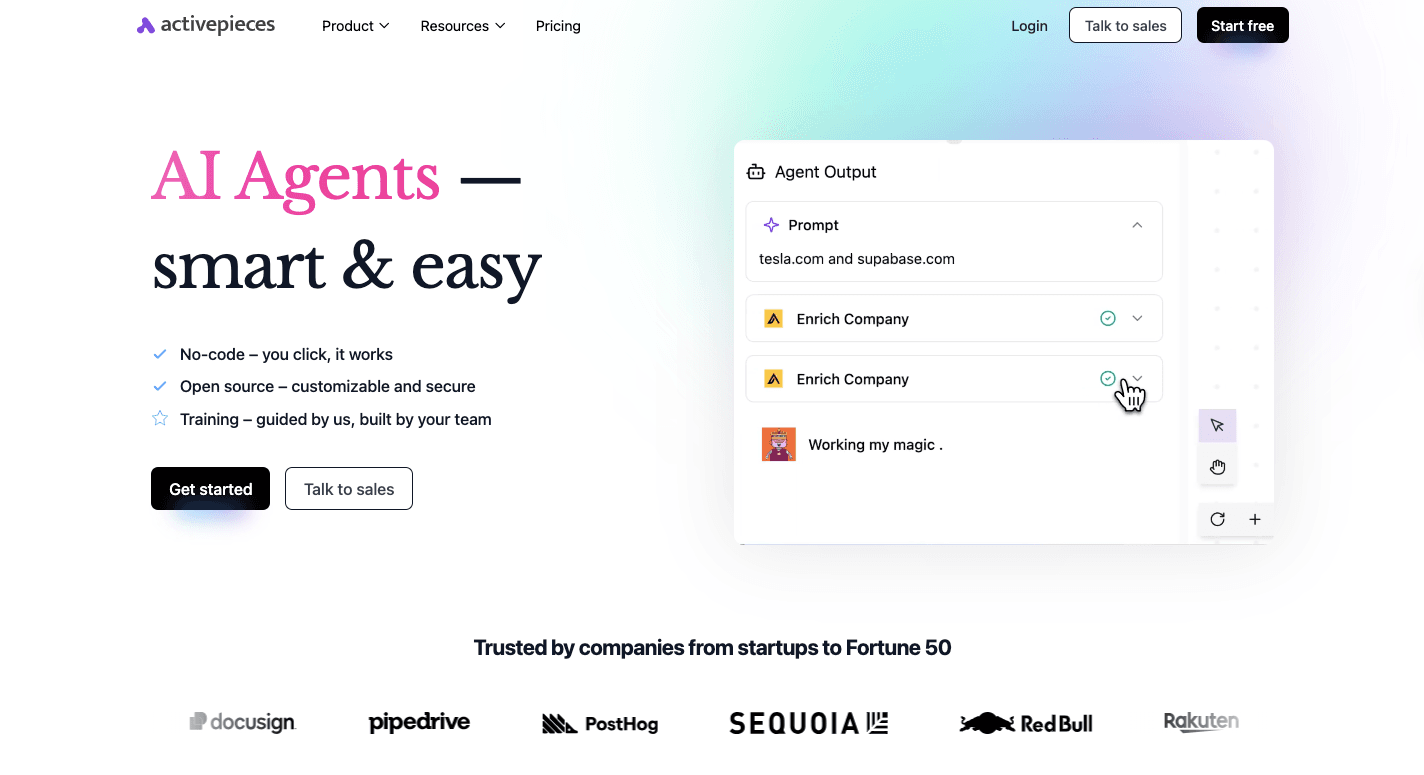
Activepieces is an open-source automation platform for teams that want to save time and cut manual work. It gives everyone the ability to create workflows that connect apps, automate business operations, and improve team efficiency.
You don't need technical knowledge to get started, but developers can still customize it deeply. The visual builder lets you connect apps you use to run routine work, such as employee onboarding or reporting.
Since it's open source, Activepieces grows with you. It already supports more than 450 data integrations, called "pieces," that cover everything from AI tools to CRMs.
In short, it fits both small startups and enterprise-level teams looking for customizable workflows that scale.
Why Activepieces Is Different
Activepieces combines a simple design with serious automation power. Here's what makes it stand out:
Visual Workflow Builder for Everyone
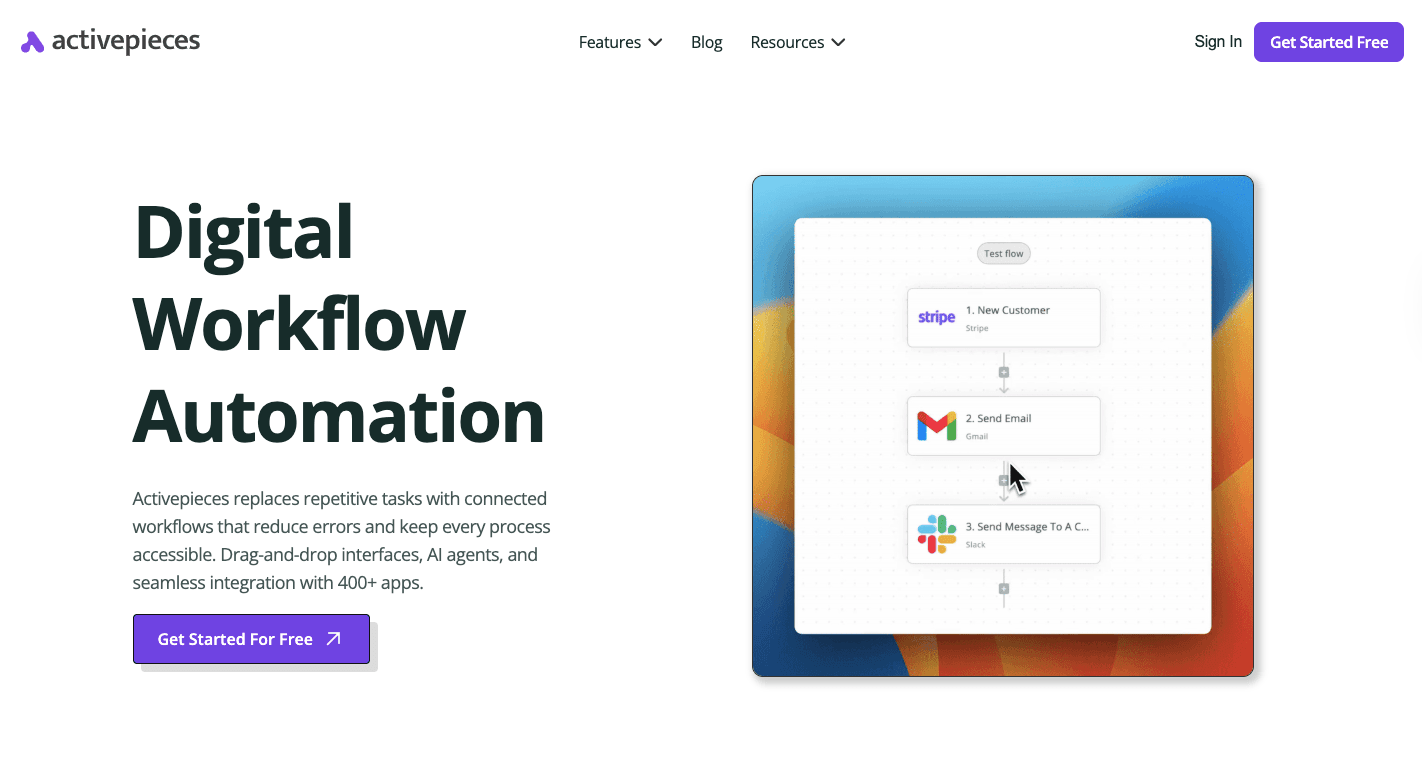
Activepieces has a visual builder that helps you build automations without writing a single line of code. You drag and drop pre-built components, called "pieces," onto a blank canvas to form your workflow.
Each workflow starts with a trigger, such as receiving an email or adding a new spreadsheet entry.
You can also add logic, like branches or loops, to make the workflow respond differently depending on the data. AI steps let you summarize, organize, or process information automatically.
If human input is needed, you can insert approval steps to review or adjust actions before they continue. Everything appears visually on the canvas, so your teams can collaborate and see how each part fits together.
Extensive Integration Ecosystem
As of now, Activepieces supports 450 pre-built integrations that connect your favorite tools into one automated system. This number keeps growing every month through community contributions.
Integrations acts as a connector between apps, which lets you move data, start actions, and automate processes in real time.
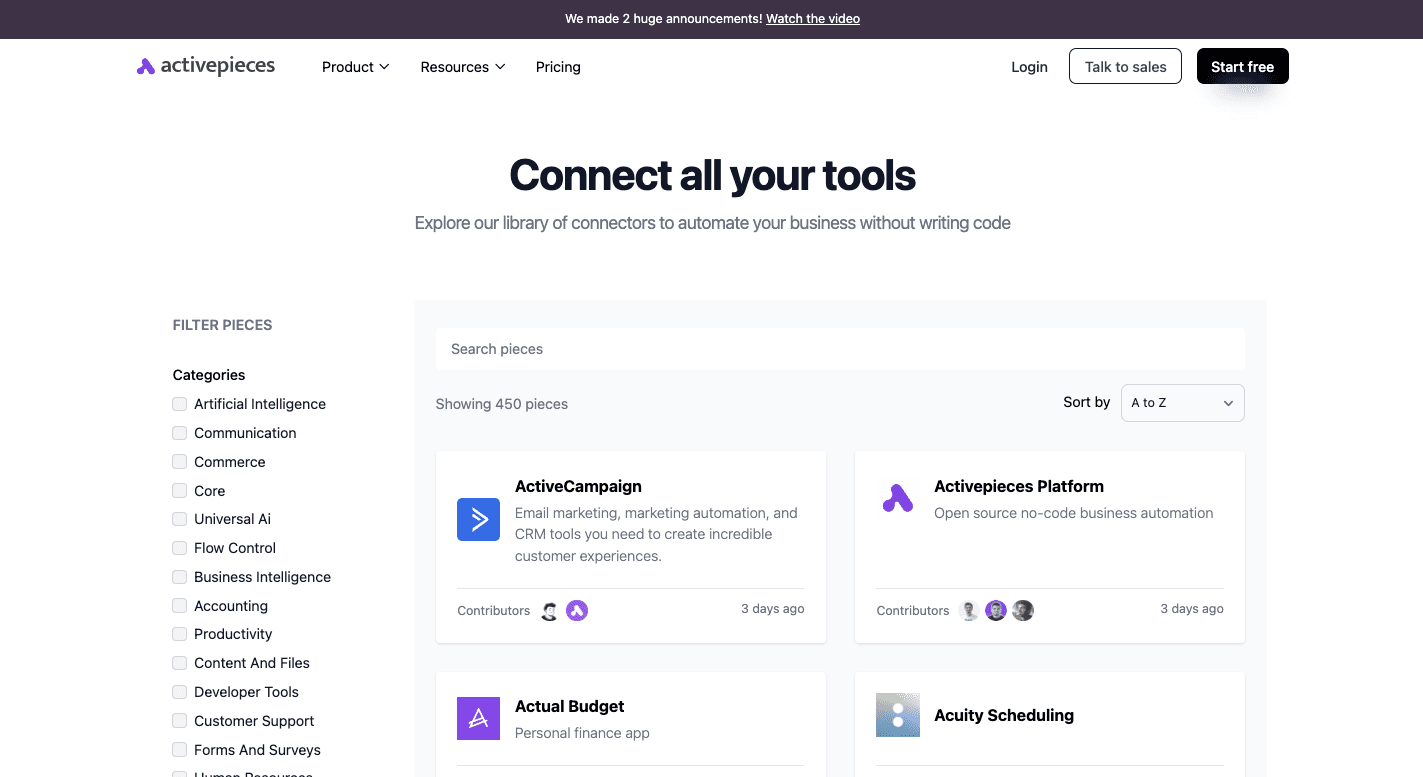
Some of the most popular integrations include:
- OpenAI
- HubSpot
- Google Sheets
- Webhook
- Slack
- ClickUp
- HTTP
- WooCommerce
- Microsoft Dynamics
- WordPress
- ActiveCampaign
- Microsoft Power BI
These integrations are built directly into the platform rather than relying on third-party tools, which makes automations faster and more reliable.
Security and Data Controls
For security and control, Activepieces gives you:
- Role-based access control (RBAC) - You can assign roles and set specific permissions for each user.
- Single sign-on (SSO) - You can log in with one secure set of credentials, which makes it easier to access the platform and reduces password fatigue.
- Audit logs - Every action and system change is tracked. The logs help teams maintain accountability and spot potential security issues early.
- Password policy enforcement - Activepieces uses strong password rules and stores only hashed passwords for added safety.
- Privacy and data regions - The cloud version is currently hosted in Germany, and as a self-hosted user, you can choose your own region for complete control over data.
Pricing
Activepieces' Free plan gives you 1,000 tasks each month, two active flows, and 200 AI credits. The Plus plan costs $25 per month and includes unlimited tasks, more than ten active flows, AI agents, and email support.
On the other hand, the Business plan costs $150 per month and provides 50 active flows, API access, 1,000 AI credits, and five user seats. For large companies, the Enterprise plan comes with custom pricing, dedicated support, and extra enterprise features.
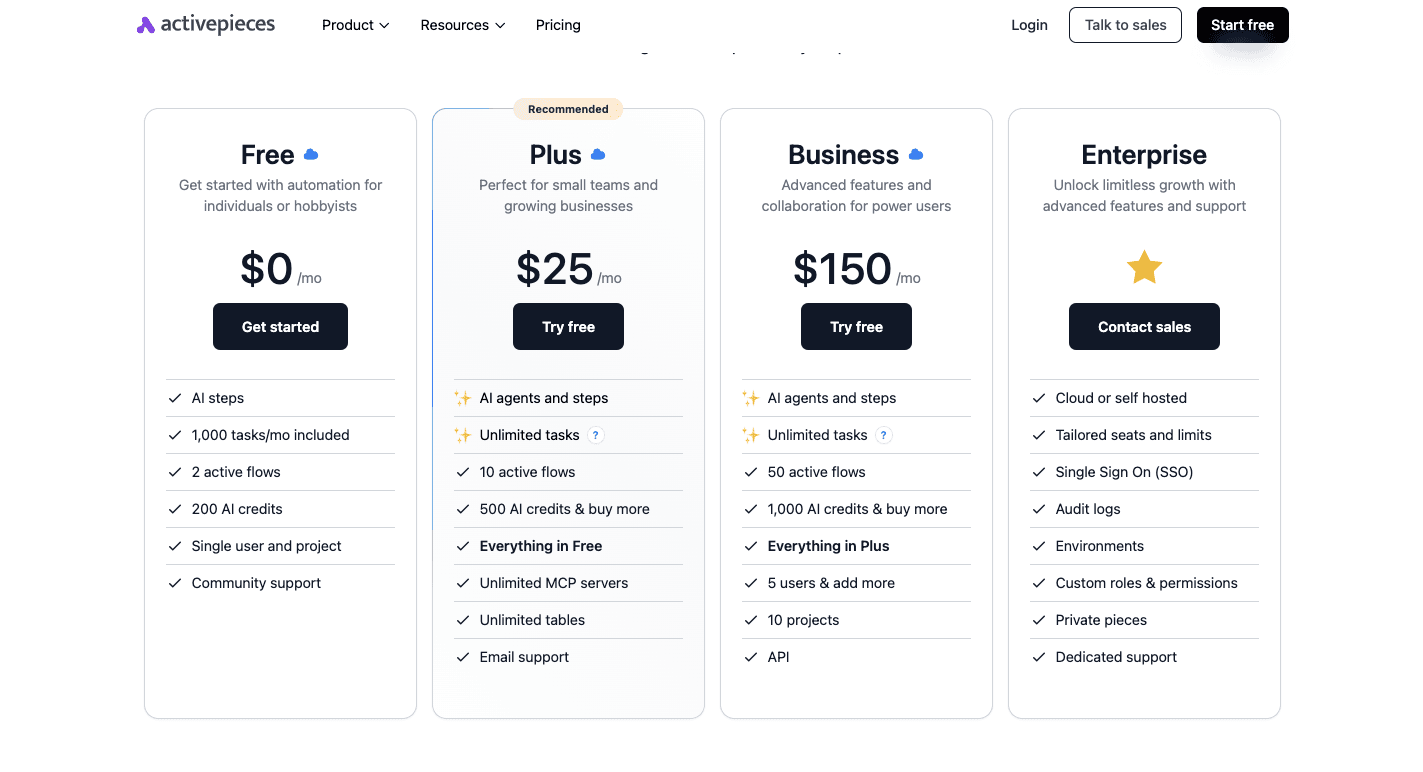
There's also a Community Edition, which is free to self-host. It removes task limits, gives full control of your data, and is perfect when you want a fully customizable setup without depending on external servers.
2. Zapier
Zapier is for teams that want to optimize processes and create automated workflows without coding. It follows a simple logic: when one event happens, another task runs automatically.
Each Zapier automation, known as a "Zap," begins with a trigger and ends with one or more actions. For example, when a new lead fills out a form, Zapier can add them to your CRM, send a confirmation email, and post an update in Slack.
It simplifies building workflows by letting users design them in a few clicks. The platform focuses on reducing manual effort so you can focus on more strategic work.
With multi-step Zaps, conditional logic, and AI features, Zapier supports both small businesses and enterprise teams that need flexibility.
Automation Capabilities
Zapier offers automation tools designed to simplify day-to-day business processes.
- Triggers and actions - Every Zap starts with an event (trigger) and performs tasks (actions) automatically.
- Multi-step zaps - Create workflows with several steps, which allows one action to lead into another seamlessly.
- Filters - Set conditions so workflows only run when certain criteria are met.
- Paths - Add "if/then" logic to make Zaps react differently depending on data input.
- AI tools - Use built-in AI to analyze data, make suggestions, or write responses automatically.
- Formatter - Adjust text, dates, or numbers inside a workflow before sending data to another app.
- Webhooks - Connect custom or unsupported apps directly to Zapier's network.
- Delays and scheduling - Pause tasks or run them at specific times for more control.
Advantages
- Connects over 8,000 apps with minimal setup
- No coding needed for automation
- Large library of pre-built templates
Disadvantages
- Task-based pricing can increase with volume
- The free plan is limited to simple two-step automations
- Occasional delays in task execution
Pricing
Zapier's Free plan includes 100 tasks per month for one user, with Zaps running every 15 minutes. The Professional plan costs $29.99 per month for 750 tasks and includes multi-step workflows and faster updates.
For $103.50 per month, the Team plan has 2,000 tasks and adds shared workspaces and user management. The Enterprise plan is custom-priced and includes advanced admin controls, audit logs, and priority support for large organizations.
Learn more here: Zapier Pricing Breakdown: Is It Still Worth It In 2025?
3. Make (formerly Integromat)
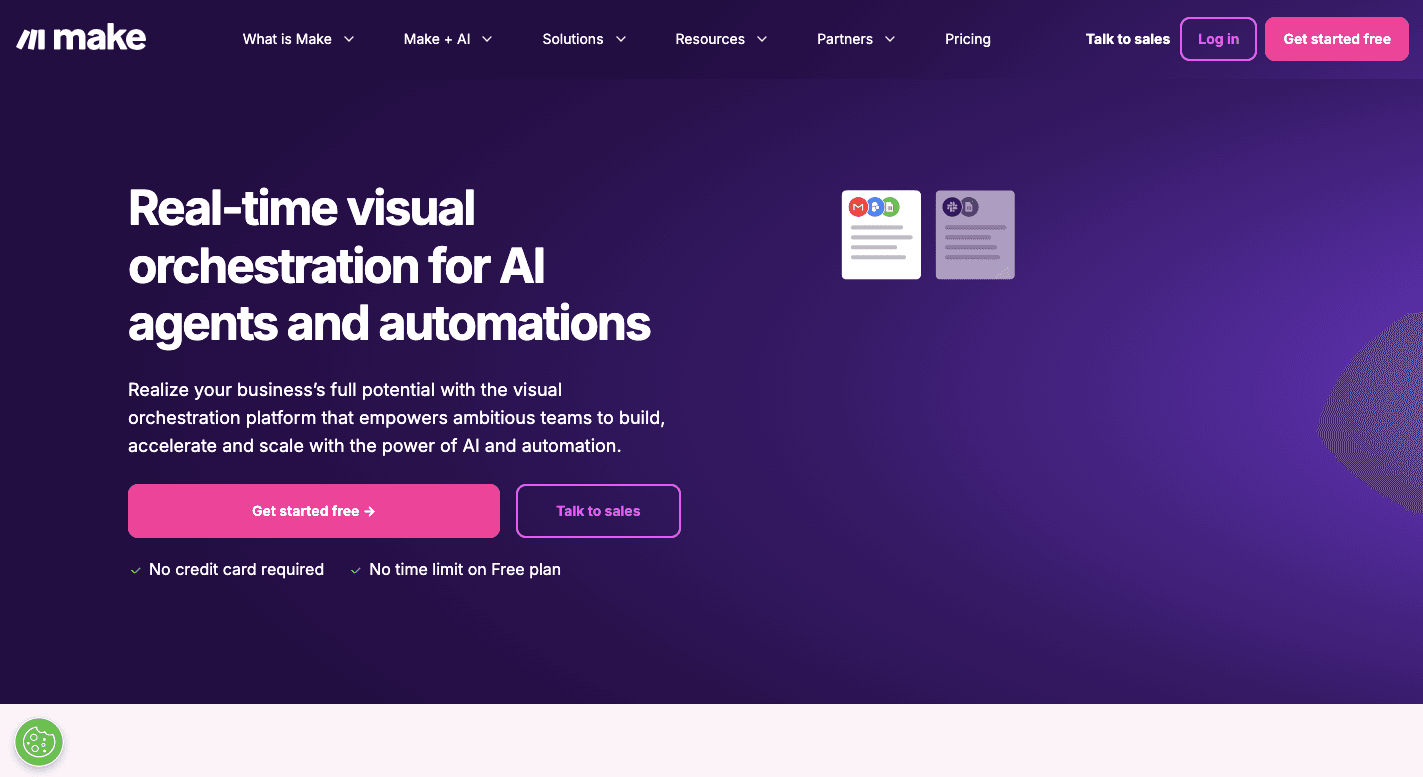
Make, formerly known as Integromat, gives you a visual way to connect your apps and automate tasks. You design automations by dragging and linking modules on a canvas.
Each workflow, or "scenario," shows exactly how information moves, from trigger to action. You can build a complex workflow system that includes multiple paths, loops, or conditions.
It also helps with document management, pulling files, syncing folders, or updating shared drives automatically. With its ability to connect APIs, Make easily replaces legacy systems that can't keep up with modern automation.
Automation Capabilities
Make includes a broad set of features for detailed, customizable automation.
- Visual scenario builder - Design automations by dragging apps onto a shared canvas.
- Routers and branching logic - Let workflows split into multiple paths based on conditions.
- Advanced data handling - Format and clean information as it moves between apps.
- API and Webhook access - Link with almost any public or private app.
- Data stores - Store and retrieve information inside Make without external databases.
- Error handling - Track failed runs and create fallback paths.
- AI-powered tools - Add intelligence for sorting or categorizing data.
- Parallel processing - Run several actions at once to speed up automation.
- Team collaboration - Manage permissions, roles, and shared automations.
- Enterprise security - Use role-based access and SSO for better control.
Advantages
- Clear visual editor makes complex automations easy to manage
- Supports advanced logic and branching workflows
- Costs less than many competitors for heavy automation
Disadvantages
- It can feel complex for beginners
- Takes longer to set up new workflows
- Support response times can be inconsistent
Pricing
Make's Free plan includes 1,000 credits each month, access to over 2,000 apps, and automations that run every 15 minutes. For teams ready to expand, the Core plan costs $10.59 per month and adds unlimited active scenarios and API access.
Those needing more control often upgrade to the Pro plan at $18.82 per month, which includes priority execution, full-text log search, and custom variables. Collaboration-heavy teams usually go for the Teams plan, priced at $34.12 per month.
4. n8n
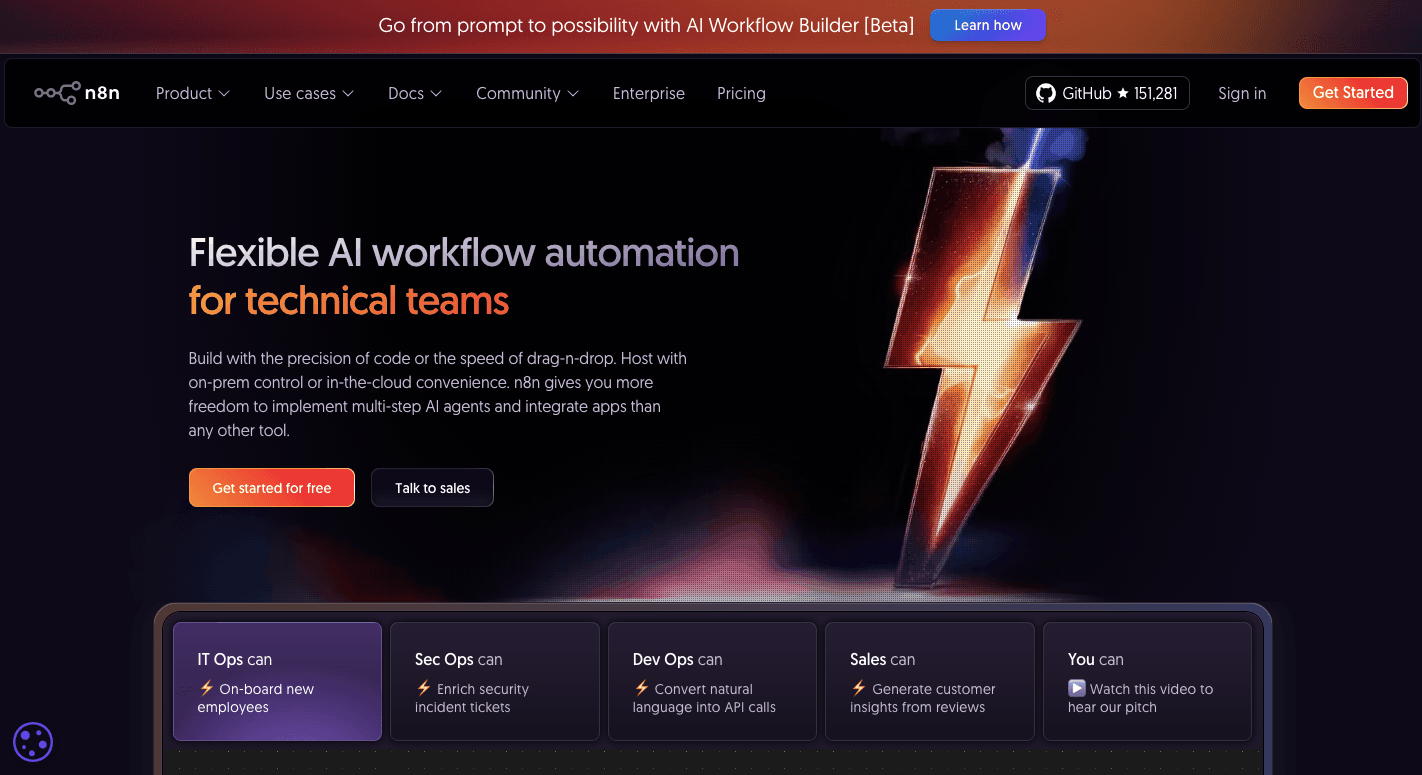
n8n is an open-source workflow automation tool for teams that want more control over their systems. It connects apps and services to automate repetitive tasks without writing code.
The setup is visual and uses a node-based editor where each node performs a specific action. You can drag nodes together to build efficient workflows that move data between tools like Slack, Google Sheets, or internal CRMs.
You can further host it yourself for privacy and compliance or use the managed cloud version. That makes it easier for you to move away from legacy systems to build automation that fits your structure.
Each process is built step by step, from a trigger that starts the flow to actions that complete it. The system's precision helps you avoid manual errors and saves hours by reducing manual effort across projects.
Since it's open-source, you're free to adjust, extend, and fine-tune how your workflows run.
Automation Capabilities
n8n gives you detailed control over every automation you build with these features:
- Node-based builder - Connect visual nodes to plan and run automations.
- Triggers and actions - Start from any event and automate multiple steps.
- Logic controls - Add loops, branches, and conditions for smarter actions.
- Multi-step workflows - Combine many steps to automate full business operations.
- Self-hosting - Keep workflows secure inside your own system.
- Data tools - Clean and transform data between steps for better accuracy.
- AI support - Add AI for predictions, content creation, or decision logic.
- Webhooks and APIs - Connect private apps or databases directly.
- Change tracking - View version history and monitor workflow activity.
- Live monitoring - See task progress and errors in real time.
Advantages
- Full data control with self-hosting options
- Open-source and free from vendor limits
- Strong privacy and compliance control
Disadvantages
- Takes time to learn for non-technical users
- Limited number of templates to start with
- Updates on self-hosted versions can break flows
Pricing
n8n has both free and cloud-based plans. The Starter plan costs $24 per month and covers 2,500 executions with one shared project. Moving up, the Pro plan costs $60 per month for 10,000 executions, adding workflow history, admin roles, and extra concurrency.
For growing teams, the Business plan costs $800 per month, and it includes enterprise options like SSO, Git version control, and multiple environments. The Enterprise plan is custom-priced.
Project and Task Management Tools
These task and project management tools are primarily focused on helping you organize, track, and manage projects and individual tasks.
5. ProofHub
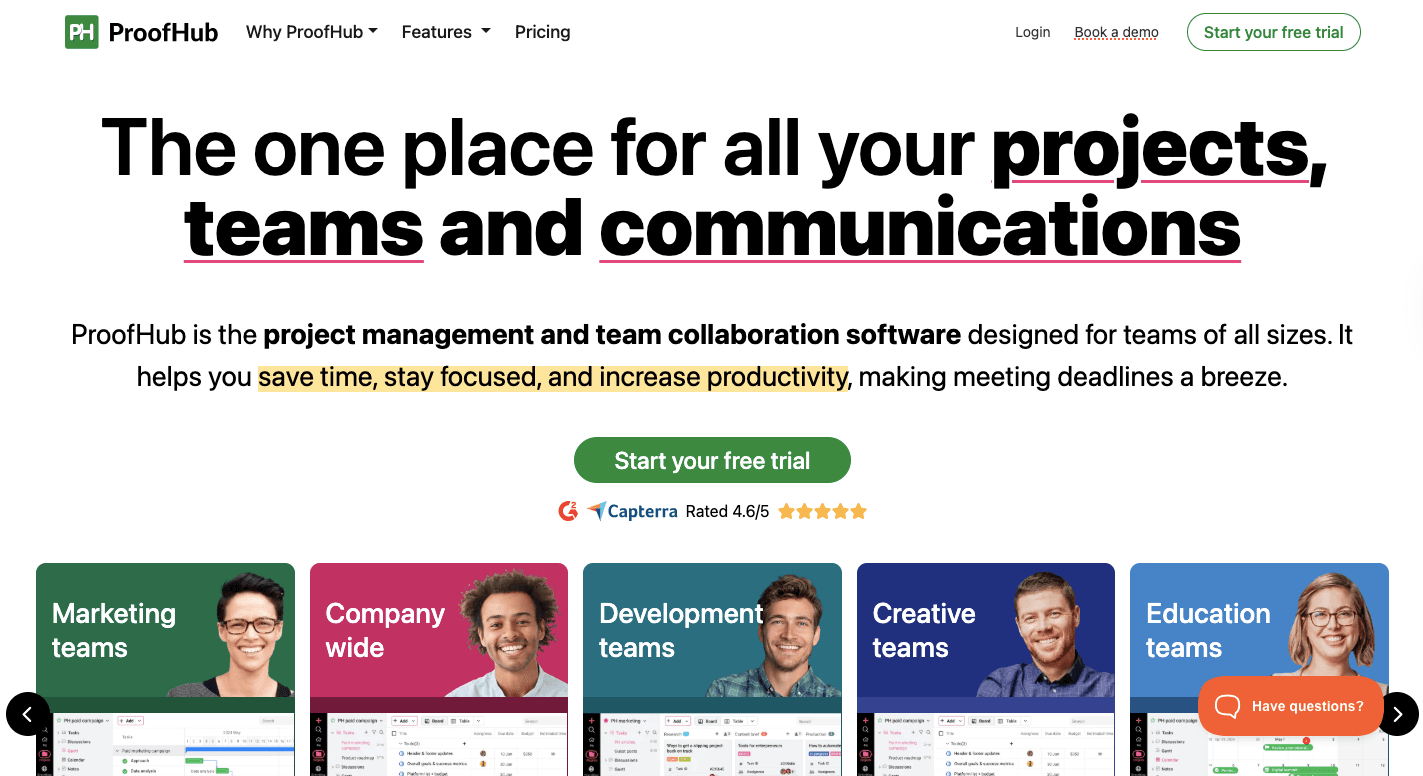
ProofHub is not a traditional automation platform, but a workflow system that organizes communication, scheduling, and reporting. Everything from task management to chat happens in one dashboard.
Many project managers use ProofHub to run daily operations, track progress, and cut down on confusion between departments. Tasks are organized into projects, which can include lists, dependencies, and timelines.
Besides that, you can visualize progress using Kanban boards, tables, or Gantt charts. The platform also handles document management with built-in proofing tools.
Whether managing marketing campaigns or product builds, ProofHub helps you stay aligned, track results, and gain insights from project data to refine how work gets done.
Automation Capabilities
ProofHub simplifies coordination and removes repetitive steps from everyday work.
- Custom workflows - Define specific stages, automate task transitions, and set custom statuses.
- Recurring tasks - Automatically recreate weekly or monthly assignments without manual setup.
- Gantt charts - Adjust timelines automatically when dependent tasks move.
- Task templates - Save setups for projects you repeat often.
- Automated notifications - Send instant updates about progress or new assignments.
- Reporting tools - Generate real-time data on workloads and deadlines.
- Approval workflows - Route content or requests for quick sign-off.
- Role-based permissions - Control who can view, edit, or approve work.
- AI and analytics - Track project metrics and identify workflow gaps.
- Integration support - Connect to third-party platforms to sync data and activity.
Advantages
- Combines chat, tasks, and reporting in one place
- Easy-to-learn interface
- Built-in proofing for design and creative teams
Disadvantages
- Too many notifications based on some reviews from users
- Limited integrations with external apps
- Reporting lacks detailed export options
Pricing
ProofHub's Essential plan costs $50 per month and supports unlimited users, up to 40 projects, and 15GB of storage. It includes Gantt charts, discussions, notes, and file sharing.
Teams that need more freedom can choose the Ultimate Control plan, which costs $99 per month and removes all project limits. It adds advanced tools like custom roles, workflows, white-labeling, API access, and 100GB of storage.
6. Asana
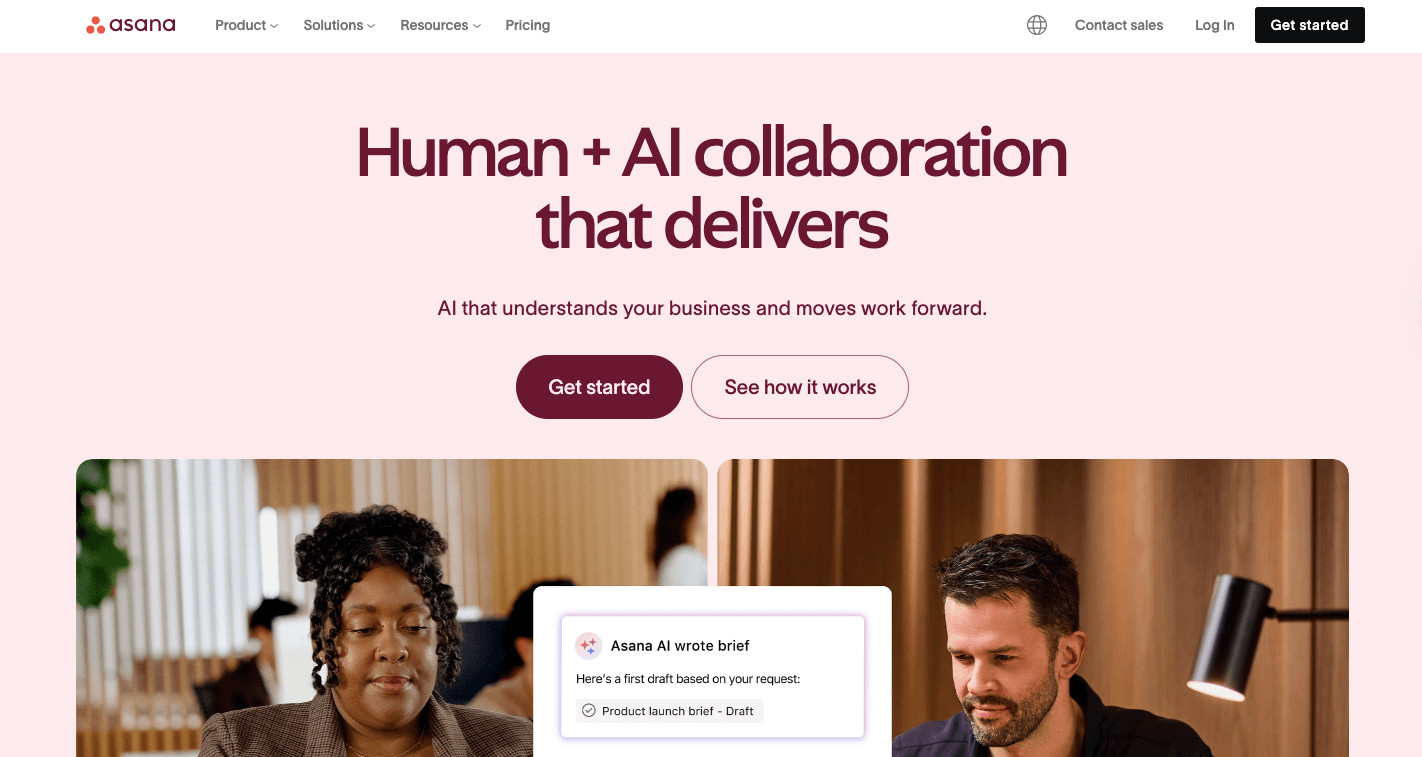
Asana brings your teams together on one centralized platform where they can plan, organize, and track every part of their work. It goes beyond simple task lists by giving you the tools to create workflows that connect strategy with daily execution.
Every project, from marketing campaigns to software releases, can be tracked in one space with goals, milestones, and real-time updates that improve workplace productivity. It divides your work into layers: organizations, teams, projects, and tasks.
Within each project, you can add tasks, subtasks, and dependencies, so you can see progress and remove bottlenecks early. It supports multiple views like Kanban boards, timelines, and calendars as well, which lets you plan and adjust based on your style.
Asana's Rules feature lets you set up actions such as assigning work, changing task status, or sending alerts when conditions are met. You can also use forms to standardize task requests and templates for repeat projects.
Automation Capabilities
Asana includes advanced features for smoother task completion:
- Rules and triggers - Automate actions like assigning tasks or updating statuses.
- Workflow builder - Visually connect steps to design structured automations.
- Forms and templates - Standardize how projects start and capture key details automatically.
- AI-powered tools - Use AI Studio to create task rules or generate project summaries.
- Conditional approvals - Route requests or documents to the right person based on rules.
- Integrations - Connect with over 300 apps, including Slack, Google Workspace, and Salesforce.
- Portfolios and goals - Monitor high-level initiatives across departments.
- Workload view - Track your team capacity and redistribute assignments.
- Real-time analytics feature - Follow project performance and deadlines at a glance.
- Mobile access - Manage work anywhere through updated mobile apps.
Advantages
- AI features improve your forecasting and reporting
- Multiple project views fit different team styles
- Offers integrations for connected workflows
Disadvantages
- It adheres to the "Directly Responsible Individual" (DRI), so only one assignee is allowed per task
- Time tracking is limited to higher plans
- It sends excessive email notifications as it covers a wide range of tasks
Pricing
Asana's Personal plan is free forever and covers up to 10 teammates with unlimited tasks, projects, and file storage. For growing teams, the Starter plan costs $13.49 per month and unlocks features like AI Studio, timeline view, project dashboards, advanced reporting, and unlimited automations.
Larger organizations often choose the Advanced plan, which costs $30.49 per month. The Enterprise plan offers custom pricing for companies needing enhanced security, governance, and dedicated support.
7. ClickUp
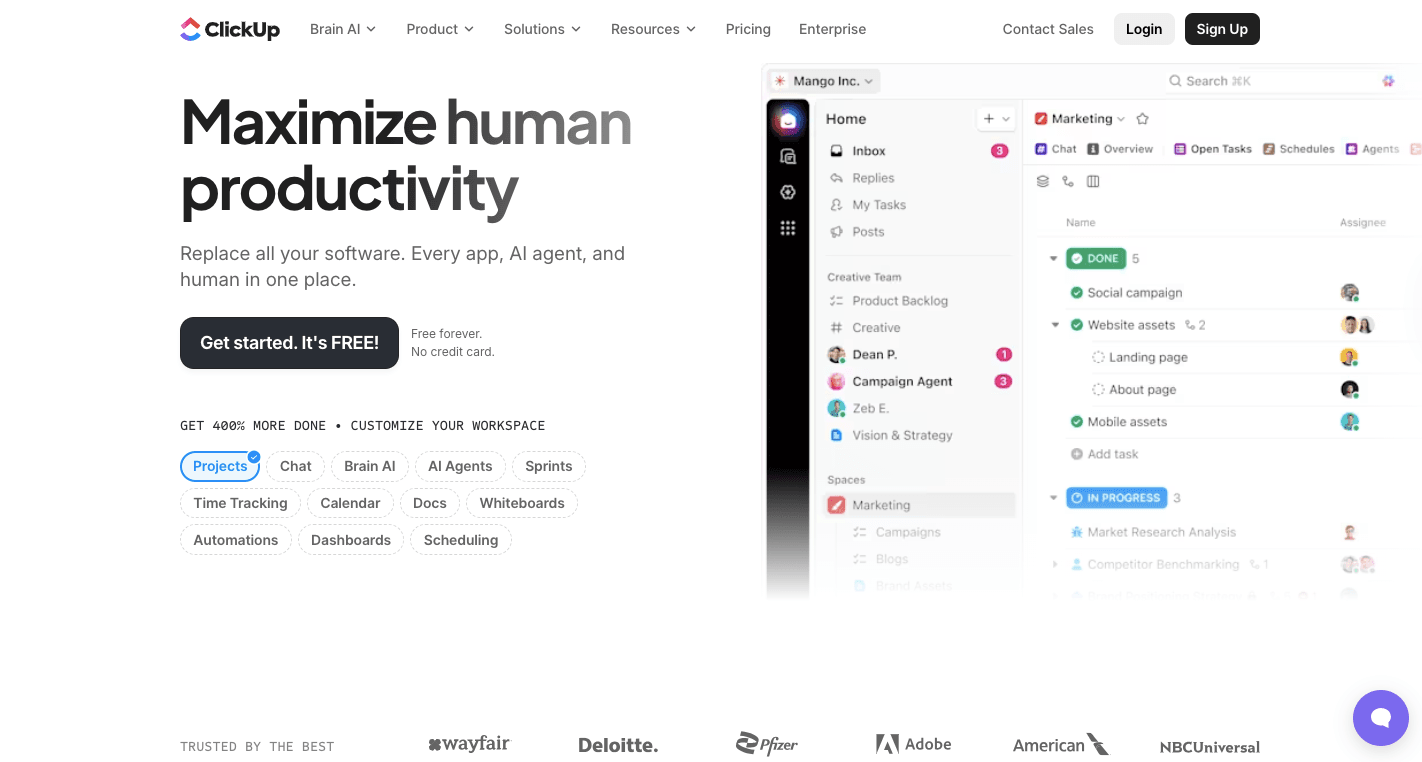
ClickUp is for teams that want streamlined workflows without bouncing between apps. Everything, from brainstorming ideas to tracking deadlines, happens inside a single workspace.
It organizes your work through a hierarchy: workspaces hold your organization, spaces represent departments, and folders group related projects.
To organize and track progress, ClickUp offers lists and tasks. With over 15 ways to view work, including List, Board, Calendar, and Gantt, you can customize how you see your projects.
ClickUp's automation engine further lets you manage multiple task assignments, schedule updates, or shift deadlines automatically. Then "ClickUp Brain" turns natural-language prompts into working automations.
By minimizing manual effort and catching small issues early, ClickUp reduces human error and keeps tasks moving smoothly. There's also a feature that lets your team comment, share files, and collaborate in real time, improving transparency and accountability across the board.
Automation Capabilities
ClickUp focuses on creating an environment where automation supports every stage of work.
- Visual builder - Design and adjust workflows using an easy drag-and-drop layout.
- Custom automations - Build rules that trigger task creation, updates, or reminders.
- ClickUp Brain - Use AI prompts to generate automations or summarize task updates.
- Forms and intake - Collect requests that automatically become new tasks.
- Recurring tasks - Schedule tasks to repeat at set intervals for ongoing work.
- Integrations - Sync with CRMs, chat tools, or cloud storage for smoother collaboration.
- Alerts and notifications - Keep everyone informed when key milestones are reached.
- Human-in-the-loop checkpoints - Add review steps for approvals before moving forward.
- Custom fields and templates - Save common setups for repeated use.
- Cross-platform sync - Connect projects across apps to maintain data consistency.
Advantages
- Highly customizable for any workflow
- Combines task management, documents, and chat
- Offers AI features for automation and summaries
Disadvantages
- Takes time to learn due to the many features
- Performance can lag on large projects
- The mobile app is less polished than the desktop version
Pricing
ClickUp offers Free Forever, which includes 60MB of storage, unlimited tasks, collaborative docs, Kanban boards, and sprint management. Teams needing more power can upgrade to the Unlimited plan, which costs $10 per user each month and includes unlimited storage, integrations, and Gantt charts.
Growing companies often prefer the Business plan, priced at $19 per user each month, which adds workload management, automation integrations, and private whiteboards. There's also the Enterprise plan, which offers custom pricing and dedicated support.
8. Monday.com
Monday.com is a cloud-based platform that brings structure and visibility to everyday business operations. It helps teams manage tasks, projects, and strategic initiatives.
Typically, your work is organized into boards, groups, and items (tasks). Each column on a board tracks different data, such as status, dates, priorities, or ownership.
You can customize layouts, add integrations, or switch to Gantt, Kanban, or calendar views to see progress from any angle. Dashboards then pull data from across the workspace so you can see workloads, budgets, and results all at once.
With simple "if this, then that" logic, you can trigger task automation for updates, reminders, and status changes. Automations help with assigning tasks, syncing updates, or sending alerts to keep everyone informed.
Automation Capabilities
Monday.com focuses on cutting repetitive work and keeping teams aligned.
- Automated rules - Trigger updates, reminders, or status changes automatically.
- Integrations - Connect with Gmail, Slack, or CRM tools to create connected workflows.
- Custom notifications - Alert team members instantly when priorities shift.
- Recurring tasks - Schedule items to repeat daily, weekly, or monthly.
- AI features - Use built-in AI tools for text summaries, translations, or task suggestions.
- Dashboards - Track real-time progress and key performance metrics.
- Workload view - Balance team responsibilities and prevent burnout.
- No-code automation builder - Design logic flows without coding.
- Forms to boards - Automatically create new items from form submissions.
- Data-driven insights - Turn activity data into actionable metrics.
Advantages
- Clean, colorful, and easy-to-use interface
- Strong automation and integration options
- Customizable dashboards for tracking project progress
Disadvantages
- Takes time to master complex features
- The mobile version isn't as responsive as the desktop version
- All discussions are tied directly to an item within a board, since it has no built-in live chat
Pricing
Monday.com's Free plan supports two users and up to three boards. The Basic plan costs $12 per seat each month with unlimited items, 5GB of file storage, and dashboards built from one board.
Growing teams often pick the Standard plan, priced at $14 per seat monthly, which adds Gantt charts, calendar view, automations, and integrations. For advanced reporting and time tracking, the Pro plan costs $24 per seat monthly and includes up to 25,000 automation actions.
The Enterprise plan, which offers custom pricing, comes with advanced reporting, multi-level permissions, and enterprise-scale automations.
Address Your Business Needs by Upgrading Your Workflow Tool With Activepieces
While we can talk all day about the power of workflow management software, nothing beats a real-world success story. Take Funding Societies, a leading fintech powerhouse, for example.
They faced the classic challenge: a need to automate countless routine tasks to truly scale, but their engineering team was already at capacity with high-impact projects.
Funding Societies needed workflow software that could boost efficiency for everyone without sacrificing control or security. After a thorough search for an automation tool that offered a user-friendly interface and deep technical flexibility, they found Activepieces.
The result?
Funding Societies successfully implemented over 100 process automation flows that save an entire quarter's worth of collective team time.
Ready to dive deeper into their incredible transformation? You can read the full success story and discover all the details right here: Entire Quarter of Time Saved: Funding Societies' Success Story with Activepieces
FAQs About Workflow Management Software
Does Microsoft have a workflow management tool?
Yes. Microsoft offers Power Automate, a workflow management system that helps teams design repeatable workflows and automate routine steps across its apps like Teams, Outlook, and SharePoint.
It includes automation rules for approvals, data transfers, and automated notifications, supporting both small tasks and large-scale business processes management. You can also access detailed reports that provide actionable insights into workflow performance.
What are examples of workflow management tools?
Examples include Activepieces, Zapier, n8n, Make (formerly Integromat), Asana, ClickUp, and Monday.com. Each helps teams automate daily operations, improve collaboration, and reduce manual work through built-in logic, integrations, and workflow management features.
What is a workflow management system?
A workflow management system is software that organizes, automates, and monitors processes within an organization. It helps teams move tasks efficiently from start to finish, applying automation rules to cut down manual work and track results in real time.
Does Salesforce have a workflow management tool?
Yes. Salesforce includes Flow Builder, which lets users create workflow automation for sales, service, and marketing processes. It automates approvals, updates records, and sends automated notifications based on triggers, supporting both basic and advanced process automation.